How to Use Vidu Q4 and Nano Banana 2.1 for AI Video Creation
A good AI video often starts with a strong image. Nano Banana 2.1 can create detailed characters, products, backgrounds, and keyframes. Vidu Q4 can then animate those visuals with motion, dialogue, sound, and camera changes. Used together, they offer a practical workflow for social media, product ads, short films, and branded content.
This guide explains how to use Nano Banana 2.1 with Vidu Q4 together on Pollo AI to create clear and consistent videos.
Why Use Nano Banana 2.1 With Vidu Q4?
Image and video models solve different parts of the creative process.
Nano Banana 2.1 offers up to 4K image output and can blend as many as 14 reference images. It also provides improved text rendering, layout accuracy, composition, and realism. Its Flash-class speed makes it useful for testing different visual directions.
Vidu Q4 supports image-to-video generation with synchronized audio. It can use up to 15 image references and three audio references. The model also handles character acting, lip sync, shot transitions, and scene-based visual effects.
Step 1: Define a Simple Video Concept
Start by deciding what the video needs to communicate. Do not begin with a long prompt that includes several unrelated ideas.
A useful plan should answer four questions:
- Who or what is the main subject?
- Where does the scene take place?
- What happens during the clip?
- What should viewers understand or do next?
For example, a skincare ad could show a person picking up a serum bottle, applying one drop, and smiling at the camera. The final frame could display the product and a short call to action.
Vidu Q4 clips can last up to 16 seconds, so keep the action focused. If your story is more complex, divide it into several scenes.
Step 2: Create the Main Visual in Nano Banana 2.1
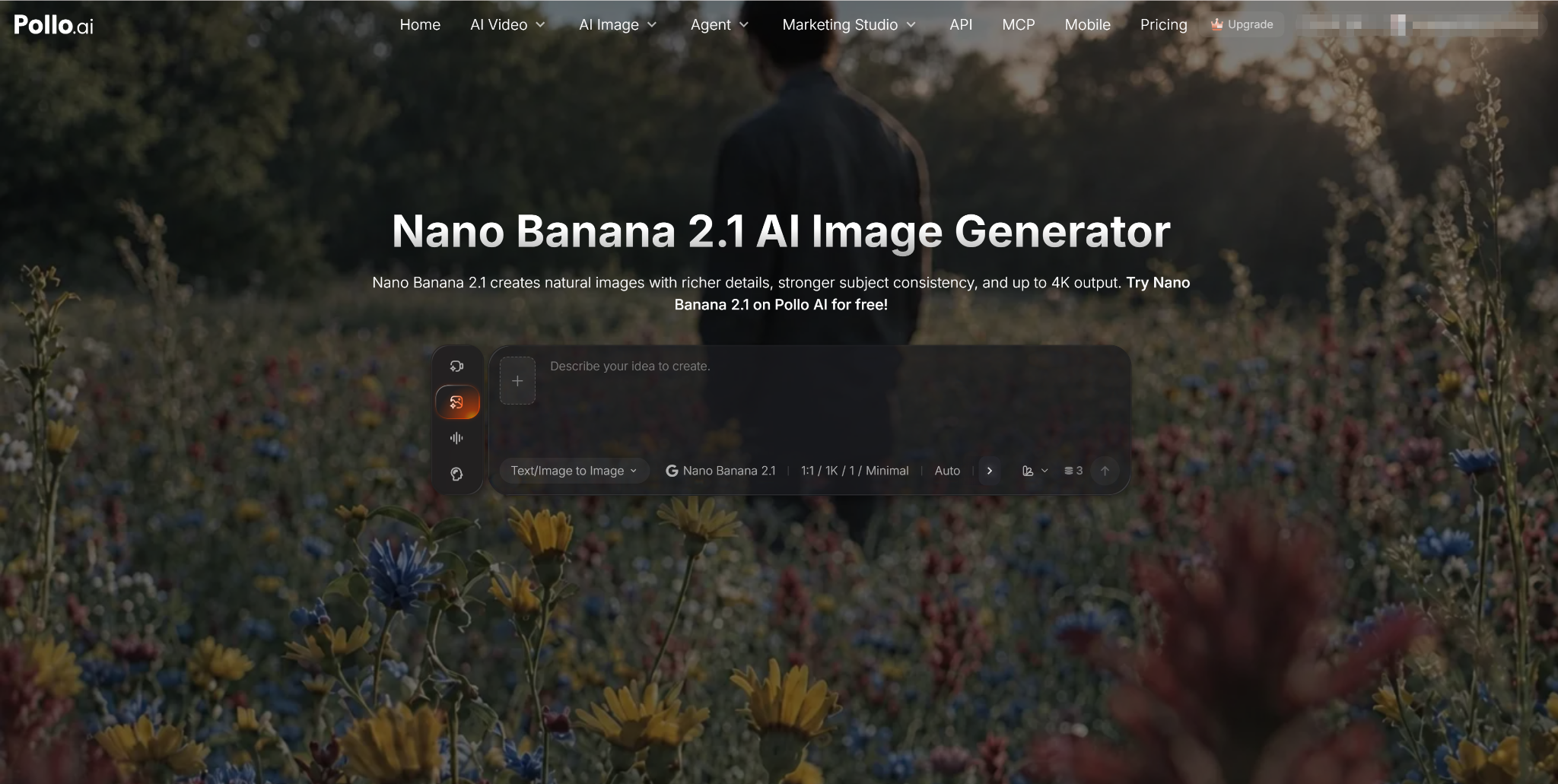
Open https://pollo.ai/im/nano-banana-2-1 to access Nano Banana 2.1 on Pollo AI. Describe the first frame, including the subject, environment, composition, lighting, camera angle, and visual style.
Here is a basic product prompt:
A premium glass skincare bottle on a light stone counter, soft morning sunlight from the left, green leaves in the background, realistic commercial photography, close-up shot, natural shadows, clean composition, 16:9.
Keep the prompt specific but readable. You do not need a long list of decorative terms. Clear instructions usually make revisions easier.
Nano Banana 2.1 produces more natural images with richer details than its previous version. Still, inspect small features carefully. Check faces, hands, product shapes, reflections, labels, and background objects before moving forward.
Step 3: Use References to Improve Consistency
Reference images are useful when your video must follow an existing design. You might upload photos of a product, a character, an outfit, a location, or a brand color palette.
Nano Banana 2.1 can combine up to 14 references. This can help you build coordinated campaign assets while preserving important character and object details.
Generate a few options and select the image that best captures the core identity. This chosen image will become the visual foundation for your Vidu Q4 video.
Step 4: Prepare Text and Layouts Carefully
Nano Banana 2.1 offers clearer text and more accurate layouts. This is helpful for posters, title cards, product ads, and infographic-style scenes.
However, avoid placing too much written information inside the source image. Long text can be difficult to read once the image starts moving. A short headline, product name, or price is usually enough.
If the exact wording is important, consider adding it during final editing. This gives you more control over spelling, timing, placement, and brand fonts.
For wide website banners or cinematic scenes, Nano Banana 2.1 can generate ultrawide images at up to 4K. Its improved handling of wide compositions also reduces unwanted repeated or tiled elements.
Step 5: Animate the Image With Vidu Q4
Upload your finished image to Vidu Q4. Then describe the motion you want to see.
A useful motion prompt might be:
The camera slowly moves toward the bottle. Sunlight shifts gently across the glass. The leaves move slightly in a soft breeze. Keep the bottle label and shape unchanged. Natural commercial style.
Focus on actions rather than repeating the full visual description. The source image already defines the appearance. Your prompt should explain what moves, how fast it moves, and how the camera behaves. For character scenes, describe facial expressions and body language.
Step 6: Add Voice and Synchronized Audio
Vidu Q4 can generate audio alongside the video. This makes it useful for dialogue, character content, product scenes, and short narrative clips.
You can provide up to three audio references to guide voices and emotional delivery. Voice cloning may help a recurring character maintain the same vocal identity across scenes.
Vidu Q4 also supports lip sync and expressive acting. For better results, state who is speaking and describe the intended tone, such as friendly, calm, excited, or concerned.
Step 7: Direct Camera Changes and Effects
Vidu Q4 can create action-aware transitions between close-ups and wider shots. These changes can reveal a location, show a product detail, or highlight a character’s reaction.
Avoid requesting too many camera moves in one short clip. One or two clear changes are often enough. Constant movement can make a product video difficult to follow.
The model can also integrate smoke, particles, explosions, light, dust, and debris into a scene. These effects are useful for fantasy content, action anime, game promotions, and dramatic product reveals. Use them only when they support the idea.
Nano Banana 2.1 and Vidu Q4 create a clear two-stage workflow. Use Nano Banana 2.1 on Pollo AI to design consistent, detailed source images. Then use Vidu Q4 to add character performance, camera motion, audio, and effects.
The key is to work in small steps. Build the visual identity first, test simple movement, and review every output. This approach saves time and produces more reliable AI videos than trying to generate a complete campaign from one oversized prompt.
Join The Discussion: