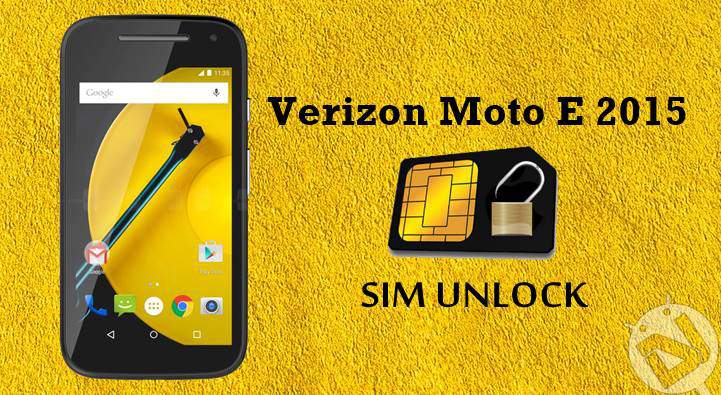
Moto E has been a great success in the budget limited markets and its success encouraged Motorola to launch the second-generation Moto E device with improved hardware at almost the same price. In fact, Motorola has struck us with surprise by launching a 4G LTE variant of the Moto E 2015 giving the local manufacturers a run for the money. However, Motorola didn’t dump the 3G variant of the device and launched them in select markets.
The new Moto E 2015 has a 4.5-inch IPS display, Qualcomm Snapdragon 200/410 processor, 1GB RAM, 8GB storage and microSD slot expandable to 32GB, 5 MP rear, and a front VGA camera and a 2390 mAh battery. On the software end, the device comes with the latest Android Lollipop out-of-the-box and a trusted promise of updates from Motorola.
The Verizon Moto E comes with an unlocked bootloader which makes it easy to make changes to the system. If you’re trying to switch from Verizon to other Carriers, you might want to look at this simple workaround from Whoareyou which will easily help you use your Verizon Moto E 2015 on any GSM network with full LTE support. The process is quite simple and doesn’t need any root permissions, but the only issue is the annoying “SIM Card is not from Verizon Wireless” warning in the status bar. However, that doesn’t interfere with the functionality, so it’s no big deal.
So, let’s get started with the simple workaround to make your Verizon Moto E 2015 working on any GSM network.
Use Verizon Moto E 2015 on Any GSM Network
- Power on the device with any GSM SIM card in the SIM card slot.
- Walkthrough the initial device setup and login to your Google account by connecting to any WiFi network.
- Once the Network app is downloaded, open the app and change the radio mode from “CDMA/LTE PRL” to “GSM/LTE Auto.”
- Now open the system settings, go to the Mobile Networks options and select the Preferred Network Mode to 4G LTE.

- Once done, edit the APNs with the proper APN settings from your specific carrier.
That’s it, now you can use your favorite mobile network on the Verizon Moto E 2015. Once you’ve changed the carrier, you might want to disable all the Verizon apps on your device. You can use the below tutorial to disable all the unwanted apps without rooting your device.
Let us know of any issues regarding this tutorial in the comments section below.

Man, How could i do to unlock my Moto E 2015 Sprint? Thanks in advance.
how to change the radio mode in Network app.. Can i have a snapshot of it
Will this even work with other carriers like the moto e provided by sprint?
Hi, I tried to change the preferred network mode but there wasnt any other choice aside from lte/cdma
yeah ,, same here , theres just the “CDMA/LTE PRL” option