It has not been a matter of months since the release of Ubuntu Touch Developer Preview and already a long list of ports are on board. At the same time, builds are constantly being updated on daily basis for the supported Nexus devices which includes Galaxy Nexus, Nexus 4, Nexus 7 & Nexus 10. The current builds are based off Ubuntu 13.10. While the method as published on Ubuntu wiki is based on commands, yet many of us here prefer to flash it the same way as we flash ROMs day-to-day, which is quiet fluent and easy as well. So, we’re going to direct you step-by-step on how to flash Ubuntu Touch Developer Preview on your supported Nexus device using CWM/TWRP custom recoveries.
Disclaimer:
This method is meant to be applied only and only on Galaxy Nexus, Nexus 4, Nexus 7 & Nexus 10, so do not attempt to use it on any other device, you might brick it. Read and understand the Instructions properly before proceeding, any wrong step might harm your device. You’ve been warned, DroidViews or any of its member shall not be held responsible for any damage.
Prerequisites:
- Unlocked bootloader and custom recovery installed [Galaxy Nexus | Nexus 4 | Nexus 7 | Nexus 10]
- At least 60% battery to avoid any uncertain shutdowns
- Android SDK installed [Link]
- USB drivers installed
- Enable USB debugging [Link]
- Backup your device’s storage, Messages, contacts etc manually.
- Make a Nandroid backup of your current ROM [Manage and Restore your Nandroid Backup without Booting into Recovery with Nandroid Manager]
Downloads:
- Universal file for all devices can be downloaded here.
- Galaxy Nexus (maguro) specific device file
- Nexus 7 (grouper) specific device file
- Nexus 4 (mako) specific device file
- Nexus 10 (manta) specific device file
Instructions:
- Download the universal file [saucy-preinstalled-phablet-armhf.zip]
- Download the device specific file as per your device
- Connect the device to PC
- Drag both the files to the root of your device’s storage [saucy-preinstalled-phablet-armhf.zip & saucy-preinstalled-armel+xxxxx.zip] (here “xxxxx” represents the device name)
- Open a command prompt window and type in the following command to reboot the device automatically into the recovery mode
adb reboot recovery
- Your device will now be in recovery mode.
- Disconnect the device from the PC
- If in TWRP, tap on “Install” tab or in CWM, tap on “Install zip from sdcard” and flash the universal file (saucy-preinstalled-phablet-armhf.zip).
- Once it has flashed successfully, flash the device specific file (saucy-preinstalled-armel+xxxxx.zip), following the same procedure.
- You shall now reboot into another marvelous OS on your Nexus.
Notes:
- The universal file is same for all the devices.
- Device specific files should be download and flashed as per your owned device. Do not flip over the files.
- The flashing order is compulsory and should not be amended i.e, the universal file should be flashed first followed by the device specific file.
Ubuntu Touch is yet a preview which is being improved everyday. It might not support much Apps at the moment, but is still something that you might want to stick with. In case you have trouble flashing or you do not want to operate on this preview as a daily driver, you might want to restore the Nandroid backup or flash any other desired custom ROM.
Please understand all the mentioned step and proceed, in case you have any queries, post them here.
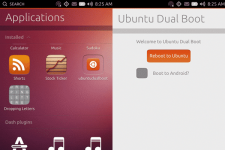
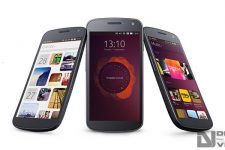
He’s right
Help! After boot i see the very first Google logo and then the tablet turns off.
Have you wiped after the Install? and which custom recovery did you use?
yes, I use CWM recovery. FYI I sideloaded the zip files instead.
well i was able to install it thru the internal storage as u said but the OS seems very unstable and buggy. It’s odd that after wiping thru recovery i wasn’t able to get into the OS. that google logo reappeared and the device turned off.
Yes, no wipe should be performed.
These are nightlies of a preview, if you seek stability to use it as a daily driver, you might have to wait for it to exit the preview stage 🙂
it runs on nexus 7 3g ?
Not yet.