Back in the day, when Motorola was still a Google company, the launches the first Moto G. What followed it was the prime example of an OEM listening to user feedback, and it was called the Moto G2. It was a revolutionary device for it offered much more for the price than any Android smartphone before it did. Not to mention it had the backing of the brand Motorola and quick Android updates. The Moto G2 was the one true king of the budget segment. Fast forward to 2018, Motorola is now a Lenovo company and it is no more the one true king. Lenovo is very bad at providing updates too. But hey, at least the Moto G5 has finally got the official Android 8.1 Oreo update a year later.
It is quite unlikely that you did not yet root your Moto G5 or install a custom ROM and custom recovery, given how long it takes Motorola to push updates. Android 9.0 Pie is out now by the way. If you were patient enough, updating to the official Android 8.1 update will be a little easier for you. For those of you rocking custom ROMs or even a custom recovery, things will be a bit more tedious. In order to install the Android 8.1 update, your Moto G5 should be running on the stock NPPS25.137-93-2-5 firmware without root or a custom recovery.
Requirements
- The device must be running on the stock AndroidNougat firmware (NPPS25.137-93-2-5) and using the stock recovery.
- No root.
- No custom recovery.
- Enable USB Debugging.
- ADB and Fastboot should be installed on your PC.
Downloads
Screenshots
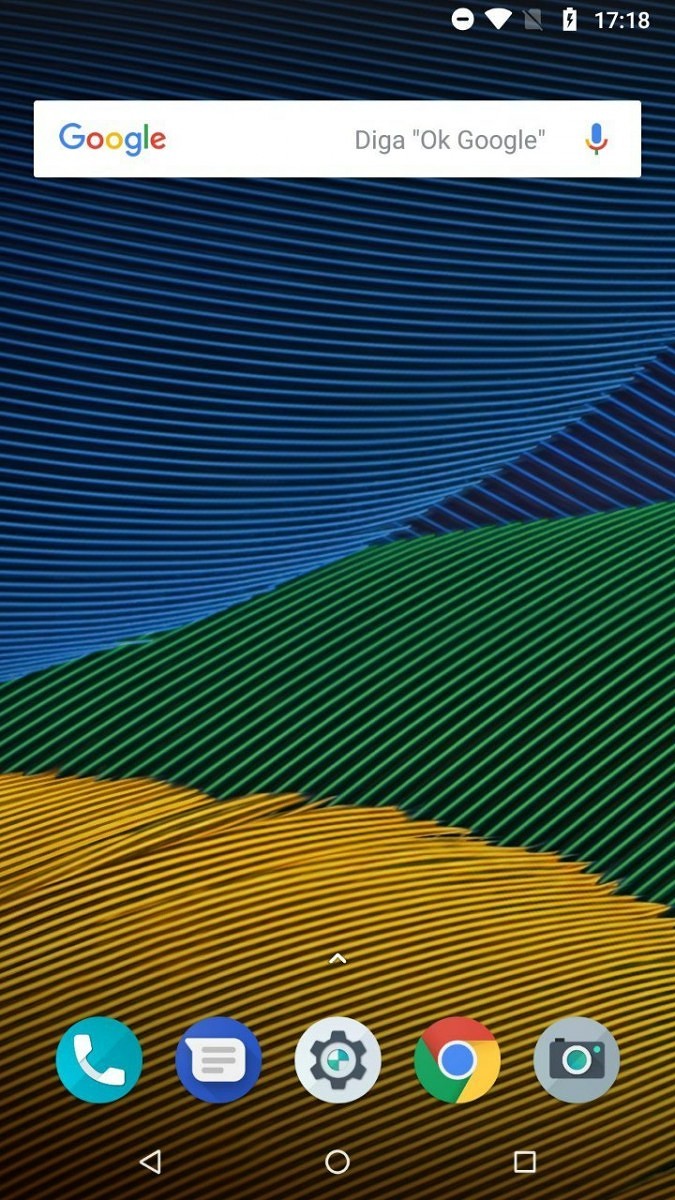
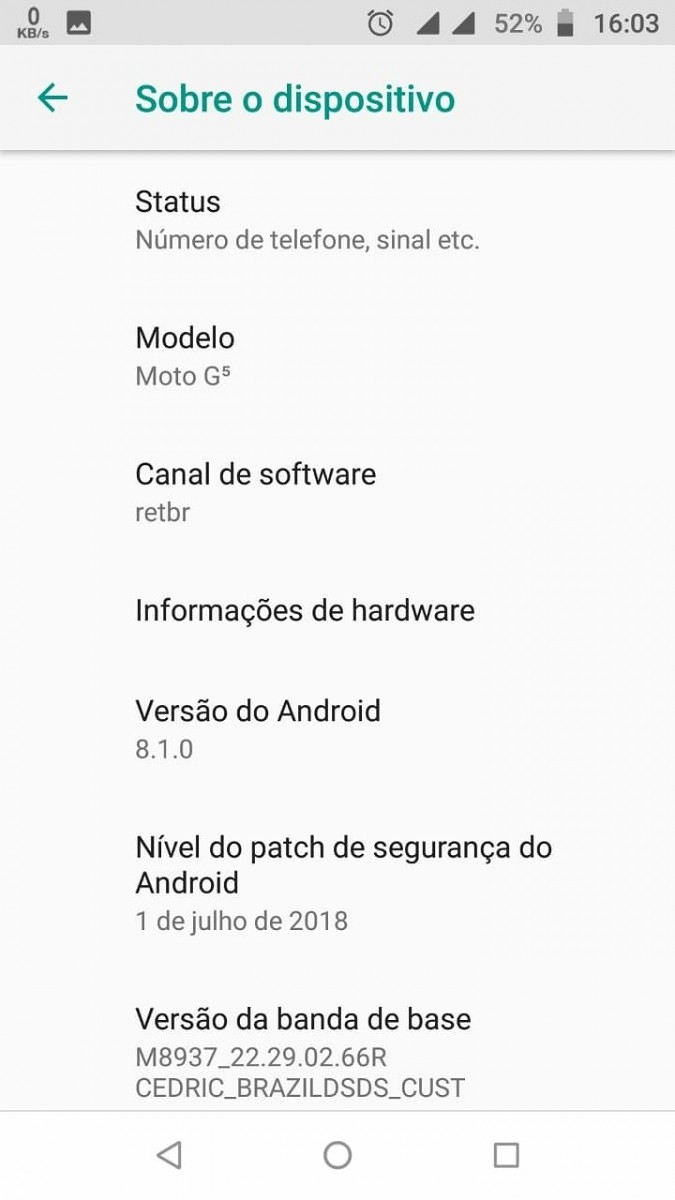
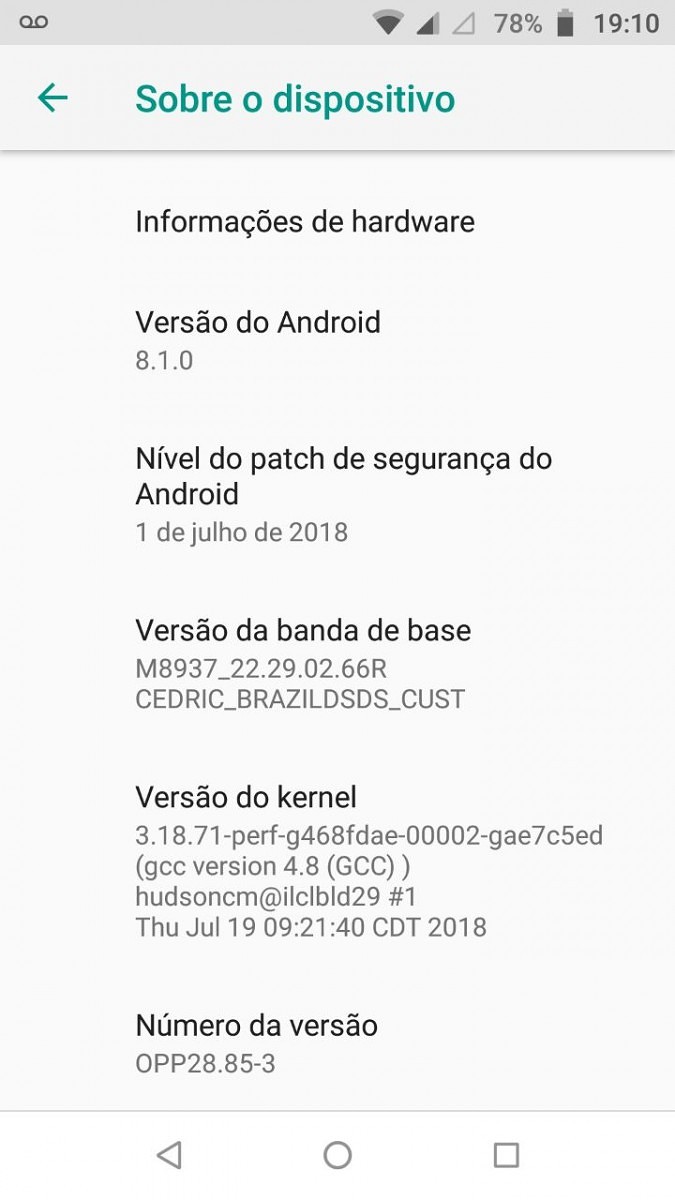
How to install NPPS25.137-93-2-5 firmware
- In case your device isn’t running the stock firmware or recovery, you can download the firmware from the Downloads section above. Extract the contents of the zip file into a folder, or directly inside your ADB folder.
- Connect your Moto G5 to your PC with USB debugging enabled.
- Launch the ADB command line interface and reboot your device into fastboot mode with the following command.
adb reboot bootloader
- When in fastboot mode, flash the stock firmware using the following commands one by one. Note that this will wipe all your data so make sure you backup everything important. You’ll need to transfer all the firmware files into your adb folder if you haven’t already.
fastboot oem fb_mode_set
fastboot flash partition gpt.bin
fastboot flash bootloader bootloader.img
fastboot flash logo logo.bin
fastboot flash boot boot.img
fastboot flash recovery recovery.img
fastboot flash dsp adspso.bin
fastboot flash oem oem.img
fastboot flash system system.img_sparsechunk.0
fastboot flash system system.img_sparsechunk.1
fastboot flash system system.img_sparsechunk.2
fastboot flash system system.img_sparsechunk.3
fastboot flash system system.img_sparsechunk.4
fastboot erase cache
fastboot erase userdata
fastboot erase customize
fastboot erase clogo
fastboot oem fb_mode_clear
- Once everything is flashed correctly, reboot your device using the following command and setup everything. You’ll need to enable USB debugging once again.
fastboot reboot
Install official Android 8.1 Oreo update – ADB Sideload
- Now that you have your Moto G5 running an untouched stock Nougat firmware, download the Oreo update OTA from the Downloads section above. Transfer the downloaded zip file to your ADB folder.
- Connect your phone to the PC again and reboot into recovery using the following adb command.
adb reboot recovery
- When in recovery, use the Volume keys to highlight Apply update from ADB and select it using the Power key.
- On your PC, enter the following ADB command to flash the OTA zip.
adb sideload block_delta-ota-Blur_Version.25.361.10-28.41.2.cedric.retail.en.US.zipIf you prefer, you can rename the zip to OTA.zip or anything easier to type and then use that name in the command. For instance,
adb sideload OTA.zip
Install official Android 8.1 Oreo update – SD card
- You can also install the OTA directly on your phone without needing ADB. For this, transfer the downloaded OTA zip file to your Moto G5’s internal storage.
- Reboot your device into recovery mode. You can do this via ADB as before or using the hardware button combination.
- Power off your Moto G5.
- Press and hold the Volume Down button and then power on the device while holding the Volume Down key.
- Navigate to Recovery using the Volume Keys and press the Power button to select it.
- When you see the Android logo, press and hold Volume Up then Press and release the Power key.
- In recovery mode, select Apply update from SD card.
- Navigate to the downloaded OTA zip file and select it.
The installation can take quite a bit of time even up to 30 minutes.
source: xda


is this official release??
Yes.