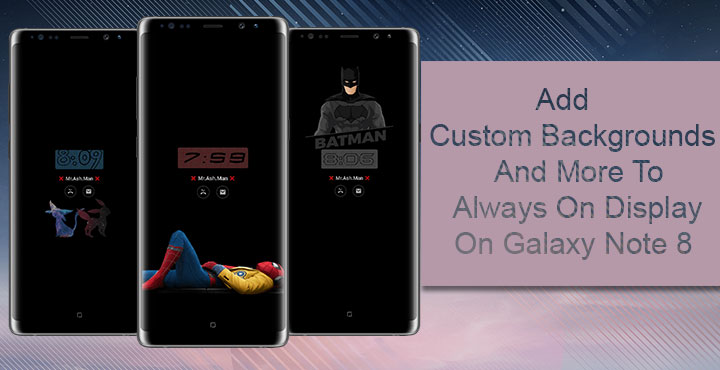
Always On Display is a display tech that is quite self-explanatory in its name. Ever since we have seen color screens on mobile phones, we’ve gotten used to the idea that the screen should turn off after a while. Now with the new AMOLED displays, Samsung is taking full advantage of the properties of AMOLED displays. Samsung Galaxy S7 popularised Always on displays but Samsung wasn’t actually the first manufacturer to come up with the tech. The Nokia Lumia was the first smartphone with an Always on display and was followed by some Motorola and LG smartphones later. Samsung though has been improving it with each new flagship. For instance, the Always on display on the Galaxy Note 8 can be easily customized. Here’s how you can add custom themes to Always On Display on Galaxy Note 8.
While Samsung does offer some customization options, that might not be enough for some people. It certainly wasn’t enough for XDA Senior Member Mr.Ash.Man who decided to do something about it. One of his new mods allows users to add custom backgrounds to the always on display, something Samsung doesn’t trust users with. And to be fair, we can understand why. But if you’re here you probably understand why too. Always on display isn’t meant to have bright and fancy backgrounds. Using such images to always be shown on the display could cause some serious burn-in and of course, drain the battery. The developer has created mods with only two backgrounds but skilled users will be able to use any background they want.
Mr.Ash.Man has also created a few other mods that will let you remove the date and battery or just one of them. Then there are various styled fonts to use for the clock instead of the boring normal font. Best of all, none of these mods need your device to be rooted nor do they need any special privileges. You will, however, need to enable Unknown sources in Settings > Lock screen & security. These mods are in fact overlays which tend to work on Samsung devices running Android Nougat and above. It works similar to the other overlay mods we’ve come across before.
Downloads
- Custom Background Mod
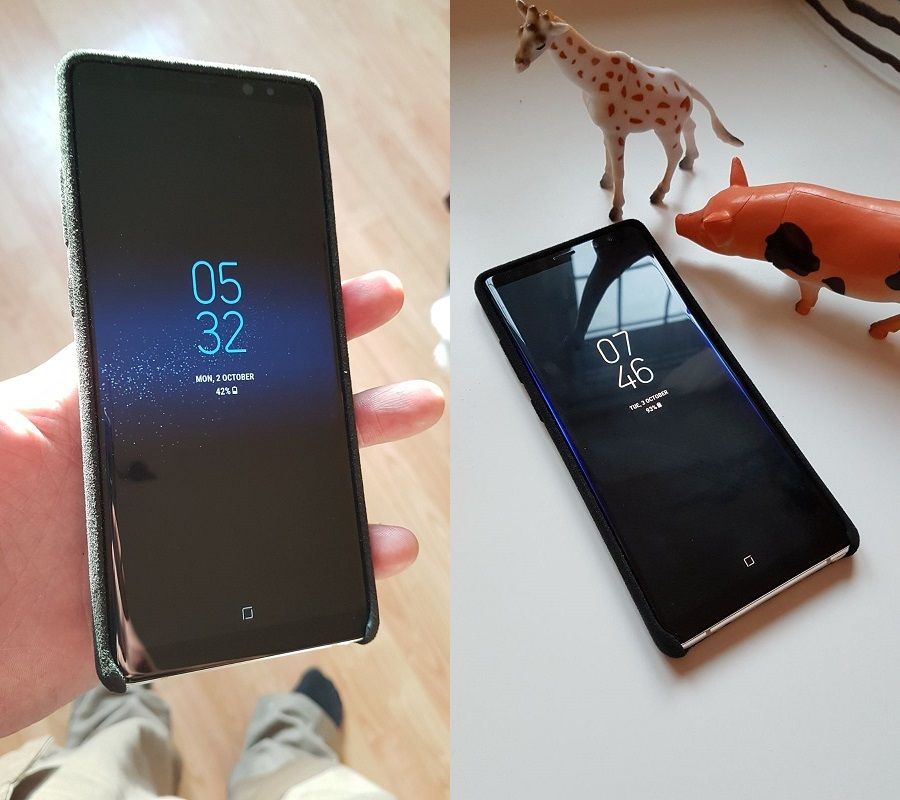
- Date & Battery
- Clock Style #4 Font Mod
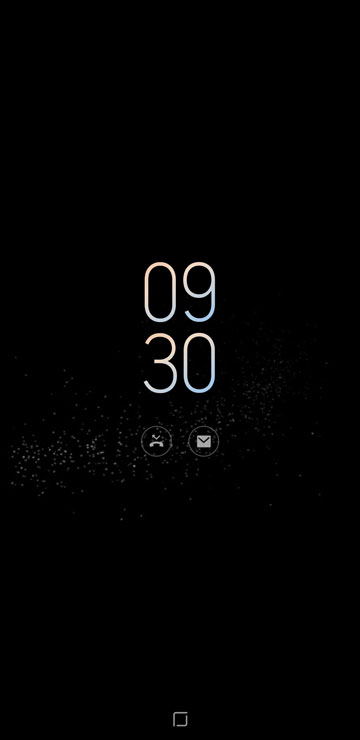
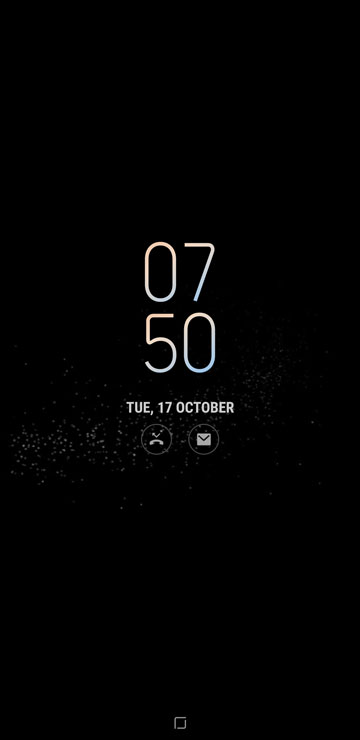
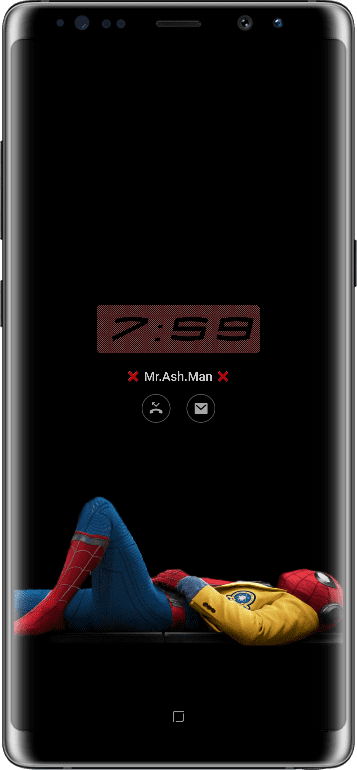
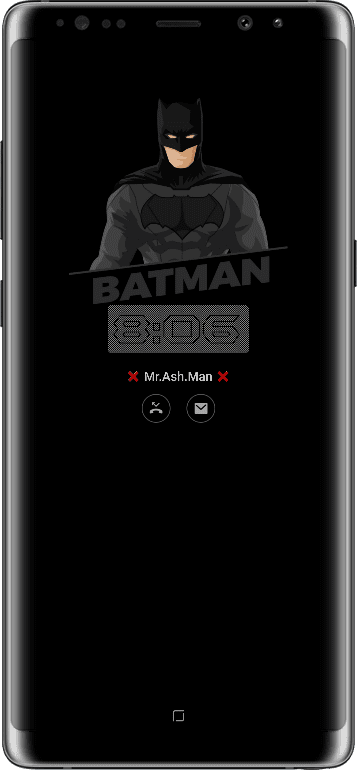
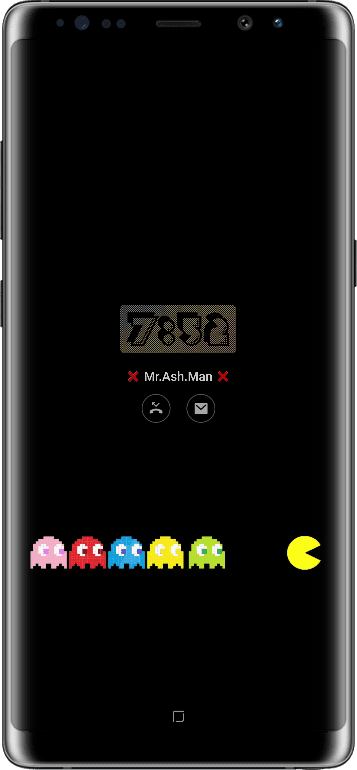
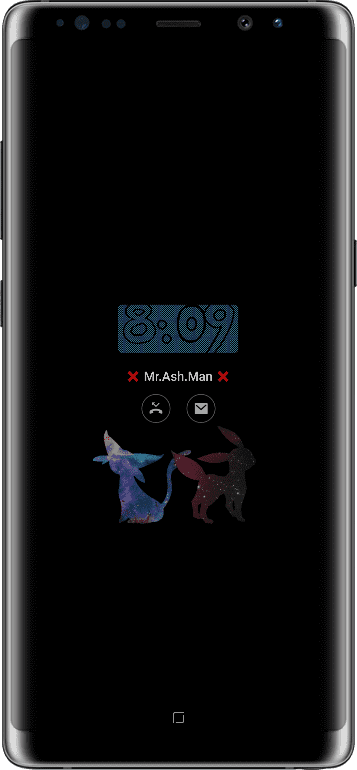
How to use the custom Always On Display overlays
- First and foremost, you obviously will need to download the APK from above for the mod you want to install and then install it.
- Reboot your device.
- Then head to Settings > Lock screen & security > Always On Display. Or you can just pull down the quick settings and long press on the Always On Display icon.
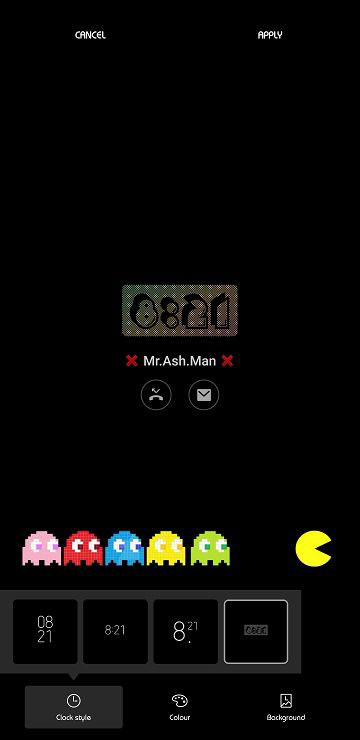
- Tap Digital Clock or Background depending on which mod you installed and then select it.
- Tap Apply.
Uninstall the mods
To uninstall, simply head to Settings > Apps and look for anything that has a name starting with “com.samsung.android.app.aodservice.AODEditor”. Tap on it and uninstall it.
If you’d like to create your own custom backgrounds follow the source link below for instructions.
source: xda



Join The Discussion: