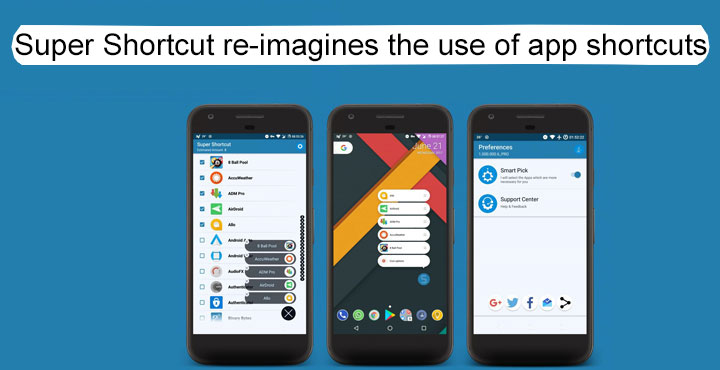
Last year with Android Nougat, Google introduced a much talked-about feature called ‘app shortcuts’. It immediately drew similarities to Apple’s 3D touch, without actually using a pressure sensitive display. So app shortcuts, unlike on iOS, don’t need special hardware. They’re already quite useful on apps that have them, and that includes the suite of Google apps. It’s much easier, for instance, to long press on the Chrome icon and select incognito mode right from the home screen than having to first launch the app. But since Android has such a large developer community, it shouldn’t come as a surprise when somebody re-imagines the use of app shortcuts. In fact, some already have.
This time it is the developer Geeks Empire and his new app called Super Shortcut is definitely worth checking out. It basically lets you access a list of apps upon being long pressed. Why is that more convenient than a traditional folder? Umm… well, it’s not. It is in fact, in a way less convenient than a folder. That’s because as opposed to simply tapping to see a bunch of apps you’ll be long pressing to see a bunch of apps. But unless you’re using a Smart folder, your typical folder will only have a pre-set bunch of apps. That’s not entirely the case with Super Shortcut, more on that later.
You ay also like: 5 Google Keep Tips and Tricks You Must Not Miss
Download Super Shortcut
[googleplay url=”https://play.google.com/store/apps/details?id=net.geekstools.supershortcuts”/]The app is still very much under development and might have some compatibility issues. It should be compatible with any device running Android 7.1.1 and above.
How to use Super Shortcut
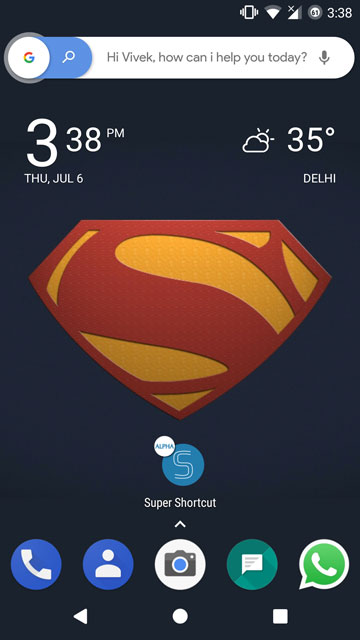

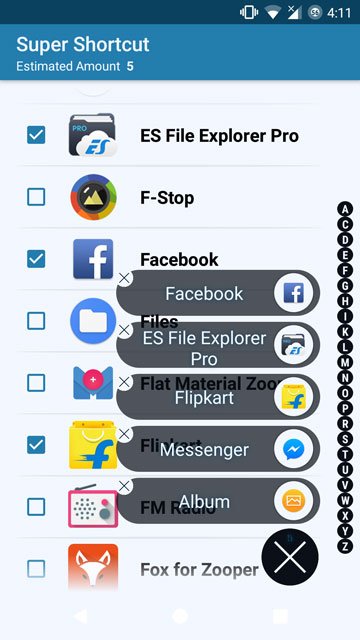
Super Shortcut is one way to de-clutter your home screen if you are into that sort of thing. So it makes sense that you should pull the app out of your app drawer and place it on your home screen before we begin. Now that you have the app on your home screen, tap on it to launch it. It’ll load a list of all the apps installed on your phone from which you can select any five. Once you’ve selected the apps, you can go back to your home screen.
Related article: Switch to a Smart App Drawer on Your Favorite Launcher
You can also swipe on up from the floating confirm button at the bottom right to see a list of selected apps. Now when you long press the Super Shortcut icon, it will bring forth a list of the apps you’ve previously selected. If you have the imagination for it, this can really help create your perfect home screen.
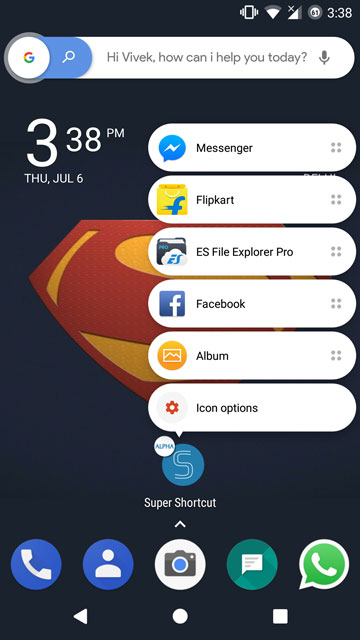
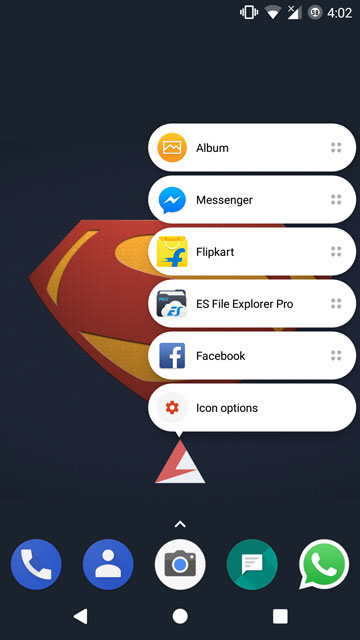
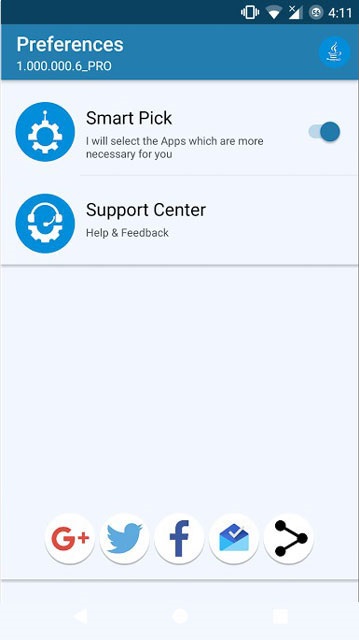
But if you’re not convinced simply by the aesthetics, Super Shortcut also has an actually useful feature up its sleeve. It’s called Smart Pick which should be a rather self-explanatory name. To enable it, tap the gear icon in the top right corner of the action bar and then toggle on the Smart Pick option. This is only available in the latest version of the app from the Play Store. Once enabled, Super Shortcut will decide itself which apps you might need at a certain time, and when you long press the icon, you might end up surprised. Contextually showing applications is something that has been done before too, but it’s never been done with app shortcuts before.
Don’t miss: How to Get 3D Stereo Sound Effect on Any Android



Join The Discussion: