
From the design standpoint, the OnePlus 3T looks exactly the same as the original OnePlus 3. It’s a full metal unibody design with a slightly curved backside rounded corners, and because of the back tapers along the edges, it allows the phone to feel a lot thinner. Despite being made almost entirely of metal it’s surprisingly lightweight making the phone feel very comfortable to hold, it’s also not a very wide or tall phone, so it’s pretty manageable to use in one hand even with this fairly large 5.5-inch screen.
In this article, we will learn how to install the latest OTA zip and stock firmware on OnePlus 3T. OnePlus always stands top in terms of releasing updates. But the update may take few weeks to reach all corners of the world. If you don’t want to wait for the update, you can flash it manually. Just follow the below step by step guide to install the latest OTA and stock firmware on OnePlus 3T.
You can flash the update without losing any data. But still, we recommend you to take a full backup before proceeding further.
Prerequisites
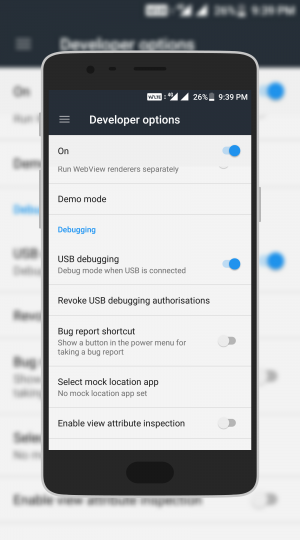
- Enable Developer Options.
Go to Settings –> About phone –> Tap 7 times on Build Number to enable the developer options. - Go back to Settings –> Developer Options –> enable USB Debugging.
- Make sure that you have the latest Android SDK Platform-tools on your computer.
- OTA file flashing will not erase your data. But still, we recommend you to take a full backup of your apps and data before proceeding further.
- Maintain at least 50-60% charge to prevent accidental shutdown.
Installing the Latest OTA and Stock Firmware on OnePlus 3T
Method 1: Install from Internal Storage
This method will only work when you have stock recovery installed on your device. Don’t try this method on any custom ROM, it may brick your OnePlus 3T.
- Download the OTA file from OnePlus website
- Save the downloaded OTA file on your device.
- Now connect your device to PC.
- Go to the ADB folder on your PC, Then open the command prompt by pressing SHIFT Key + Right Mouse Click and selecting Open Command Window Here.
- Execute the below command to reboot your OnePlus to recovery mode
adb reboot recovery
- Now, select Apply update from SDcard option and select the saved ZIP file in your device.
- Wait until the installation process completes.
- Reboot your device
- Done.
Method 1.1: Install from Internal Storage [Recommended]
- Download the OTA zip from OnePlus Website
- Save the downloaded OTA file in your device.
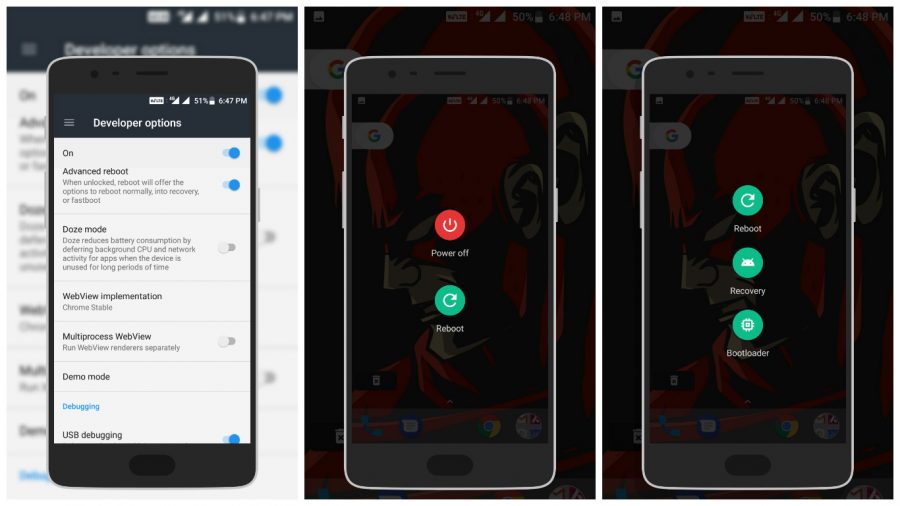
- Go back to Settings –> Developer options –> Enable Advanced Reboot and USB Debugging
- Now Long Press on Power Button, You can see 2 options Power-Off and Reboot.
- Select Reboot –> Click on Recovery –> Click Touch to Reboot (Your device will reboot in recovery mode).
- Select the language
- Now, click on Install from internal storage and select the saved ZIP file from your device.
- Wait until the installation process completes.
- Reboot your device
- Done.
Method 2: ADB Sideload Method
-
- Download the latest OTA file from Official OnePlus Website
- Save the OTA in ADB folder on your PC.
- Now connect your device to the PC.
- Go to the ADB folder on your PC, then open the command prompt by Pressing Shift Key + Right mouse click and Select Open command window here.
- Execute the below command to reboot your OnePlus to recovery mode
adb reboot recovery
- Select ‘ADB Sideload’ in your device.
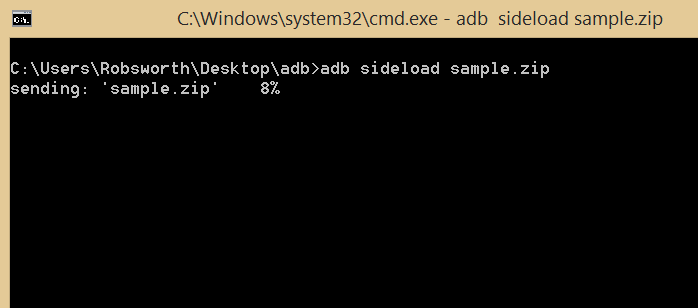
- In command prompt in your PC, execute the below command to sideload the OTA ZIP to your device.
adb sideload <filename>
- Now, replace the <fileName> with the name of the OTA file which is saved in the ADB folder.
- Wait until the installation process completes.
- Reboot your device.
- Done.
Hope you found this article helpful, Please let us know your feedback in the comment section below.



Join The Discussion: