Smartphones are the most important gadgets in our life without which you simply can’t make through the day. They come packed with everything you need – a camera, media player, music player, voice recorder, GPS, and much more along with the basic calling/texting functionality. However, most people won’t really use half the features that a smartphone has. If you ask me, my daily usage drops down to listening to songs, watching videos, texting, games, and calls. Most of the people need good sound quality on their devices for listening to their favorite tracks and watching videos. The sound quality on Galaxy smartphones is always below par but you can improve it with Adapt Sound but it’s not known to many.
The Adapt Sound feature is available only on Samsung Galaxy devices running Android 6.0 Marshmallow and later. It is pretty much hidden in the device settings and not many might know it. If you’re an audiophile, you would definitely love the difference this small feature makes. The Adapt Sound feature fine tunes the sound quality on Galaxy devices by adjusting as per the user needs. You need to train the device as per your requirement and it would, in turn, create a personal audio profile for you. The entire process would take a matter of minutes and you don’t need any special root permissions for this. All you need is a quiet room a pair of headphones. So, let’s see how to use Adapt Sound feature to improve sound quality on your device.
Using Adapt Sound Feature on Galaxy Devices
- Open Settings » Sounds & Vibration » Sound Quality & Effects » Adapt Sound.
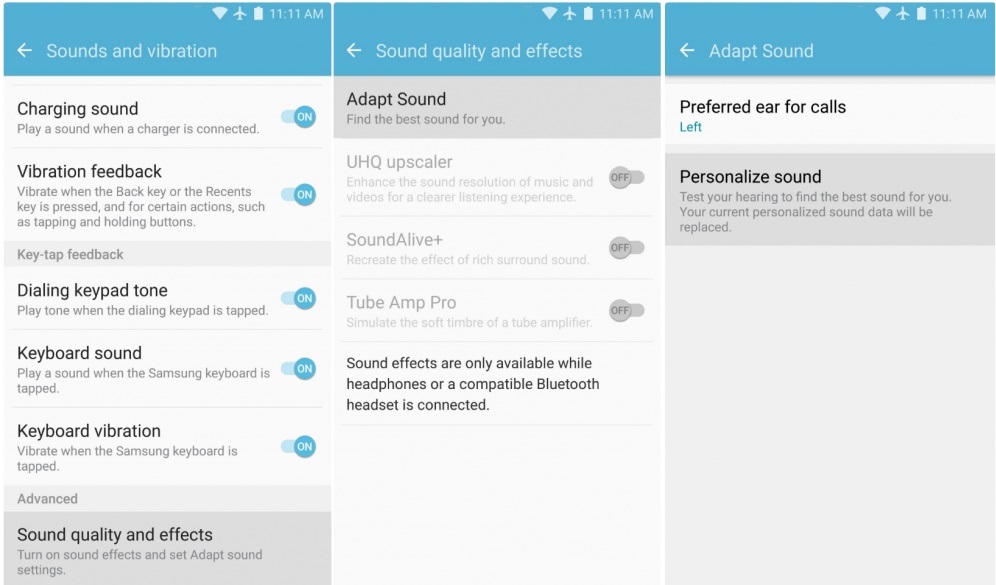
- Tap on the “Personalize sound” option to train your device for better sound quality. The Adapt Sound menu would ask you to plug in your earphones and find a quiet place.
- Once you’re ready, press the Start button and your device will begin playing some random sounds with different intensities.
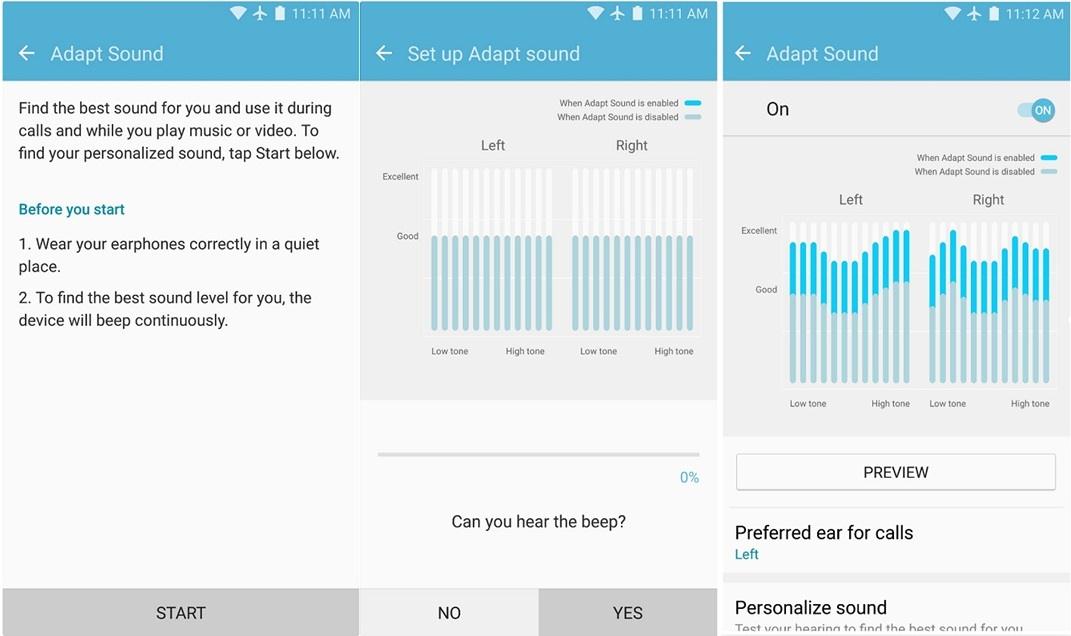
- After each level, the device will ask you whether you can hear the beep or not. Answer the question and it will repeat another frequency until the personal sound profile matching your taste is created.
- Finally, the device will ask for your preferred ear for phone calls. Choose accordingly.
- Your personalized sound profile will be applied system-wide to give you the best audio experience.
That’s it. So, have you created your personal sound profile with the Adapt Sound feature? Let us know in the comments section below.
Read Next: Make Your Android Device Look Amazing with Swift Installer
Join The Discussion: