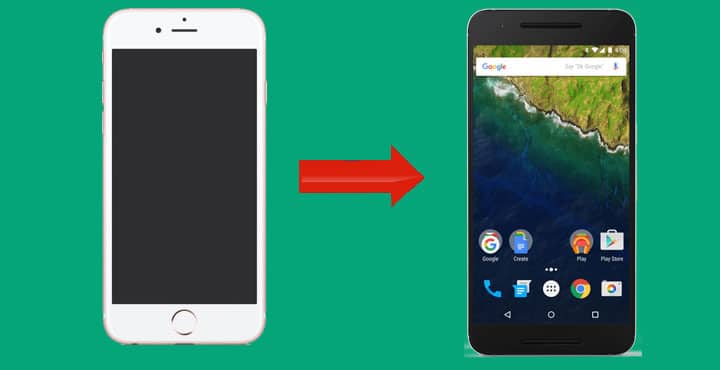
So, you bought an Android device?
New day, new phone, new OS and you are, well, confused. But don’t worry, this guide is going to help you make your transition to Android as fast and cable-free as possible.
I repeat, this method requires neither a PC nor a USB cable. It only takes two phones and about 15 minutes in order to happen.
Also see: How to Synchronize iTunes with Android
First, however, there are some things that you need to do. You will need to have (in close proximity) the following:
| PREREQUISITES | |
| -The iPhone from which you want to switch -This Guide |
-An internet connection. (WiFi recommended) -The Android device you want to switch to |
Step By Step Guide
Step 1: First, make sure you have turned on your Android device and set up your Google account. The procedure and step by step guide you need in order to create your Google account, begin automatically as soon as you turn your phone on for the first time.
You need a Google account,so as to access the Play Store and download the application mentioned below.
Step 2: Access the Play Store from your Android device and the Apple Store from your iPhone and download the “Copy My Data” app to both of your devices. (Links Below).
[googleplay url=”https://play.google.com/store/apps/details?id=com.mediamushroom.copymydata&hl=en”/]Download “Copy My Data” for iOS.
Step 3: Make sure both of your devices are connected to the SAME WiFi network and open the app from both of them.
Step 4: Choose the first option from both the Android and your old iPhone device and let the app do complete the search.
Step 5: Choose your Android device from the menu of the iPhone application and choose the first option available or “Copy data to selected device.”
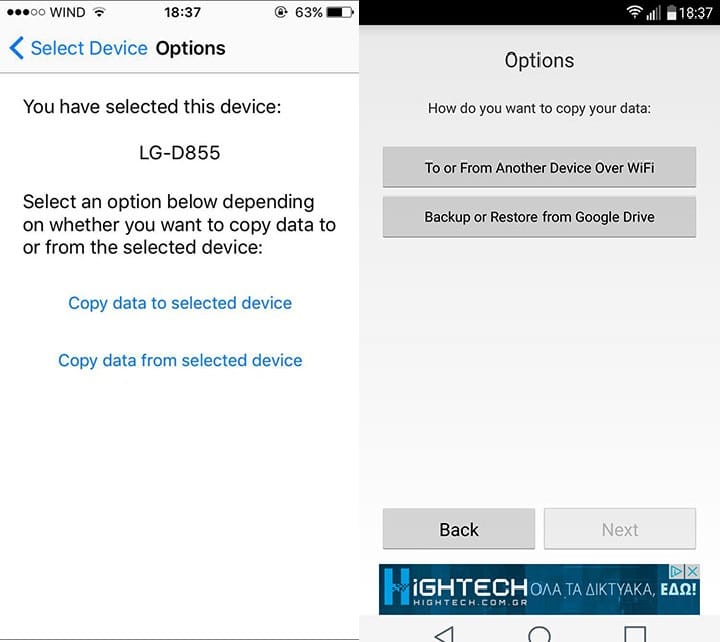
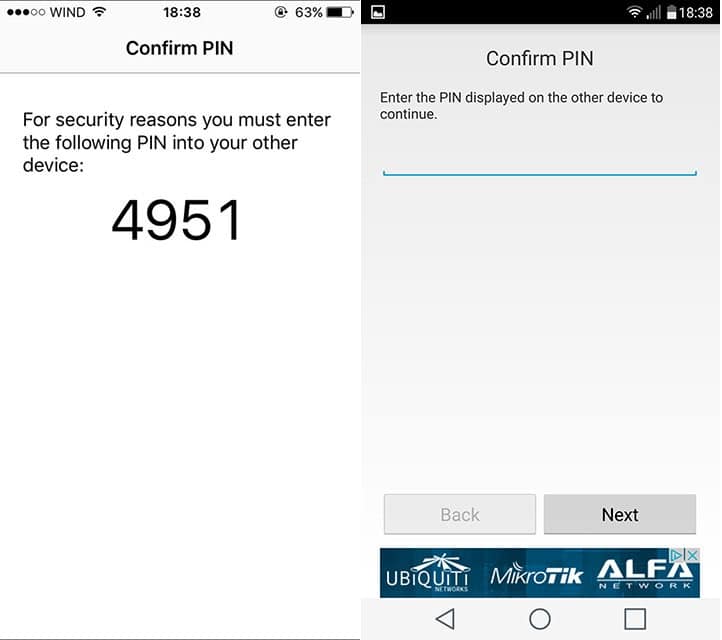
Step 6: Type the password provided.
Step 7: Select the data you want to copy from your iPhone. (You can choose between Contacts, Photos, Calendar and videos.)
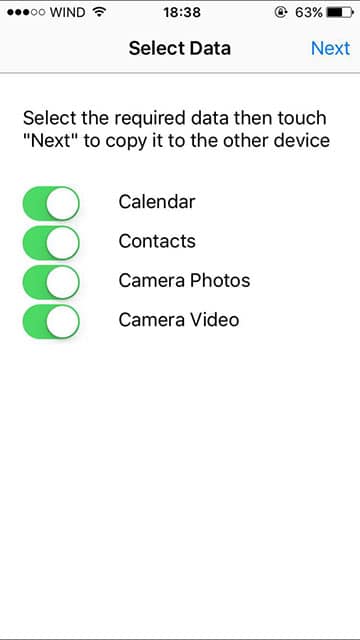
Step 8: Wait for the application to do its magic. Speed may vary depending on your WiFi connection and the size of the data you want to transfer. (You may avoid possible crashing by choosing to transfer each data category independently.)
Note that this procedure and application will help you transfer all of your data except for your Music. In order to transfer your music to your Android device, you have to synchronize your music library, using iTunes, a procedure that exceeds this guide’s limits.

Join The Discussion: