If you are an Android TV user, you may be looking at ways to access third-party apps on your TV. If an app is unavailable for your Android TV, don’t be disappointed. Since it runs on Android at the core, you can manually install and uninstall apps. Thanks to sites like APKMirror that host untouched APKs of popular free apps, you can install many free apps from popular third-party developers on your Android TV.
Install Third-Party Apps on Android TV
Installing third-party apps on Android TV is a simple process. The only additional steps you will have to take are downloading APKs and tapping on install. But before that, you will have to get a File Manager.
Android TV does not come with a file manager out of the box. Google has, for some reason, never released a stock file manager for Android. However, there are many free third party File Managers in the Play Store compatible with Android TV. One of the most popular ones is ES File Explorer – it’s free and supports Samba file sharing and FTP protocols. Solid Explorer is another File Manager you can try – it’s paid but works great and has an excellent UI.
[googleplay url=”https://play.google.com/store/apps/details?id=com.asus.filemanager”/]Enable Installation from Unknown Sources
Like all other Android devices, installation from Unknown Sources is disabled by default. To be able to manually install apps on your Android TV, you will have to enable it first. Go to Settings -> Security and Restrictions and scroll down to the Unknown Sources option. Tap on the checkbox to enable it.
Download the APK
Many sites like APKMirror host many Android app APKs. For safety, we recommend using APKMirror only.
Transfer the APK
You can transfer the APK to your Android TV using a memory card or a pen drive. Transfer the APKs to your memory card or pen drive and connect it to your Android TV. Using the file manager downloaded above to copy those APKs to your TV.
Install the APKs
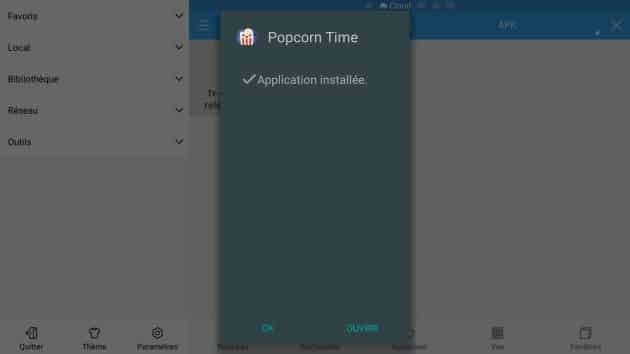
All you will have to do now is browse to the location where you have saved these APKs and tap on them.
Read Next: Install Third-Party Apps as System Apps on Android


Generic useless guide 🙁