T-Mobile recently announced the new video streaming service, Binge On. This service provides free and high-quality video streaming from the carrier’s partners. T-Mobile partnered with 14 such video streaming services viz. A&E, Lifetime, HISTORY, PlayStation Vue, Tennis Channel Anywhere, FuboTV, Kidoodle TV, Curiosity Stream, Fandor, Newsy, ODK Media, Lifetime Movie Club, and FYI.
However, many users and other video services, such as YouTube, disliked it as it would throttle or downgrade other video platforms. Moreover, there are many flaws associated with the Binge On service as well. Now, the service is turned on by default and there are a couple of ways you can disable it.
There are many other reasons you would want to disable them. For instance, maybe you don’t want to watch lower quality videos. Suppose you have lots of data left and you don’t want T-Mobile to throttle the quality of the videos you watch on your phone. In such case, turning it off is a better idea. Whatever the reason is, here we are with the tutorial to turn off the Binge On service.
How to Turn Off T-Mobile’s Binge On with Browser
- Sign-in to your account at T-Mobile’s site.
- Once signed in, click on the “Profile” button in the top right corner. If you are on mobile, you’ll need to tap the menu button in the top right corner, then “Profile.”
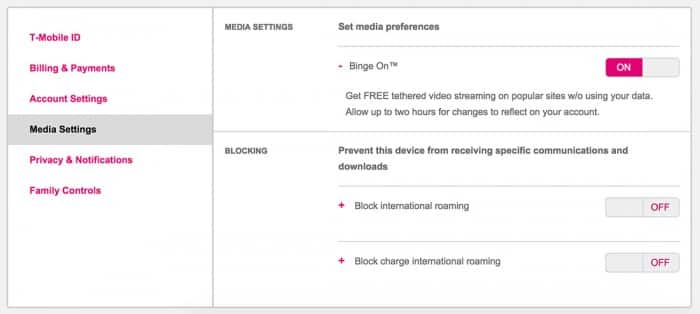
- Open “Media Settings.”
- Binge On should be sitting at the top of this section. Tap the toggle to “OFF.”
Turn Off T-Mobile’s Binge On with My Account app
- Open the My Account app.
- Tap Account Info.
- Tap Plans & Services.
- Tap Add/Change Services.
- Under Binge On, toggle the button to “OFF.”
- Tap “Continue.”
Once you turn off the Binge On service, you can downgrade it back to normal and use the T-Mobile service as before. Remember, you can always turn it using the same technique.
For queries, comment down below. Like and share us on social platforms. If you need help with other devices, let us know.

Join The Discussion: