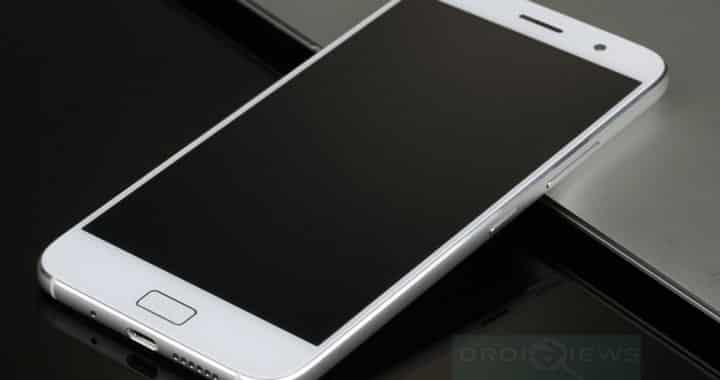
The ZUK Z1 is a premium phone from Lenovo that comes with lots of exciting features. Many Android users already have access to this device and are ready to tinker it with mods, recoveries, ROMs and more. Now you can install the TWRP on your device with simple fastboot commands. Here is the latest TWRP 2.8.7.0 build from Breadcrust with an updated version of 1.3.
The recovery has been confirmed working on Exodus for ZUK Z1 5.1.1, MOKEE CM Nightly 5.1.1, Cyanogen OS and more. Once you install a custom recovery, you can then flash the SuperSU package in order to gain root access on your device or even flash a custom ROM of your choice. However, you will need to unlock the bootloader on your device. Read our bootloader unlock guide for the Lenovo ZUK Z1. So let’s begin with the tutorial.
Note: If you have a ZUI device you can install the ShenQi USB driver which is located on a partition of your phone that should mount as a CD when connected via USB. However, if you’re running Cyanogen OS and your phone isn’t mounted properly in Device Manager in Windows, then you can use the Google USB Driver zip.
Warning: Warranty may be void if you root your device. We at DroidViews, are not responsible for any damage to your device whatsoever. We won’t be held responsible if you brick your device. Reader’s discretion is advised.
Download
- TWRP for Lenovo ZUK Z1 (File: tz1.twrp.2.8.7.0.By.Breadcrust-UPDATE3.img)
Backup Apps and Data
While this process should not wipe any of your data, a backup is highly recommended. Once you install a custom recovery like TWRP, make sure you backup your system, data, etc. from the recovery. It will be helpful in case anything goes wrong.
Prerequisites
- This guide is compatible with Lenovo ZUK Z1 only. Do not try it on any other devices or variants.
- Unlocked bootloader is required to install a custom recovery like TWRP on your device.
- Set up ADB and Fastboot on your computer.
- Open Settings> Developer options and enable USB Debugging on your device.
- Go to Developer options and enable Allow OEM unlock, if an option is available.
Flash TWRP Recovery on Lenovo ZUK Z1
- Download the recovery image file. Extract if in case a zip file. Now transfer the file to your PC where you can easily locate it.
- Make sure you have setup ADB and fastboot on your PC. Also, accept Always allow from this computer when you plug in the device for the first time to enable USB Debugging.
- Now connect your device to PC and accept the RSA Authentication prompt. Now open a command prompt or terminal window. Do this by holding the shift key on your keyboard and right-click on an empty space and select “Open command window here” option to launch a command prompt window. Verify connectivity issuing the following command in cmd:
adb devices
- Boot into the bootloader or fastboot mode. To do so, you can also issue the following code, while connected to the PC.
adb reboot bootloader
- Now, as the ZUK Z1 isn’t recognized as a fastboot device, you will have to specify the OEM id. It is 0x2b4c meaning, any fastboot command must be suffixed with the following code.
-i 0x2b4c
- Now make sure you have unlocked bootloader or issue the following command. You should get a boot loader unlocked message.
fastboot -i 0x2b4c oem get-device-info
- Now you are all ready to flash the TWRP recovery. Issue the following command for that. It’s better to rename the file to a short one like “twrp.img” and then type the code with last code being the name of the recovery file.
fastboot -i 0x2b4c flash recovery z1.twrp.2.8.7.0.By.Breadcrust-UPDATE3.img
- The custom recovery will now be installed on your device. Now boot your phone in recovery mode. You can do this by turning your device off and then press and hold volume down and power keys at the same time.
- Once into the recovery, you can backup your current ROM, data, EFS and more.
Once you have installed TWRP, you are all set to install custom packages onto the device’s system. Alternatively, while on Linux or Mac OS, you can issue “./fastboot flash recovery (name of recovery file).img” command to flash the TWRP recovery.
For queries, comment down below. Like and share us on social platforms. If you need help with other devices, let us know.
“waiting for any device” … :
C:Usersboxer1262Desktop>fastboot -i 0x2b4c oem device-info
…
(bootloader) Device tampered: false
(bootloader) Device unlocked: true
(bootloader) Charger screen enabled: false
(bootloader) Display panel:
OKAY [ 0.060s]
finished. total time: 0.067s
C:Usersboxer1262Desktop>fastboot -i 0x2b4c flash recovery z1.twrp.2.8.7.0.By.
Breadcrust-UPDATE3.img
target reported max download size of 1610612736 bytes
sending ‘recovery’ (8686 KB)…
OKAY [ 0.295s]
writing ‘recovery’…
FAILED (remote: Invalid data)
finished. total time: 0.431s
what i do wrong?
did you solve it? I have the same problem!
yes i flash it from the phone i use app recovery flasher apk and flash it and all ok
fastboot -i 0x2b4c oem get-device-info