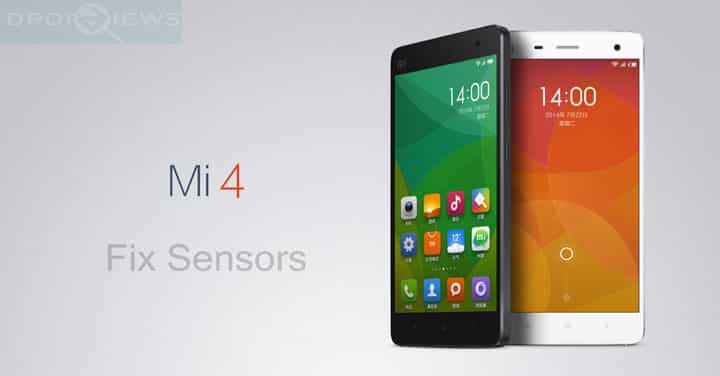
Mi 4 is a flagship phone from Xiaomi packed with some high end specifications. It’s exclusive MIUI ROM makes the device even more captivating. However, in order to get the most out of the devices, many Android enthusiasts have started flashing custom ROMS onto their device. Moreover, with it’s remarkable developer support, the device have received numerous custom ROMS based on CyanogenMod and other such communities.
Howevrer, many have reported sensors not working bugs while on a custom ROM. Here we have a fix that will help you fix the sensors on your brand new ROM. To do so, here is a persist image file that needs to be replaced with a new one. The new persist image file has been listed below.
Follow the instructions to get your sensors back. Read the complete tutorial first and then proceed. Make sure you backup everything before you proceed. If you have a custom recovery installed, then take a nandroid backup.
Warning: Warranty may be void if you root or install custom ROM on your device. We at DroidViews won’t be liable for any damage to your device whatsoever. We won’t be held responsible if you brick or damage your device. Reader’s discretion is advised.
Downloads
- Download | Persist image file (File: persistnew.img)
- Download | Terminal Emulator for Android (Android app, opens in Google Play Store)
How to Fix Senors on Xiaomi Mi 4
- Make sure you have Root access on your device.
- Download Terminal Emulator for Android and grant root access when prompted.
- Also download persistnew.img from the download section.
- Place the persistnew.img file somewhere safe in your device’s internal storage. Place it in a folder for now.
- Open terminal emulator app and issue the following commands:
su
dd if=/dev/block/mmcblk0p22 of=/sdcard/persist.img
- Once successful, you will get a persist.img file in your storage.
- Copy and and place the file somewhere safe. Make multiple backups just in case if you want to restore the file.
- Now place the persistnew.img file where the former persist image file was i.e., on the sdcard or internal storage
- Now open the terminal emulater app again and issue the following command:
dd if=/sdcard/persistnew.img of=/dev/block/mmcblk0p22
- Reboot the system and profit.
In case you want to restore the previous persist file, go through the same procedure again replacing the new persist file with the old one. Now check your sensors with any sensor testing app like Sensor Box.
[googleplay url=”https://play.google.com/store/apps/details?id=imoblife.androidsensorbox&hl=en”/]For queries, comment down below. Like and share us on social platforms. If you need help with other devices, let us know.


I am having oneplus 2 & my light sensor & proximity sensors are not working. Please be advised.
Every time a clean flash occur this error, why does this happen?