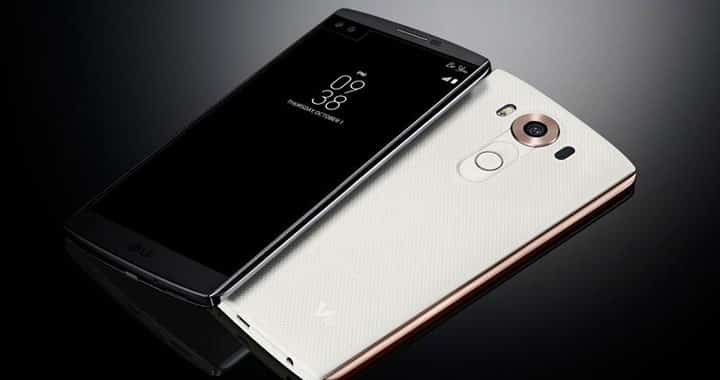
The LG V10 is a premium phone with lots of exciting features. Some of the most absorbing features are the second screen and two selfie shooters, both sitting immediately above its primary 5.7 inch Quad HD panel. The second is a 2.1-inch IPS panel that sits just above the main screen. Moreover, the device comes with some unbeatable specifications. It’s a powerhouse from LG and has been one of the most sought after device for the tech reviewers across the globe.
Not many Android enthusiasts have access to this device for now. However, we already have the TWRP recovery available for this device and here we are with yet another tutorial for the V10. Now you can install the TWRP on your device in no time. The listed recovery file is compatible with H901 variant only.
Once you install a custom recovery, you can then flash the SuperSU package, in order to gain root access on your device. Before we begin you will need to unlock the bootloader on your device. We already have the guide available for that purpose. Moreover, you need to set up adb and fastboot environment on your PC for this guide. If you are new to this process, then we will help you successfully install a custom recovery and finally root your device.
Warning: Warranty may be void if you root your device. We at DroidViews, are not responsible for any damage to your device whatsoever. We won’t be held responsible if you brick your device. Reader’s discretion is advised.
Download
- TWRP recovery for LG V10 H901 (File: twrp-2.8.7.1-h901.img (32.4 MB))
- TWRP recovery for LG V10 H901 (File: twrp-2.8.7.0-h901.img (31.7 MB))
Backup Apps and Data
While this process should not wipe any of your data, a backup is highly recommended. Once you install a custom recovery like TWRP, make sure you backup your system, data, etc. from the recovery. It will be helpful in case anything goes wrong.
Prerequisites
- This guide is compatible with LG V10 H901 only. Do not try it on any other devices or variants.
- Unlocked bootloader is required to install a custom recovery like TWRP on your device. Click here.
- Set up ADB and Fastboot on your computer.
- Install Motorola USB Drivers on your computer.
- Open Settings> Developer options and enable USB Debugging on your device.
- Go to Developer options and enable Allow OEM unlock.
Install TWRP Recovery on LG V10 H901
- Download the recovery image file. Extract if in case a zip file. Now transfer the file to your PC where you can easily locate it.
- Make sure you have setup ADB and fastboot on your PC. Also, accept Always allow from this computer when you plug in the device for the first time to enable USB Debugging.
- Now power off your device and unplug it from your PC.
- Boot into the bootloader or fastboot mode. To do so, press and hold volume down and the power button simultaneously for 5-6 seconds. When you see the bootloader screen, connect your device to the PC using a USB cable. (Choose fastboot if the option is available) Alternatively, you can also issue the following command through your cmd or terminal, while connected to the PC in order to boot into the bootloader.
adb reboot bootloader
- Navigate to the location where you have placed the recovery file. Rename the recovery file to a simple one, like recovery.img. While the folder with recovery.img file is open, hold the shift key on the keyboard and right-click on an empty space and select “Open command window here” option to launch a cmd window.
- Now issue the following command in the command prompt to check your device connectivity
fastboot devices
- Now flash the custom recovery. Issue the following command for that.
fastboot flash recovery recovery.img
- The custom recovery will now be installed on your device. Now boot your phone in recovery mode. You can do this by turning your device off and then press and hold volume down and power keys at the same time. Or you can simply enter the following command.
fastboot boot recovery.img
- Once into the recovery, you can backup your current ROM, data, EFS and more.
Once you have installed TWRP, you are all set to install custom packages onto the device’s system. Alternatively, while on Linux or Mac OS, you can issue “./fastboot flash recovery recovery.img” command to flash the TWRP recovery.
Unlock Bootloader:
How to Unlock Bootloader on LG V10
For queries, comment down below. Like and share us on social platforms. If you need help with other devices, let us know.
When issuing the fastboot flash recovery recovery.img command I get an error: FAILED (remote: command unknown)
My developer options are all correct and bootloader is already unlocked… I need help please
I keep getting the same error. I’ve even tried it with the updated TWRP 3+ . I also unlocked my bootloader first.
Please help. I can’t seem to get a recovery on this phone for the life of me. This is the second one I’ve tried to and same issue. I keep getting the same error. I’ve even tried it with the updated TWRP 3+ . I also unlocked my bootloader first.
Please help. I can’t seem to get a recovery on this phone for the life of me. This is the second one I’ve tried to and same issue.
I’m having the same problem. Please help!
Having the same issues!