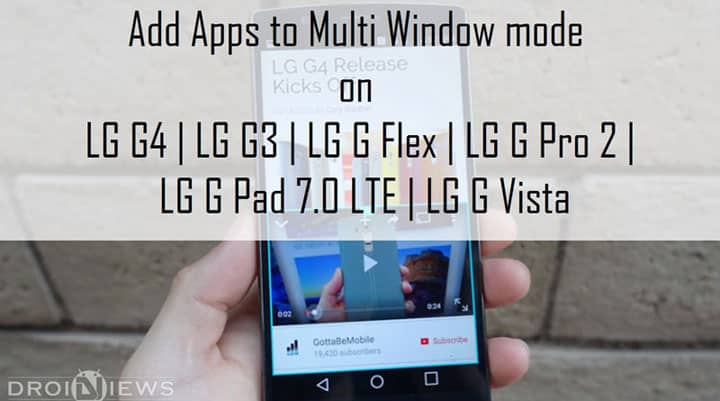
Technology has made our lives much easier. Tasks assigned can be accomplished within minutes on our smartphones. Smartphone is replacing personal computers rapidly and the thing which attracts users towards personal computers is multitasking. Today, this dimension is brought to the mobile industry. Where we can multitask on our mobile phones. The lead to this vision is given by Multi Window concept.
Though it is scientifically proven that a human presumes to multitask with prioritization, the experience and efficiency is awesome with Multi Windows.
LG G4 having a 5.5-inch display which is quite wide is a perfect device for multitasking. The power of its processor and the speedy RAM makes Multitasking on LG G4 a child’s play. LG has induced this feature and so far it proves to be a good shot. If you’re an LG G4 user, you might have noticed that not all of your apps support the Multi Window feature. Only apps such as Email, Messaging, Google Maps, Chrome, Gallery, Memo and few others can be added to it.
Well, no worries now, we present an easy guide to add more apps to LG Multi Window Mode. This wonder trick was discovered by xda member XabdullahX and he made an app out of it. So let us guide you to add apps to Multi Window mode on your LG device.
Prerequisites
- Make sure you have rooted LG G4 and had installed SuperSU from Playstore.
- Backup all of your data. (Just in case if things go wrong)
Guide
- Download the MultiWindow Mod for free from here or download the donated version from Play Store. [googleplay url=”https://play.google.com/store/apps/details?id=com.abdulg.flexmultiwindowmod”]
- Once installed, open the app and grant superuser permissions.
- Select the Apps you wish to run in Multi Window mode.
- After check listing, the apps tap on Apply button.
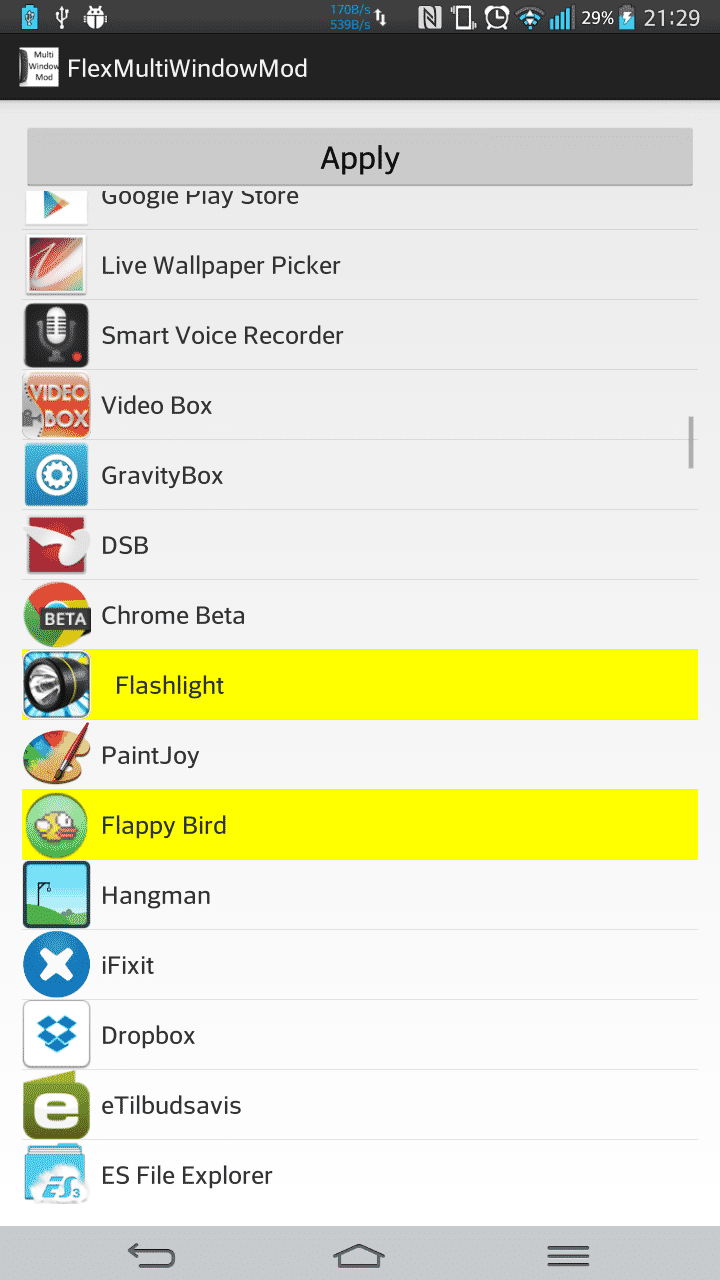
- Now reboot the device. After booting up you can find your desired apps in the list.

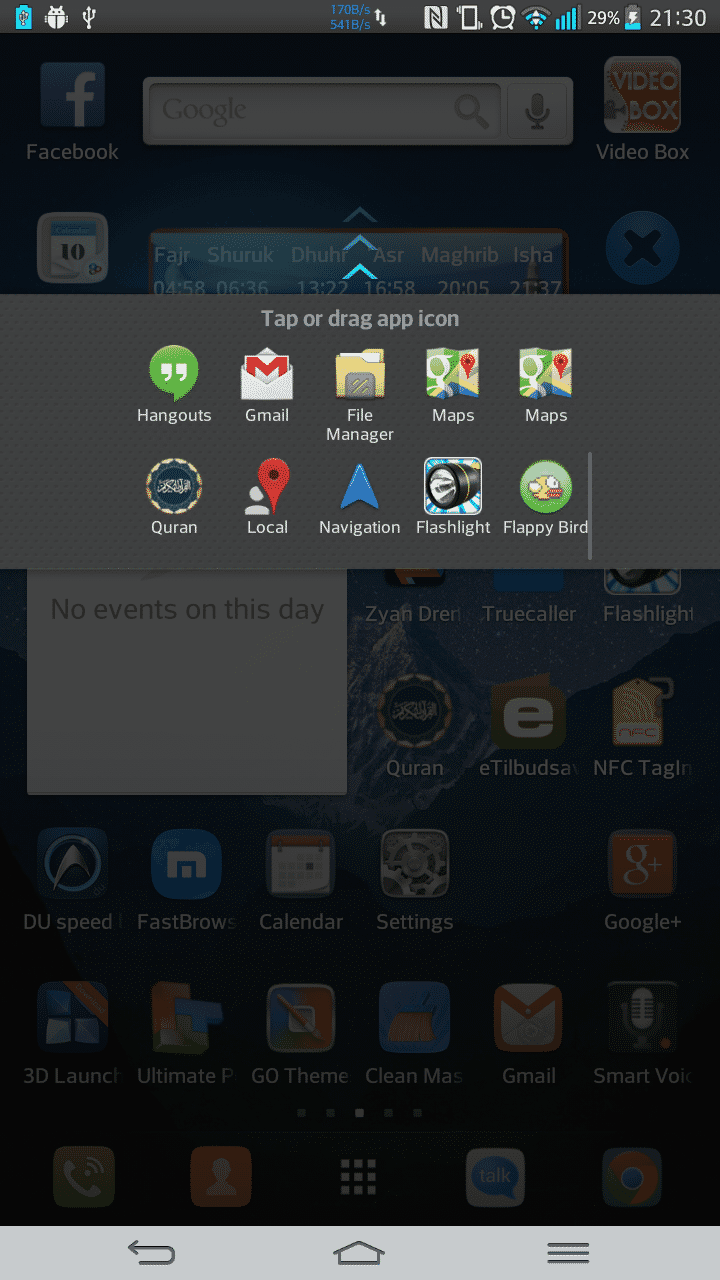
Tap on your back. Well done! Now you can access your favorite apps in Multi Window mode. If you have any queries do let us know in the comments below. Don’t forget to share your experiences with us.


Join The Discussion: