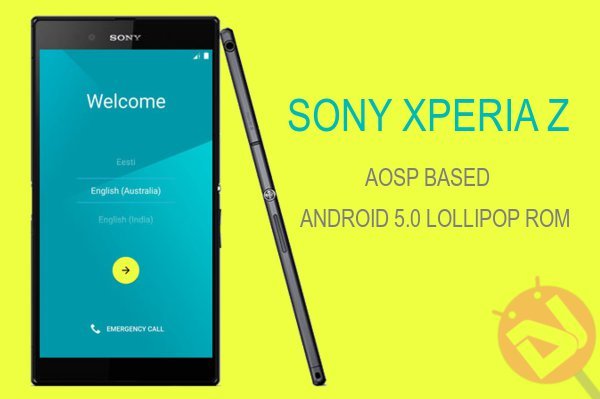
Sony had been quite generous last month when they promised the Android 5.0 Lollipop update to the entire Xperia Z family which includes a hell lot of devices. Sony Xperia users were struck by surprise of this announcement as some of the devices in the Xperia Z line-up are pretty old and not eligible for the 18-months update policy from Google.
Meanwhile, the Sony Xperia Z users can cherish their joy with the unofficial Android 5.0 Lollipop ROM based on the AOSP sources which were released a few days back. Thanks to thomas1991_12 of XDA, the Xperia Z owners can now test drive the Lollipop awesomeness on their devices before they go on for a wild safari with the official update.
Just like the other AOSP 5.0 builds we’ve seen earlier, the Xperia Z 5.0 build is also in the beta stages and is still unstable. However, it is not a total loss and you can get everything working except for the camera and RIL (Calls+Data) which in our opinion is great for an early build. Unfortunately the ROM doesn’t come in a flashable zip format, so you have to get your hands dirty with a few fastboot commands. If you’ve made up your mind, let’s go on with the guide to install this ROM.
Warning
This guide is intended only for the Sony Xperia Z, not for any other device. Be extra cautious when you choose the ROMs as flashing wrong ones might result in a bricked device. You alone are responsible for any consequences that might occur during the process, we shall not be held responsible for any damage to your device.
Prepare Your Device
- Charge your Xperia Z above 60% battery level to avoid shut downs during the process.
- Backup your device storage, Contacts, SMS etc. using Google Sync service or any third-party app.
- Download and install Sony Xperia USB drivers on your PC.
- Enable USB Debugging on your Xperia Z. Read our guide to get instructions on how to do so.
- Unlock bootloader of your Xperia Z.
Downloads
Fastboot file: Download
Install Lollipop based AOSP ROM on Xperia Z
- Download and extract the fastboot file on your PC. You’ll get the following file:
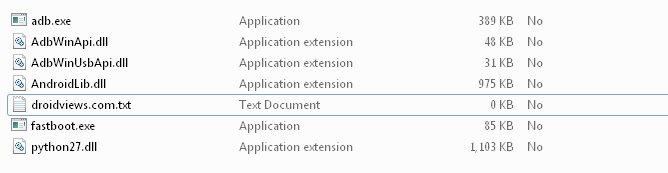
- Download the ROM and extract the files to the same folder where you extracted the fastboot files. You’ll get these three files after extracting the ROM.
- boot.img
- system.img
- userdata.img
- Now boot your Xperia Z into Fastboot mode:
- Power off your Xperia Z.
- Connect your device to your PC using a USB Cable while holding down the Volume Up button.
- The notification LED light will turn into blue once you boot to fastboot mode.
- Navigate to the fastboot files folder and open a command prompt inside the folder by pressing Shift key + Right click in the empty space inside the folder, and select Open command window here option from the Windows context menu.
- Execute the following commands in the command prompt one after one and wait until the process finishes successfully.
fastboot flash boot boot.img
fastboot flash system system.img
fastboot flash userdata userdata.img
- Now you can reboot your device by using the following command:
fastboot reboot
The reboot may take time for the first boot, so be patient and excited at the same time.
The ROM doesn’t include the Google apps and services, so you have to flash the Android 5.0 Gapps from the link below. However, we’re not sure this package will work for you but it’s worth a try.
Share how the ROM is working on your Xperia Z in the comments section below.


does it work for xperia z tmobile c6603?
Just says waiting for device in the cmd how long does it usually take for each command
Driver problems, for sure. Try changing the port too.
Call not sent error :/
my camera isn’t working….what should i do ????
Try flashing a different Gapps package.
What is the process after 6 ?????
Your phone reboots.
sreen is black since 15min what should i do????
Perform a full wipe and reinstall the ROM.
Wait, did you flash the SuperSU zip after installing the ROM?
http://download.chainfire.eu/supersu
no i havnt but how to full wipe ?
bro i am very much new to xperia z flashing work so i dnt kno anything please hep me to work my phone back 🙁
Download the SuperSu zip file and copy it to the memory card. Reboot the device in recovery mode and then install the SuperSU zip file.
Naveen, the ROM is good. but the Gaaps is not working and hence not able to test it completely. It says the process process.gaaps has stopped.
Try this: https://s.basketbuild.com/filedl/gapps?dl=gapps-lp-20141109-signed.zip
thank you Rakesh. How do we install this.. pls let me knw.
Just copy it to the device, boot into recovery and wipe cache and flash the zip using install option and reboot.
Detailed steps: https://www.droidviews.com/install-flashable-zips-using-twrp-cwm-philz-recovery/
Hi Naveen, Dint work. the first part of flashing the ROM worked but installing Gapps with recovery softwares did not work at all.
The Lollipop interface is very good.