
Google Assistant is much more than just searching for your queries. From setting up a reminder to watching videos on YouTube, it has covered it all. Plus, it’s integration with various third-party messaging apps have further proved to be a boon for many users. Recently, we covered an article on how you could use the Assistant to read and reply to messages from WhatsApp, Telegram, etc. Now, we have found out that it is not just limited to sending messages. You could now even make a WhatsApp Voice or Video Call using the Google Assistant app. Let see how this could be done.
Making WhatsApp Audio/Video Calls via Google Assistant
If you have set up the Google Assistant app on your Android device, you may directly invoke it by saying OK Google or Hey Google. Or you may set it up right away using the below instructions. Otherwise, if these steps are asking too much from you, you may also wake up the assistant app using the dedicated key, if available or by long-pressing the Home button on your device.
This is how you could train the Assistant to make a WhatsApp voice or video call via the Google Assistant app.
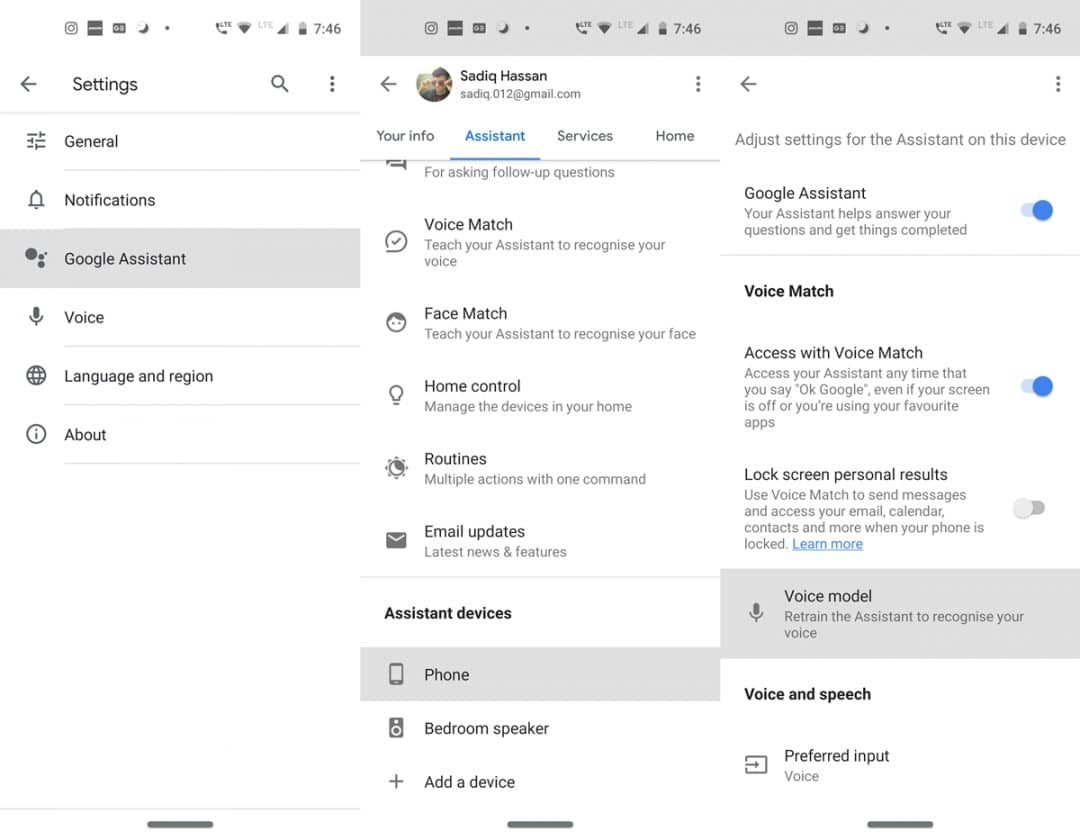
- Head over to the Google App on your device.
- Tap on More and go to the Settings menu.
- Under Settings, select the Google Assistant option.
- Now tap on Assistant, scroll down to the bottom until you reach the Assistant devices section.
- Select the Phone option and under Voice match, tap on Voice model. Train your Assistant by saying OK Google and Hey Google a few numbers of times and you are good to go.
Set up the app? Good. Now follow the instructions given in the next section to make a WhatsApp Voice or Video call using the Google Assistant app.
WhatsApp Voice/Video Commands
To make a WhatsApp Voice Call, make use of any of the following Google Assistant commands:
OK Google, make a WhatsApp call to <name>
OK Google, call <name> on WhatsApp
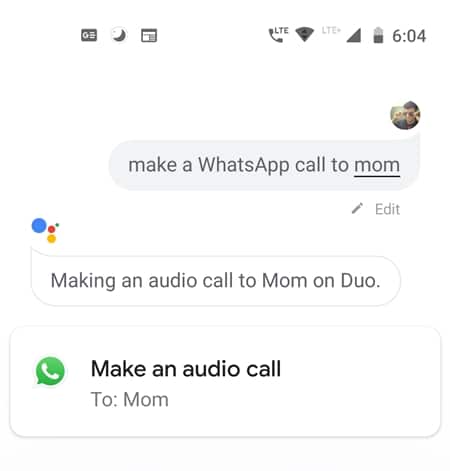
However, if you wish to make a WhatsApp Video Call via Google Assistant, use any of the two commands:
OK Google, make a WhatsApp video call to <name>
OK Google, video call <name> on WhatsApp
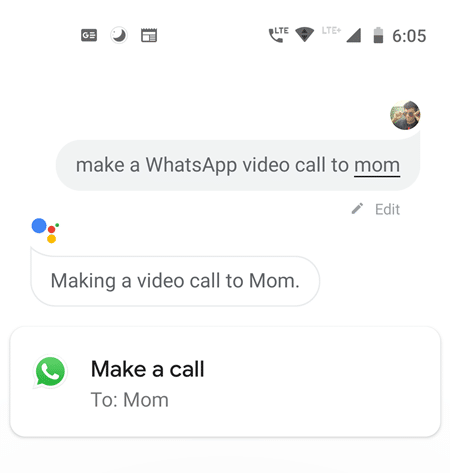
While making a video call, make sure to include the WhatsApp keyword. Otherwise, the call would take place via the Google Duo app (as shown below).
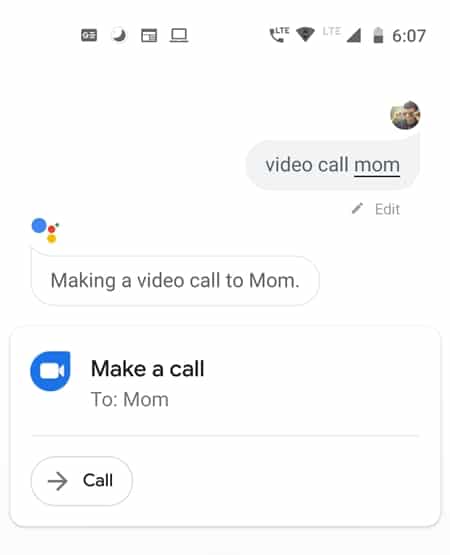
So this was all about the handy Google Assistant Commands to make a WhatsApp Voice or Video Call. Will you be using this newfound way of WhatsApp calling or the in-app method will still be the go-to one. Do let us know in the comments below.
Read Next: How to Disable TalkBack on Android Devices

Join The Discussion: