Update: The post is updated with Method-2 as some of the users are stuck at boot logo after using method-1, so we request you to try method-2 as it has a good success rate.
Android Lollipop is the new jewel from Mountain View lining up after the most popular KitKat flavor. The new update brings the awesomeness of material design, ART runtime and support to 64-bit processors which was one of the most anticipated hardware improvement among the users. Despite the grand opening, Android Lollipop stumbled along the way with many bugs and now finally we are witnessing stable builds in the form of 5.0.1 and 5.0.2.
Most OEM’s are directly pushing either of these versions rather than the original Android 5.0 Lollipop because of several bugs. Samsung Galaxy S4 has been receiving the Android 5.0.1 OTA updates from a few days and most users seem to be satisfied with the performance after the update. Regardless of the performance factor, most users would like to root their device and unleash the extra power that was restricted by the manufacturers.
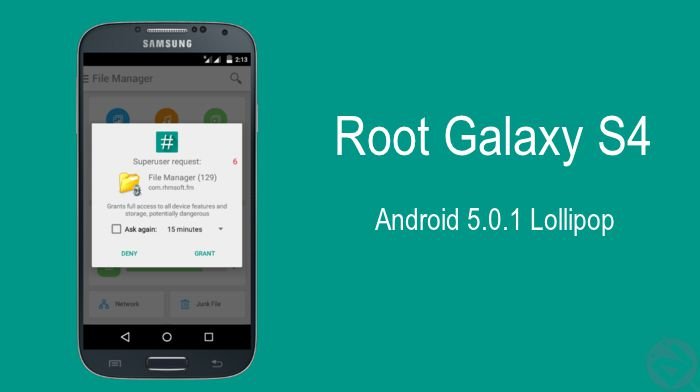
Luckily, RubbaBand of XDA is quick enough to pull a working root technique for the Galaxy S4 on Android 5.0.1. The process is quite simple and requires you to have PhilZ touch recovery to root the device. In this guide, we will show you how to install PhilZ touch recovery on your Galaxy S4 and root it safely. So without any further ado, let’s set our course to the rooted Galaxy S4.
Prepare Your Device
- Charge your Galaxy S4 above 60% battery level to avoid shutdowns during the process.
- Enable USB Debugging: Link
- Install Required USB Drivers: Link
- Backup your device storage, Contacts, SMS etc. using Google Sync service or any third-party app.
Root Galaxy S4 on Android 5.0.1 Lollipop
Method 1
- Download Philz touch recovery for Galaxy S4 → Click here to download
- The downloaded file is in the .tar.md5 format which is an Odin compatible file. So, follow the below guide and flash the Philz touch recovery file from the PDA column of Odin flashing tool → Flash Recovery files on Galaxy device using Odin
- After installing the Philz custom recovery, boot into the recovery mode. To do this:
- Power off your phone first.
- Press and hold Volume Up + Power + Home together until you see Warning screen with Android logo.
- Once in Philz recovery, go to Philz settings → Re-root System and select Yes Apply SuperSU.
- Reboot the device from the recovery menu and install SuperSU app from Google Play store.
[googleplay url=”https://play.google.com/store/apps/details?id=eu.chainfire.supersu”] - Launch the SuperSU app once it was installed. The app asks you to update the SuperSU binaries to the latest version, click Continue and proceed.

- Select Normal update of the SuperSU binaries rather than the recovery method.
That’s it. Reboot the device and check the root access by launching any app which needs elevated permissions.
Method 2
- Download Philz touch recovery for Galaxy S4 → Click here to download
- The downloaded file is in the .tar.md5 format which is an Odin compatible file. So, follow the below guide and flash the Philz touch recovery file from the PDA column of Odin flashing tool → Flash Recovery files on Galaxy device using Odin
- Download the SuperSU file and transfer it to your device’s storage.
- Now boot into the recovery mode. To do this:
- Power off your phone first.
- Press and hold Volume Up + Power + Home together until you see Warning screen with Android logo.
- Flash the downloaded SuperSU file from the recovery by hitting the install button and selecting the downloaded zip.
- Reboot the device once everything is done.
Many XDA testers confirmed method-2 working without any issues. However, the first method worked for few while others experienced bootloops.


2nd Method worked like a charm!, while the first one lead me to boot loop. Don’t use the method 1!!
Second method works, first don’t on my GS4, installing lollipop, android 5.01, russian version. Method 1 keeps boot looping all the time. As such it should be taken off this post. You can even brick your phone.
Does anyone know any alternatives?
Post is updated with an alternate method. Try method-2 in the post which was successful for many users.
I got the same issue as Mohd Rosli.
I think there might be an issue with Philz touch recovery or I am doing something wrong.
Boot loop
Try this recovery file: https://my.pcloud.com/publink/show?code=XZmKWkZ8wJD3wITf7bIwmOe1p2wRzQ0GQDV
Thanks, but I get an ‘invalid binary’ error when flashing the file in Odin
Got stuck on Samsung logo. Failed to update SU so i reboot and that’s when i got stuck on Samsung logo.
Sorry for the inconvenience, you can try the method-2 in the post which successfully worked for many users.
How to recover from the bootloop when that happens after trying the method 1?