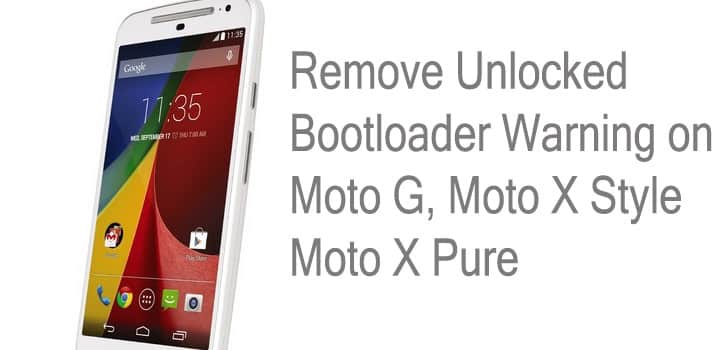
Although Motorola has made it facile to unlock the bootloader on its recent or upcoming devices, the manufacturer still warns about these activities. The unlock bootloader method is listed on Motorola’s official site, and has made the process easy and convenient for users and developers. However, once you unlock the bootloader, a message will be displayed warning about the risks associated with it. Although it won’t affect the functioning of your device, users find it annoying at times as it is displayed every time you reboot.
If you have unlocked the bootloader on your Motorola device and get the bootloader unlocked warning, then here is a simple way to remove it. All you need to do is replace the warning message with a new one, like the one listed in this tutorial. The image is a Motorola Logo that will replace it and your device will boot as it used to.
This logo can be used to replace the warning message on any new generation Motorola device like the Moto G 2015, Moto X Style, Moto X Pure and more. However, some of these devices have not been tested yet. Here, as you may have already set up the adb and fastboot while unlocking the bootloader, you can use the same setup to remove the warning. You can also flash the zip file through a custom recovery if you have TWRP or CWM on your Motorola device.
Prerequisites
- Set up ADB and Fastboot on your computer.
- Install Motorola USB Drivers on your computer.
- Open Settings> Developer options and enable USB Debugging on your device.
- Go to Developer options and enable OEM unlock.
Download Section
boot_logo_fix_lollipop.zip | Motorola Logo
Remove Unlocked Bootloader Warning on Moto G, Moto X Pure/Style
- Make sure you have setup ADB and fastboot on your PC.
- Download the logo file and extract the zip file to get the logo.bin file. Transfer the logo.bin file to someplace you can track it easily. It’s better if you use the folder where you set up the fastboot.
- Power off your device and keep it unplugged from your PC.
- Boot into bootloader. To do so, press and hold volume down and the power button for 5-6 seconds.
- You will see the bootloader screen. Now plug in your device to the PC.
- Navigate to the location of the logo.bin file. While the folder with the logo file is open, hold shift on the keyboard and right-click on an empty space and select “Open command window here” option to launch a cmd window.
- Now type the following in the command prompt to get a code
fastboot flash logo logo.bin
- Now type the following in command prompt to reboot.
fastboot reboot
Once you reboot, you will no longer see the bootloader warning as it has been replaced with the Motorola logo. You can choose a custom image you like but be sure it is in .bin extension. For queries, comment down below.

Does not seem to work on Moto G5 Plus. Reports only “waiting for device”. I am running crDroid 7.1. Device is adb listed and in twrp3.2.1 recovery mode. Any thoughts?
I get this 🙁
target reported max download size of 268435456 bytes
error: cannot load ‘logo.bin’: No error
thanks for the help 🙂
Nice one. Thank you. Very useful.
worked perfectly for me thanks bro..
the logo is coming upside down
Any pointers on where/how to insert a custom image? Haven’t been able to find a way to edit the logo.bin image file, or any other ready-made options.
thanks worked 100 percent
The size of the new logo on xt1575 is smaller than on stock. It needs resized
Didn’t work for me unfortunately…
Did you get any errors? I’m happy to help if you need it 🙂
no device lemulators found