2018 saw the release of the vibrant first-person multiplayer pirate game Sea of Thieves. People love to play this video game with their friends The Lavenderbeard error code is one of the many problems that players may encounter when playing Sea of Thieves, making the experience less than ideal at times.
Xbox and PC users have noticed this Sea of Thieves Lavenderbeard problem quite sometimes, which typically happens when players try to join or host the game. In this guide, we’ll teach you how to fix the Sea of Thieves Lavenderbeard error.
Understanding the Lavenderbeard Error
The Lavender beard error is like a lurking hidden reef which is just waiting for us to be shipwrecked and our plans destroyed. It may happen for numerous reasons, but the cause always lies in the failure to keep our servers connected to the servers of Sea of Thieves.
Whether it’s because of messing up maintenance, due to different versions, or network issues, Lavenderbeard always has a reason to make the journey difficult.
The Common roots of the Lavenderbeard Error
Server Maintenance
From time to time, it may seem that the servers need some pampering. And in the case of service restoration, you might be stuck with a Lavenderbeard error message. Pay attention to the channels of official announcements in regard to server failure.
Version Mismatch
If your game launcher doesn’t match the server’s current version, you will face the problem of the “Lavenderbeard” error; This can be the situation if the game version exists that is newer than the one installed. Don’t worry because there are some precautions you can take to bring balance again.
Network Gremlins
Antivirus software, firewall settings, or proxies might be the source of errors and lag in the latest Sea of Thieves game, resulting in the pet name amongst the players – Lavenderbeard error.
It is as though there is a secret, uninvited guest on your ship and you aren’t quite sure when they will reach for the treasure again.
How to resolve the Lavenderbeard issue in Sea of Thieves
Players have reported experiencing problems connecting, either on Rare’s end or their own. Although there are several workarounds for the Lavenderbeard problem that work on different platforms, it’s always a good idea to verify the game’s server status. If the problem is server-related, you’ll only need to wait for everything to come back online.
Here are a few workarounds for Steam and the Windows Store if the servers are operating normally but your problems persist.
For Steam
If you’re experiencing problems with Lavenderbeard on Steam you can try removing your Xbox Live login credentials by doing the following:
- In the bottom left corner of Windows, select menu.
- Put “Credential Manager” in the search bar and press enter.
- Click on the Windows Credentials button after gaining access to the Credentials Manager.
- Locate any entries with the label “Xbl_Ticket.”
- Remove the name “1717113201” if you have any
- Attempt to launch Sea of Thieves again.
If this does not work, you can also try to link your Xbox Live account to Steam.
Search Firewall
It’s possible that your firewall is preventing the game from running if you’re experiencing PC problems in general. Make sure the following isn’t the case:
- Open the Windows Start button menu.
- Do a “firewall” search.
- Choose the option to allow an app inside Windows firewall.
- Choose the Thieves of Sea.
- Make sure each checkbox is filled out.
- Try starting your game.
It’s worthwhile to get in touch with the game’s official support if you’re still having problems in order to attempt to resolve the matter.
Update Sea of Thieves
Updating to the most recent version of the game has helped some players address the issue successfully. So, upgrade the game if you are using an outdated version. You can get the latest version of the game through the Microsoft Store or within the game itself.
All you have to do to install Sea of Thieves updates from the Microsoft Store with your Microsoft account by following these steps:
- To open the Run dialog, press Windows + R.
- Type ms-windows-store://home into the blank box and press the OK button.
- Select Downloads and updates by clicking the three dots in the top right corner of the screen.
- Install the Sea of Thieves updates that are available. To install all of the updates for your apps, you may also click the Get Updates option.
Disable Proxy Server
The game server may reject the connection and display the Lavenderbeard error code if you have turned on the proxy server. Consequently, the issue might be resolved by turning off the proxy server in the LAN settings.
- Open the Run window and launch Internet Properties.
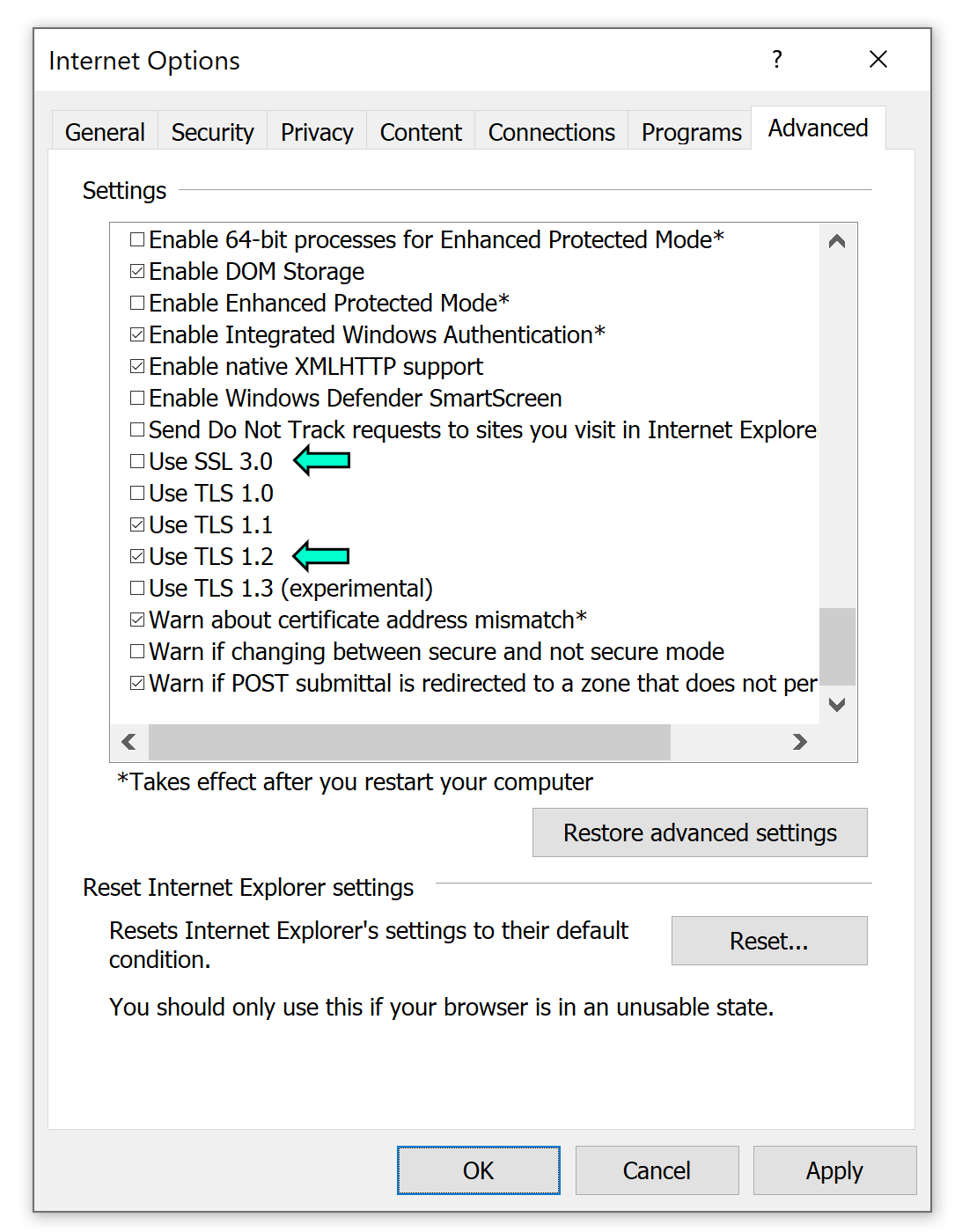
- Hit the LAN settings button after selecting the Connections tab.
- Uncheck the box in the new window Select the OK button to use the proxy server for your local area network.
- To save the changes, click Apply and OK.
Check to see if the Sea of Thieves Lavenderbeard problem has been fixed after turning off the proxy server by restarting your computer. The server issue will be resolved most times.
Join The Discussion: