Google launched the Allo Messenger app to Android and iOS device last year at an attempt to take on Whatsapp and other popular messaging apps. Even though it didn’t quite exactly achieve that, the app received a lot of positive reviews and has over 10 million downloads as of now. Google Allo web client is now available and here’s how to set it up and use it.
Google Allo had a lot of unique features like the Google Assistant integration to your chats, incognito mode and suggestions for your replies. But the one thing it lacked was cross-platform support like Whatsapp and Facebook. Fortunately, Google has now launched the web client for Google Allo and you can start using it from today.
Similar to Whatsapp and Facebook, Allo also syncs your messages across your devices. This means whatever messages you receive on your phone, will also be sent to your computer as long as both the devices are connected to the internet. Sadly the Google Allo web client works only in Chrome browser and is available only for Android users as of now. But one good thing is that you finally get to use Google’s extremely smart AI-powered Google Assistant on your computer.
Also read: Briar Messaging App Keeps Your Conversations Private
How to Use Google Allo Web Version
If you are on the latest version of Google Allo Messenger and have the Google Chrome browser, then you can use the Allo web version right now by following the below steps.
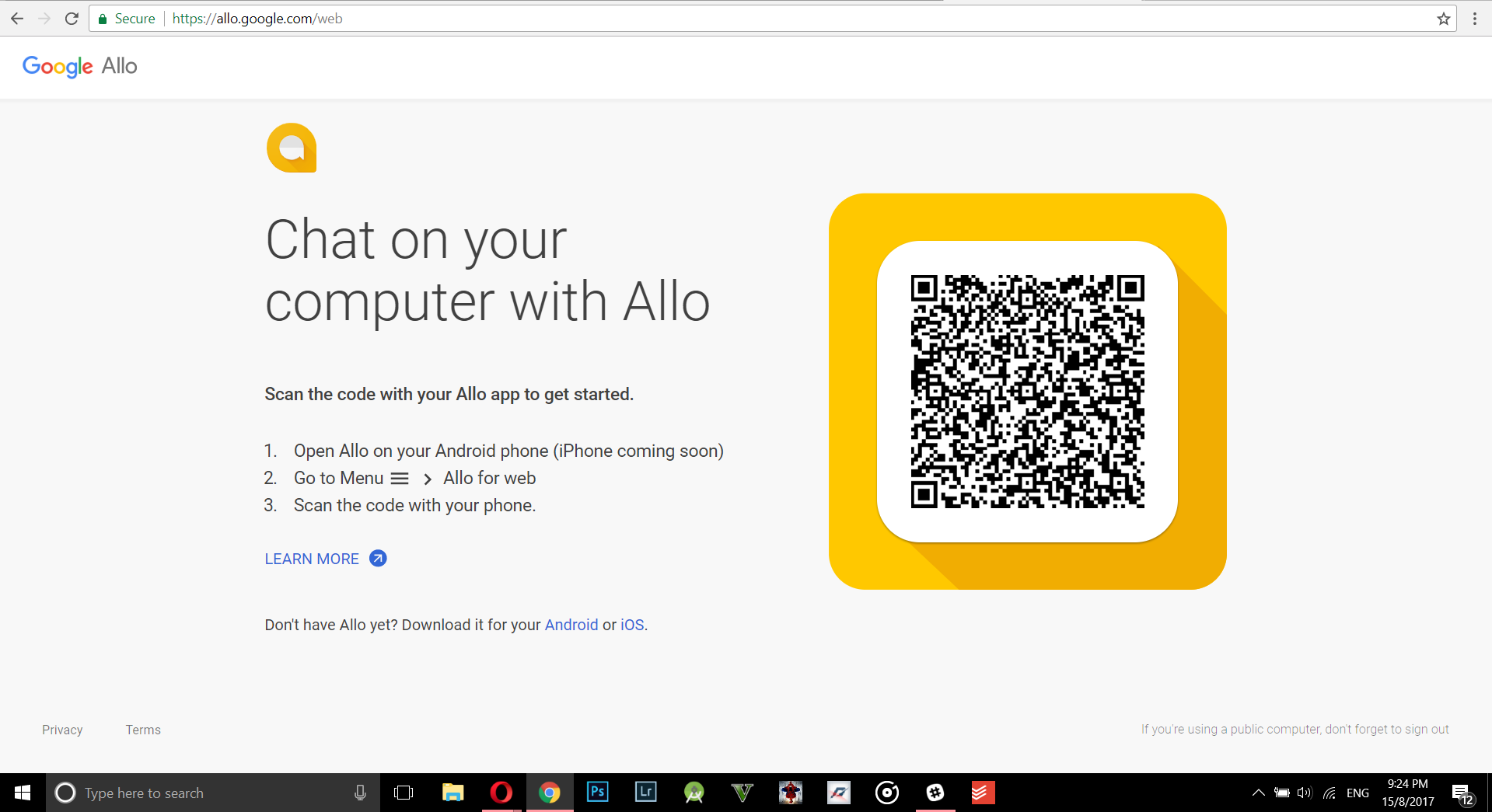
Step 1: Open the website https://allo.google.com/web on the Chrome browser from your computer. You will now get a QR code.
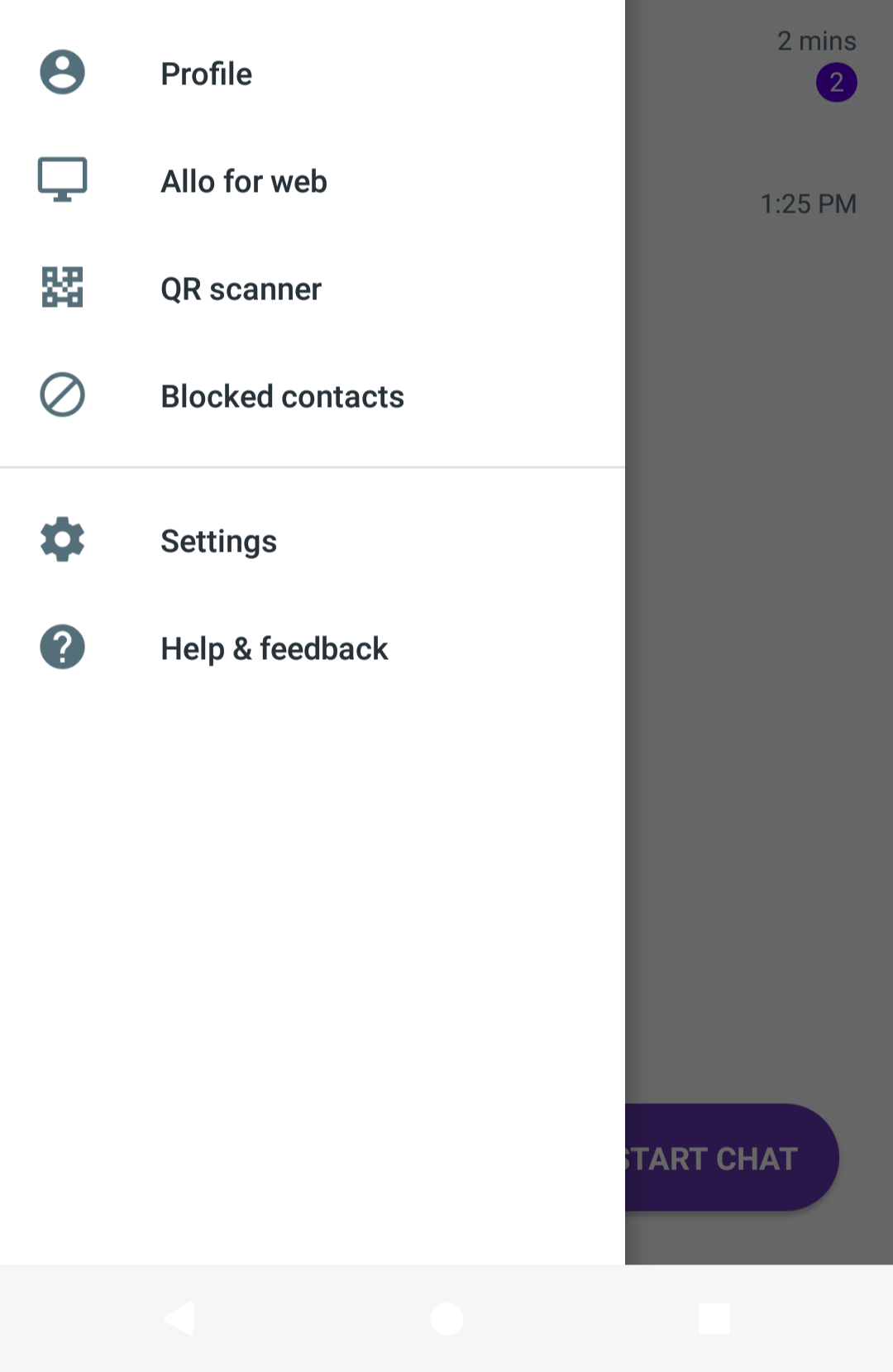
Step 2: Now open the Google Allo app on your phone and then select the Allo for web option from the left hamburger menu.
Step 3: Your phone’s camera will now be opened. Use it to scan the QR code on the website you opened on your computer.
Step 4: That’s it Allo web is now active and you can start chatting on your computer.
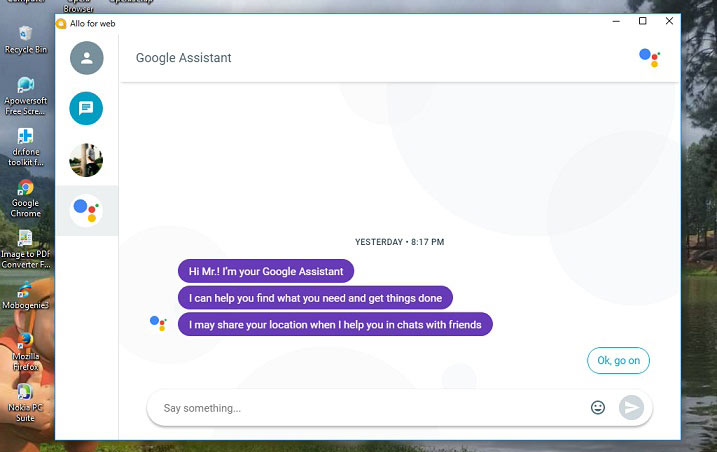
Remember your phone has to be connected to the internet in order for the web version to work. You can sign out of the web session from the Allo for web menu any time you want.
Don’t miss: Samsung Internet Browser Beta is Currently the Best Web Browser



Join The Discussion: