You swiped away a notification and now you can’t remember what it said. Android notification history is a built-in log that saves your dismissed alerts for the past 24 hours, and you can turn it on in Settings under Notifications.
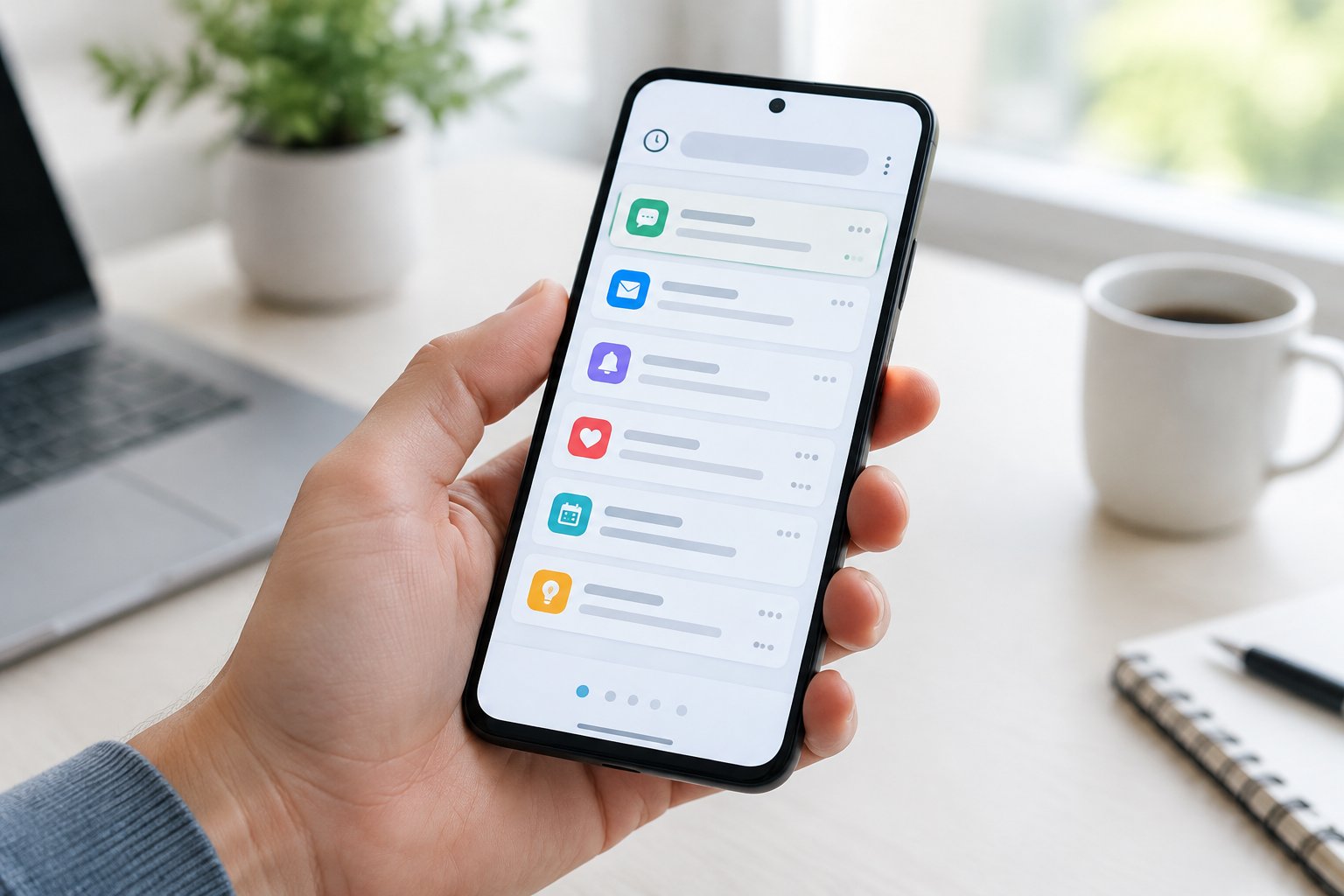
Google added the feature in Android 11, and it stays off by default. That detail catches most people: the log only starts recording after you flip the switch, so nothing dismissed earlier can be pulled back. A two-minute setup today means your next accidental “Clear all” is fully recoverable.
How to Find and Enable Your Saved Alerts
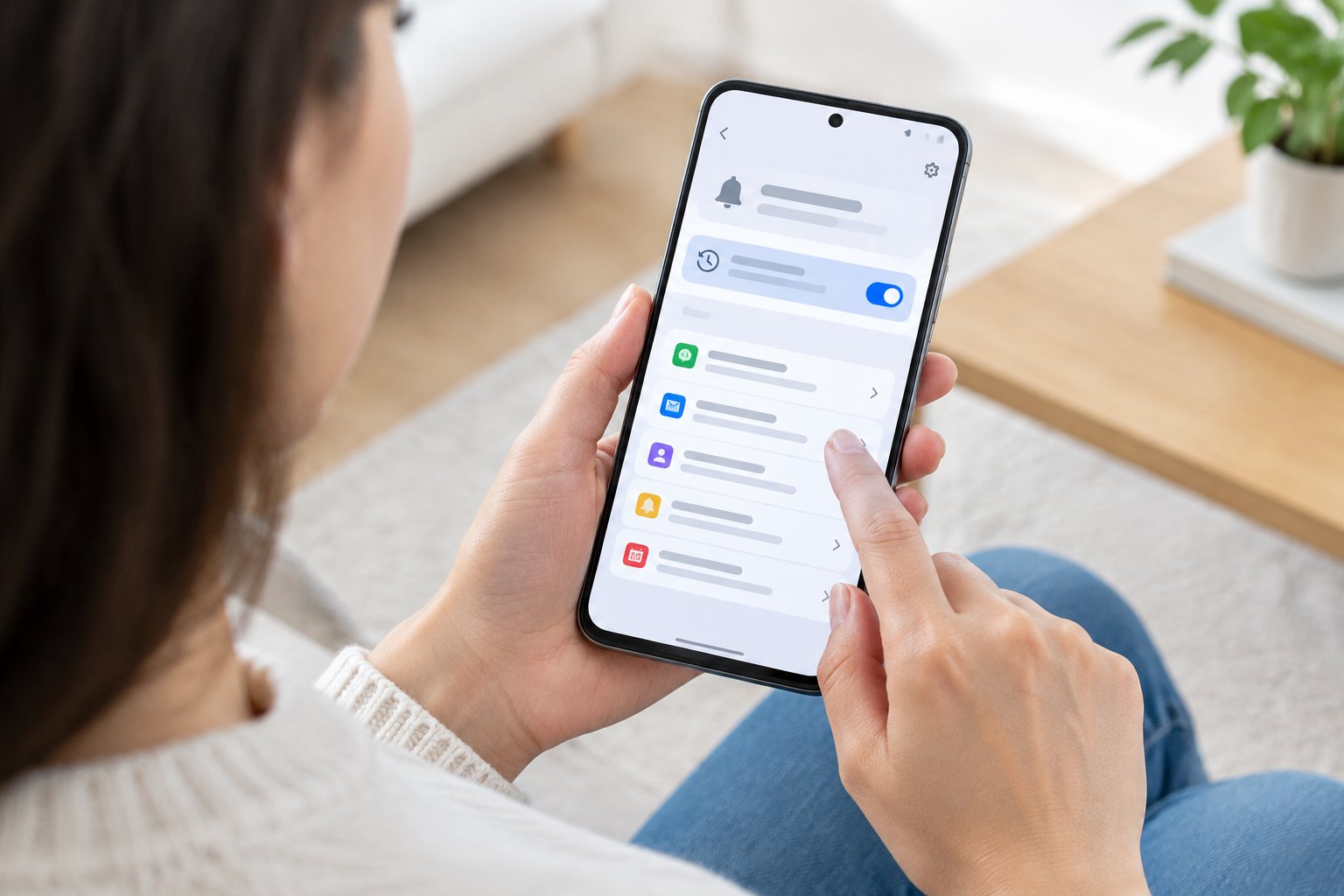
The switch lives in your notification settings, though the exact path shifts slightly between brands. Pixels and other stock Android phones put it one tap deep, Samsung tucks it under an advanced menu, and OnePlus and similar phones respond well to a quick settings search.
Google Pixel and Stock Android: Open Notifications Settings
Open Settings, tap Notifications, then tap Notification history and turn on Use notification history. Once it’s on, your phone keeps a list of the alerts you dismiss for the next 24 hours.
The log starts empty. Give it a few minutes of normal use before you check whether it’s working.
Samsung Galaxy: Look Under Advanced Settings
On a Galaxy phone, go to Settings, then Notifications, then Advanced settings, then Notification history, and switch it on. The feature arrived with One UI 3, which is built on Android 11, so any Galaxy running that version or newer should have it.
Samsung’s version may skip alerts from apps that flag their content as sensitive, so don’t be surprised if a banking notification never shows up.
OnePlus and Other Phones: Search Settings for Notification History
If the menu isn’t where you expect it, open Settings and type “notification history” into the search bar. OnePlus and many other Android skins bury the toggle in a different spot, and search jumps straight to it.
Some manufacturers hide the option entirely, which the troubleshooting section below covers.
What Can You See After Turning It On?
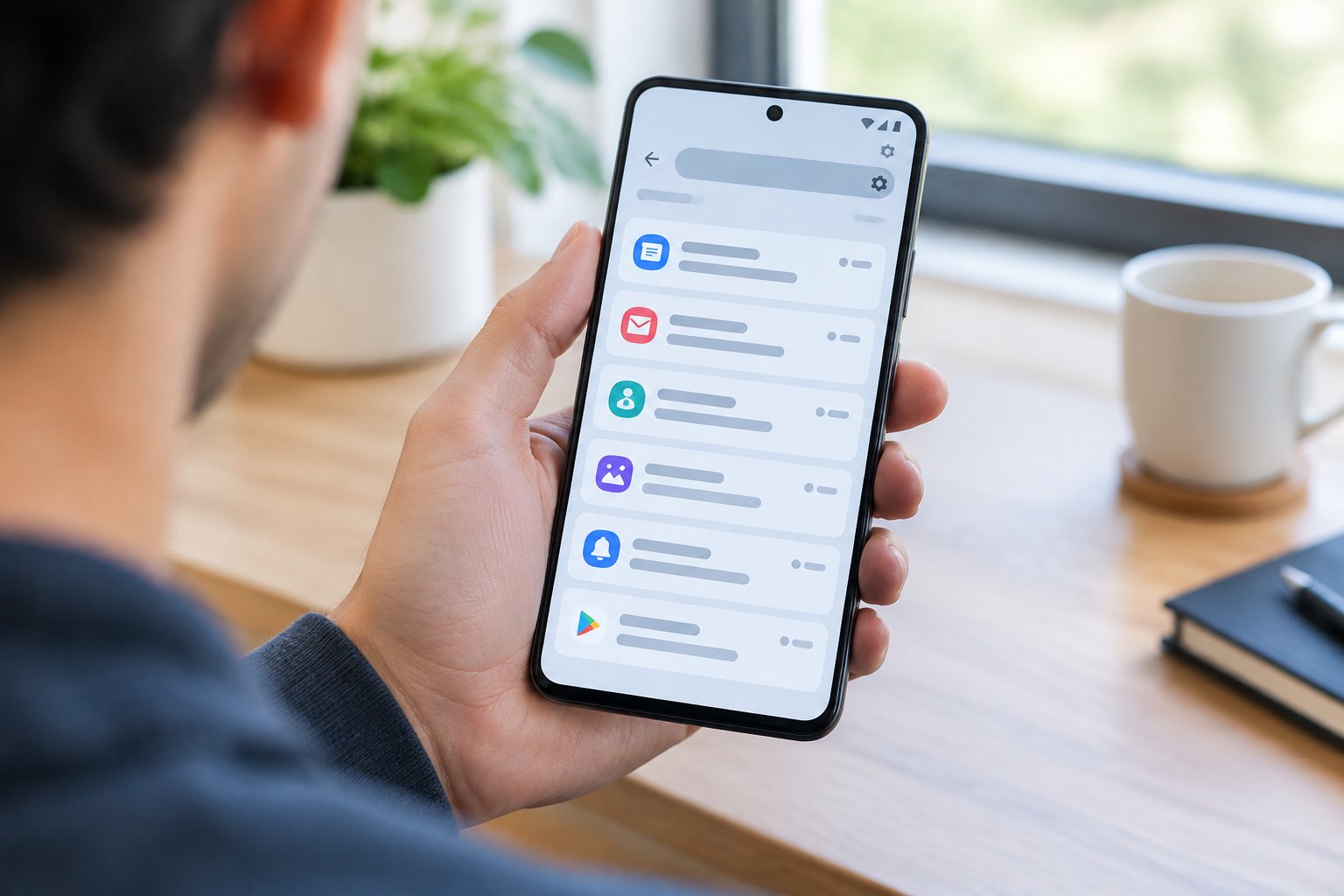
Once enabled, the history screen shows two things: a short list of recently dismissed alerts at the top and a scrollable record of the last 24 hours below it. Tapping an entry takes you to the app that sent it.
Review Recently Dismissed Alerts and the Last 24 Hours
The top of the screen holds a handful of recently dismissed notifications, plus any snoozed ones. Below that, the “last 24 hours” list groups everything that arrived, including alerts you never swiped away.
Think of it as a notification log you can scroll like a feed. Older entries fall off the bottom as new ones arrive.
Open the Sending App Without Restoring the Original Alert
Tapping an entry opens the sending app, just as the original alert would have. The notification itself doesn’t return to your shade, so a text message opens its conversation but the banner stays gone.
Long-pressing an entry in the recently dismissed list also opens that app’s notification settings, which is handy when one app keeps flooding you.
Use the Notification Shade Shortcut Where Available
Some phones add a History button at the bottom of the notification shade, right beside “Manage.” On those devices you can skip Settings entirely and reach the log in one tap from the top of the screen.
If you don’t see the button, the Settings route still works on every supported phone.
Why Are Notifications Missing From Your History?
Gaps in the log almost always trace back to one of three causes: the feature was off when the alert arrived, the alert is older than 24 hours, or something on your phone blocked the alert before it was logged. Work through the causes below in order.
History Was Disabled or the Alert Has Expired
History only records alerts that arrive after you enable it, so anything from before that moment is gone for good. The same goes for entries older than 24 hours, which are removed automatically.
A blank page usually means the feature was just switched on, was recently cleared, or hasn’t received a new alert yet.
The Feature Is Missing From Your Phone
The option requires Android 11 or newer, and a few manufacturers hide it even on newer versions. Xiaomi, Honor, and Tecno phones are common examples where the toggle may be absent or relocated.
Try the Settings search first. If it still doesn’t appear, your phone’s software skin has likely moved or removed it.
App Permissions, Battery Restrictions, and Do Not Disturb
Alerts that never reached your phone properly can’t show up in the log. Check that the app’s notifications are allowed, that battery optimization isn’t putting it to sleep, and that Do Not Disturb isn’t silencing it.
Aggressive battery saver modes can also cut background activity, so missed notifications from apps like Gmail often start with a power setting. Loosen the restriction for the apps you can’t afford to miss.
How to Manage Privacy and Longer-Term Records
The log stores what your notifications say, so a little privacy housekeeping is worth doing. You control what appears on screen, whether history stays on, and which outside apps may read your alerts.
Protect Sensitive Notification Previews
Hide message content on the lock screen by going to Settings, Notifications, and choosing to hide sensitive content. That keeps one-time codes and private messages from showing to anyone glancing at your phone.
Access to the history screen itself sits behind your phone’s normal unlock, so a locked device keeps it out of view.
Turn Off History and Clear Saved Entries
Return to Settings, Notifications, Notification history and flip the switch off to stop logging. Turning it off also clears the saved entries on most phones.
Switch it back on later and the log starts fresh, with no memory of the period it was off.
Understand Third-Party Logging Apps Before Granting Access
Some apps promise longer records than 24 hours, but they work by asking for notification access, which lets them read every alert on your phone, private ones included. Check who makes the app and what it does with the data before you approve that permission.
You can review and revoke these permissions anytime in your phone’s special app access settings.
Enable History Before Your Next Accidental Swipe
Turn the feature on now, since it can’t recover anything from before it was enabled. The path is Settings, Notifications, Notification history on Pixels, with an extra Advanced settings step on Samsung Galaxy phones.
From then on, dismissed notifications and missed notifications stay retrievable for 24 hours, and a tap on any entry opens the app behind it. If something’s missing, check the toggle, your battery and Do Not Disturb settings, and whether your phone runs Android 11 or later.
Frequently Asked Questions
Can I recover notifications dismissed before history was enabled?
No, because the log only records alerts that arrive after you turn it on. For anything earlier, open the sending app directly, since messages and emails usually remain inside it.
How far back does Android notification history go?
It keeps the last 24 hours of notifications. Entries older than that are removed automatically, and the recently dismissed list at the top holds only a handful of the latest ones.
Does notification history show deleted WhatsApp messages?
It shows the alert as it appeared when the message arrived, if history was on at the time. If the sender deleted the message afterward, the saved alert may still display the original text, but the chat itself will show it as deleted.
Can I check notification history on a Xiaomi phone?
Some Xiaomi phones hide the option, though searching Settings for “notification history” is the first thing to try. If it doesn’t appear, the manufacturer’s software skin has likely moved or removed the feature.
Is the notification log widget the same as notification history?
No. The notification log widget is an older shortcut some phones expose for viewing past alerts, while notification history is the built-in Android 11 feature with its own settings page and 24-hour limit.
Join The Discussion: