Most Android phones accept a Bluetooth or USB controller without extra apps, and the fastest route is Bluetooth: put the controller in pairing mode, open Settings, and pair it like a pair of earbuds. A wired USB-C connection works just as well for low-latency play, and both methods let Android treat the pad as a standard gamepad.
The part that trips people up is the second layer: your phone can pair perfectly while a game still ignores every button, because the game itself has to support controllers. Knowing which layer is failing saves a lot of unplugging and re-pairing.
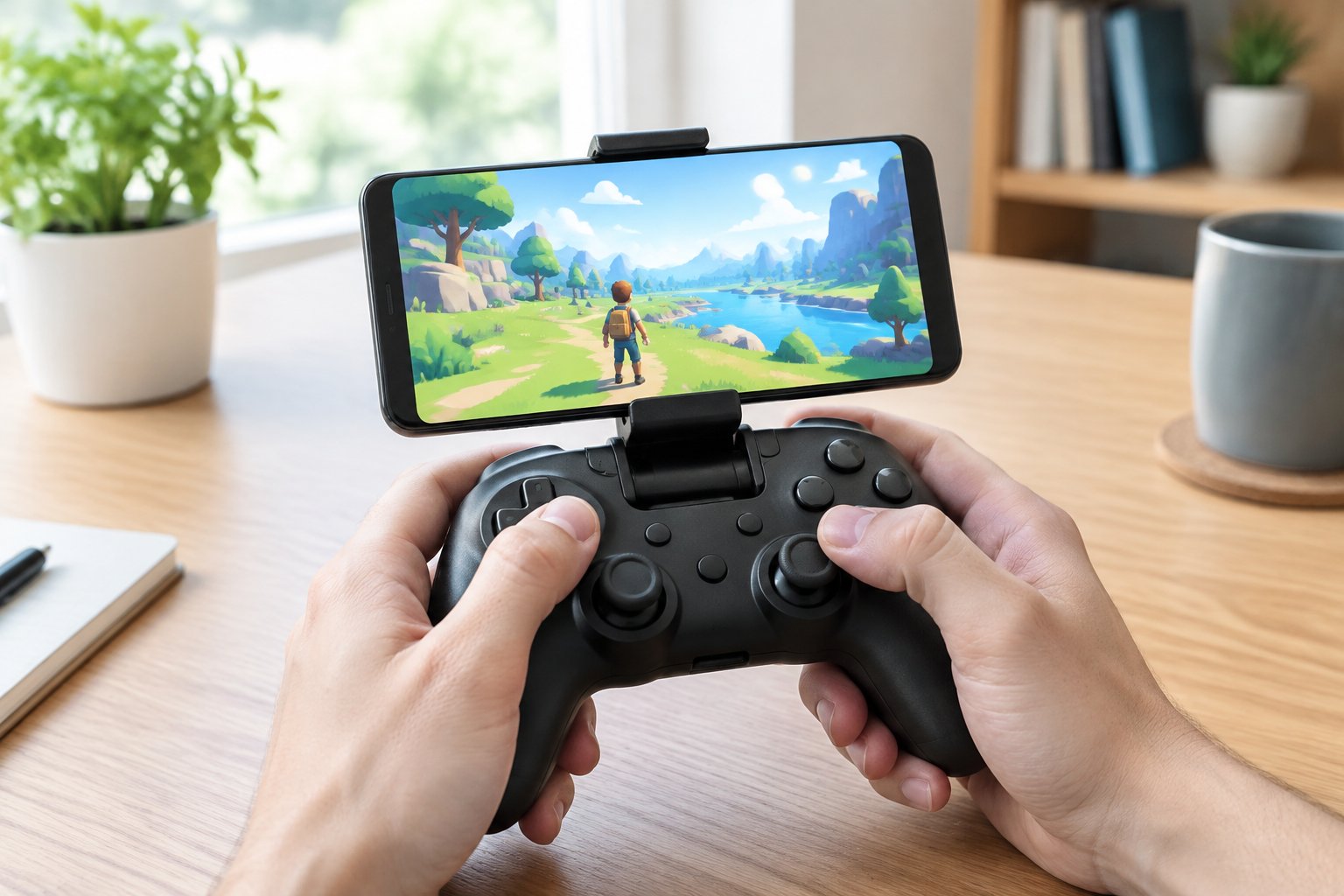
Once you have a connection and a compatible title, you can play console-style on your Android phone with an Android controller that feels like the real thing.
How Do You Connect a Controller via Bluetooth?
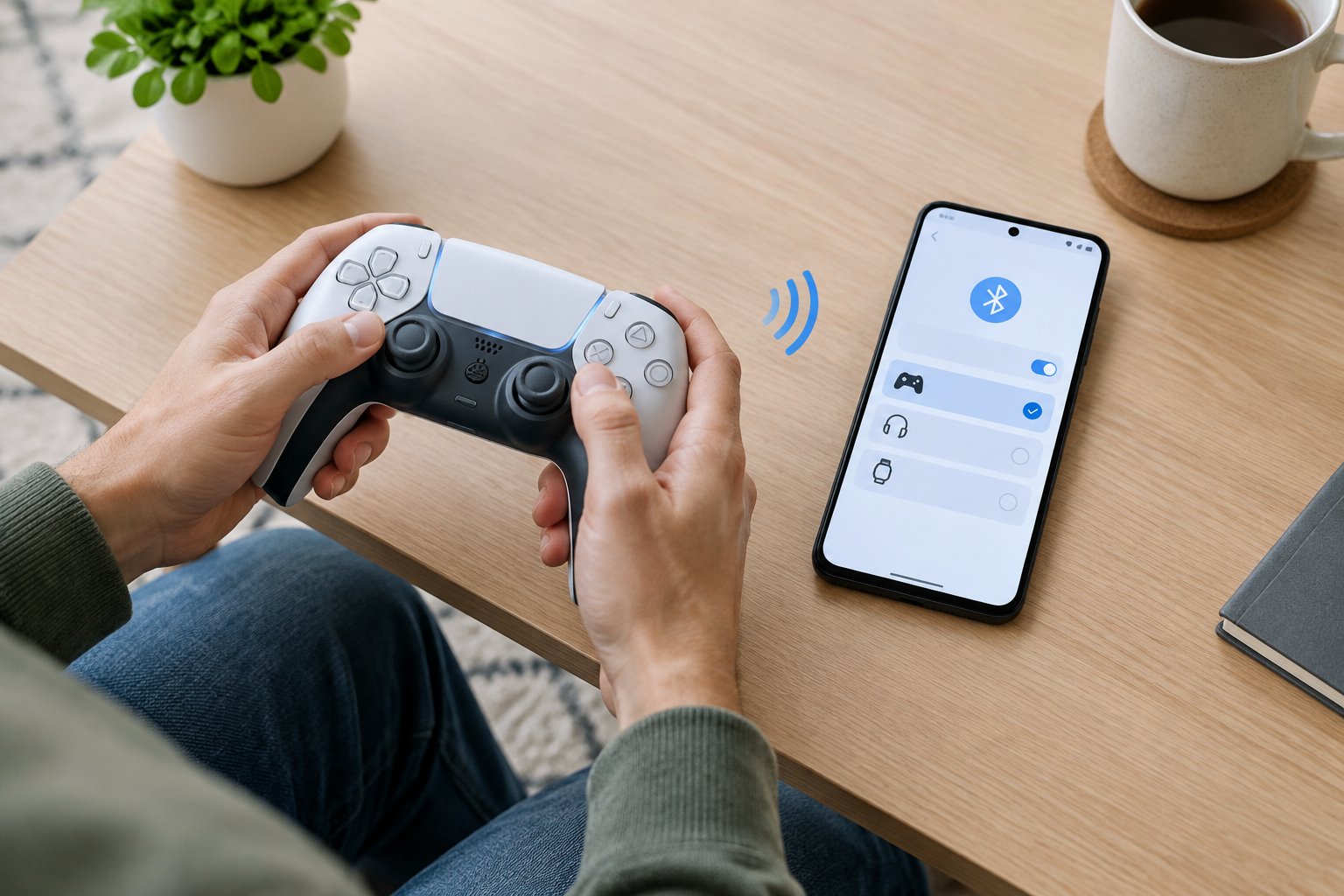
Bluetooth pairing takes about a minute and follows the same path for every brand: put the controller in pairing mode, then pick it from your phone’s list. Only the pairing button combination changes between controllers.
Open Connected Devices and Select Pair New Device
Open Settings, tap Connected devices, then tap Pair new device. Your phone starts scanning, so now is the time to put the controller in pairing mode.
Menu names shift slightly between manufacturers. On some Samsung phones, for example, you may find the same options under a Bluetooth screen with a scan button. Once the controller appears in the list, tap its name and confirm any prompt.
Pair an Xbox Wireless Controller
Hold the Xbox button until it lights up, then press and hold the small pairing button on the top edge (next to the USB port) until the logo flashes rapidly. Select “Xbox Wireless Controller” in your phone’s scan list.
Xbox One and Series X/S controllers with Bluetooth support work well with Android. Older Xbox One controllers from the original 2013 release lack Bluetooth, so they need a wired connection instead.
Pair a DualShock 4 or DualSense
Hold the Share button and the PS button together on a DualShock 4 until the light bar flashes. On a DualSense, hold the Create button and the PS button until the light bar pulses blue.
Select “Wireless Controller” from the list on your phone. Both pads connect as standard gamepads, though touchpad and motion features depend on the game.
Pair a Nintendo Switch Pro Controller or Multi-Mode Gamepad
Press and hold the small Sync button on the top of a Switch Pro Controller until the player lights sweep back and forth, then choose it from the scan list. Joy-Cons pair the same way using the Sync button on the rail.
Third-party multi-mode gamepads usually have a mode switch or a button combination for Android (often labeled with an A or a robot icon). If the pad offers several modes, choose the Android or Bluetooth mode before scanning, since the wrong mode is a common reason a controller never shows up.
How Do You Connect a Controller via USB?
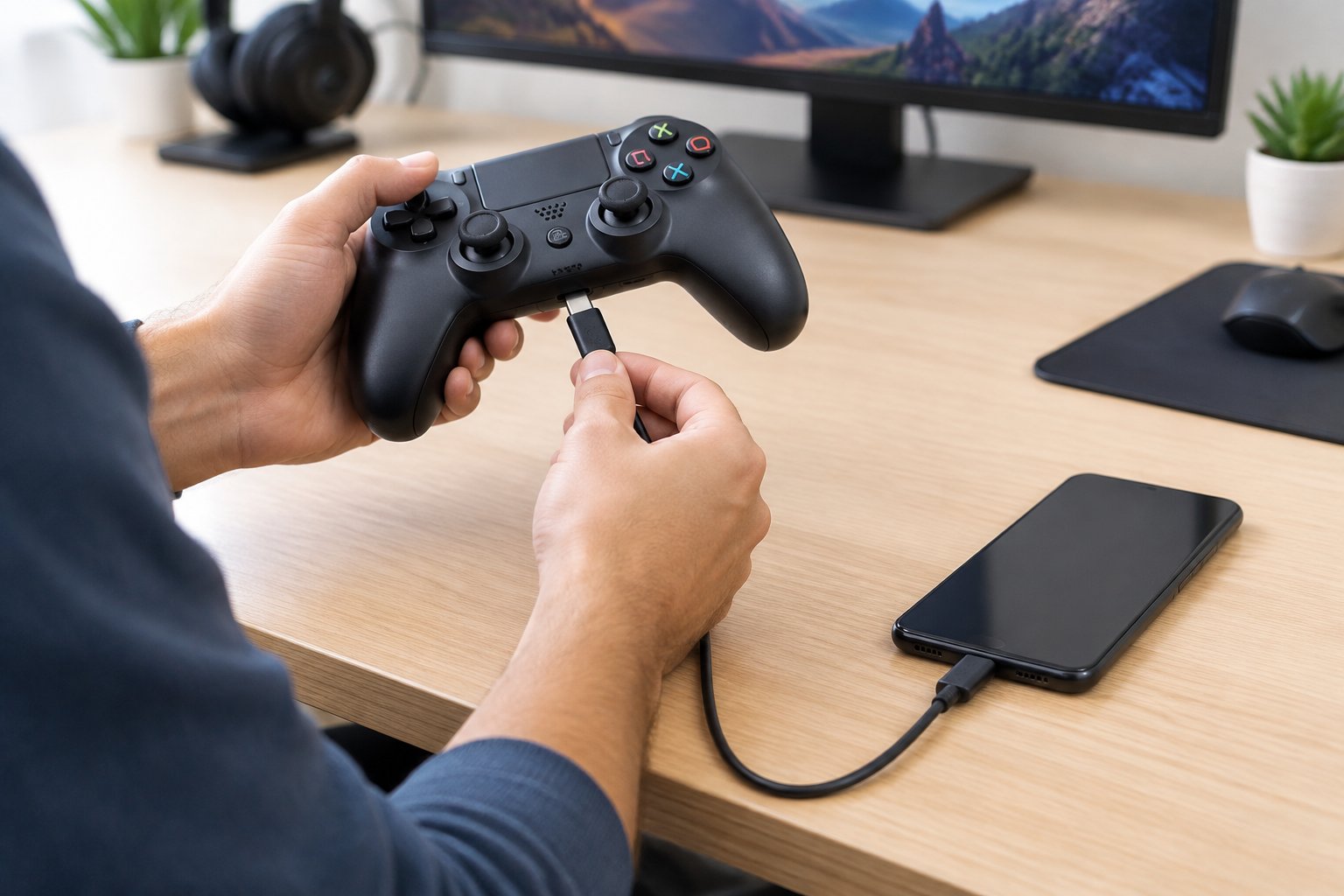
A wired connection works the moment you plug in a data-capable cable, and it removes battery and pairing worries. Most pads need nothing beyond the right cable or adapter.
Check USB Host Support and Choose a Data Cable
Your phone must support USB host mode, which nearly all modern Android phones do. The bigger pitfall is the cable: charge-only cables carry power but no data, so the controller powers on while Android sees nothing.
Pick a cable that is labeled for data transfer. If a cable has ever worked for file transfers, it will work for a controller.
Connect Directly or Use a USB OTG Adapter
If your controller has a USB-C cable and your phone has a USB-C port, plug straight in. For a controller with a full-size USB-A plug, add a USB OTG adapter that converts USB-C to USB-A.
Some mobile controllers clamp around the phone, with a USB-C connector on one side that plugs into the charging port. Extend the clamp, seat the phone, and the controller starts working right away.
Confirm Android Recognizes the Wired Controller
Recognition is automatic in most cases, and no pairing screen appears. You may see a brief notification or the controller’s lights come on.
To check, open Chrome, load a gamepad tester page, and press a button. Android reads controllers through the browser’s Gamepad API, so the page shows live button and stick input without installing anything.
How Do You Configure Buttons and Test Gameplay?
Button configuration happens in three places: Android’s own controller settings on supported devices, the settings menus inside games and emulators, and third-party mapping apps as a last resort. Start with the first two, since they carry the least risk.
Find Android’s Game Controller Settings Where Available
Recent Android versions include a game controller settings screen where you can swap button and joystick assignments. It lives under Settings, often within the connected devices or system area, and the exact location differs by manufacturer.
When a controller is connected, look for an option such as “Game controller” or search Settings for “controller.” Not every phone exposes this screen, so its absence does not mean your controller is broken.
Adjust Button Assignments in Supported Games and Emulators
In-game controls menus give you the most reliable remapping. Open a game’s settings, find the controller or controls tab, and reassign buttons directly. Emulators such as those for classic consoles offer per-controller profiles, which is useful if you switch between pads.
A quick test after remapping: start a session, run through jump, attack, and menu navigation, and confirm every input lands where you expect.
Check the Limits and Risks of Mapping Apps Like Octopus
Mapping apps such as Octopus translate controller presses into touchscreen taps, which lets you play games that lack controller support. The trade-offs are real: setup takes time, results vary by game, and some multiplayer titles restrict or discourage input overlays.
Read a game’s rules before using one, and avoid sideloaded APKs from unknown sites. Where a game has native controller support, use that first.
Why Is Your Controller Not Working on Android?
Controller problems fall into two layers: the phone-to-controller connection, and the game-to-controller support. Work out which one is failing before changing settings.
The Controller Does Not Appear or Keeps Disconnecting
Start with the basics: charge the controller, confirm it is in pairing mode, and move it close to the phone. For Bluetooth pairing trouble, remove the old pairing from Connected devices, restart Bluetooth, and pair fresh.
For a USB connection, swap the cable first, since charge-only cables are the most common culprit. Try the controller on another device to rule out a hardware fault.
The Controller Connects but the Game Ignores It
A phone can pair perfectly while the game accepts no input, because many titles only support touch. Check the game’s store page or settings for controller support.
If support exists, look for a controller toggle in the game’s options, and make sure only one controller is connected. Restarting the game after connecting often fixes detection.
Buttons Are Swapped, Sticks Drift, or Input Feels Delayed
Swapped face buttons are common with Nintendo-style layouts; fix them in the game’s controls menu or Android’s controller settings. Stick drift usually points to worn hardware, though a game’s deadzone setting can mask mild cases.
Delay on Bluetooth shrinks with a short distance and fewer competing wireless devices. A wired connection removes the issue entirely.
A Working Connection and a Compatible Game Are All You Need
Pair over Bluetooth with the right mode and button combination, or plug in a data-capable USB cable, and your phone will treat the pad as a standard gamepad. From there, remap in Android’s settings or inside the game, and keep mapping apps for titles with no controller support.
If something fails, check the connection layer first, then the game’s controller support. With both in place, your Android phone and controller are ready for console-style sessions anywhere.
Frequently Asked Questions
How do I connect a controller to a Samsung Galaxy phone?
Open Settings, tap Connected devices, then Pair new device (or the Bluetooth screen on some One UI versions) and put your controller in pairing mode. Tap the controller’s name when it appears. For a wired pad, plug it in with a data cable or a USB OTG adapter.
Can I use an older Xbox controller without Bluetooth?
Yes, but only over a wired connection. The original 2013 Xbox One controller lacks Bluetooth, so connect it with a data-capable micro-USB cable and a USB OTG adapter. Models released later include Bluetooth and pair wirelessly.
Do I need an APK or root access to map controller buttons?
No, neither is required for the standard methods. Android’s built-in controller settings and in-game remapping menus need no root and no sideloaded files. Only third-party mapping apps involve extra installs, and those come from an app store.
Why can’t I find game controller settings on my Android phone?
Not every phone or Android version shows this screen, and manufacturers place it in different spots. Connect a controller first, then search Settings for “controller.” If it is missing, remap buttons inside the game or emulator instead.
Can I use a controller with Android games that only support touch controls?
Yes, with a mapping app that converts button presses into screen taps. Results vary by game, and some online titles restrict this kind of input, so check the game’s rules first. Games with native controller support work better and need no extra setup.
Join The Discussion: