You are lying down, watching a movie on your PC and suddenly your phone rings. In that moment you wish you wouldn’t have to get up in order to pause the movie and respond to your friend’s text. Well then, this article is just for you. Imagine you are able to use your Android device so as to remotely control your PC. Now imagine no more. This functionality is feasible with the use of third party apps. So today, we are going to show you how to remotely control your personal computer.
For this tutorial we are going to use “Remote Link”, but any app that uses a similar approach would do. Make sure to follow the Step-by-Step guide below in order to turn your smartphone into a PC controller.
Guide
Step1. Download “Remote Link”, using the app box below.
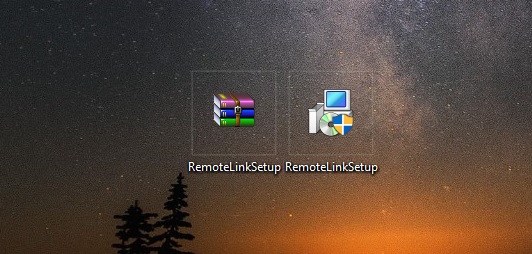
[googleplay url=”https://play.google.com/store/apps/details?id=com.asus.remotelink.full”/]Step2. After you install the Android application, click on the link below in order to download the “Remote Link” PC client software. The file is downloaded in a .zip format so make sure to unzip and install the program.
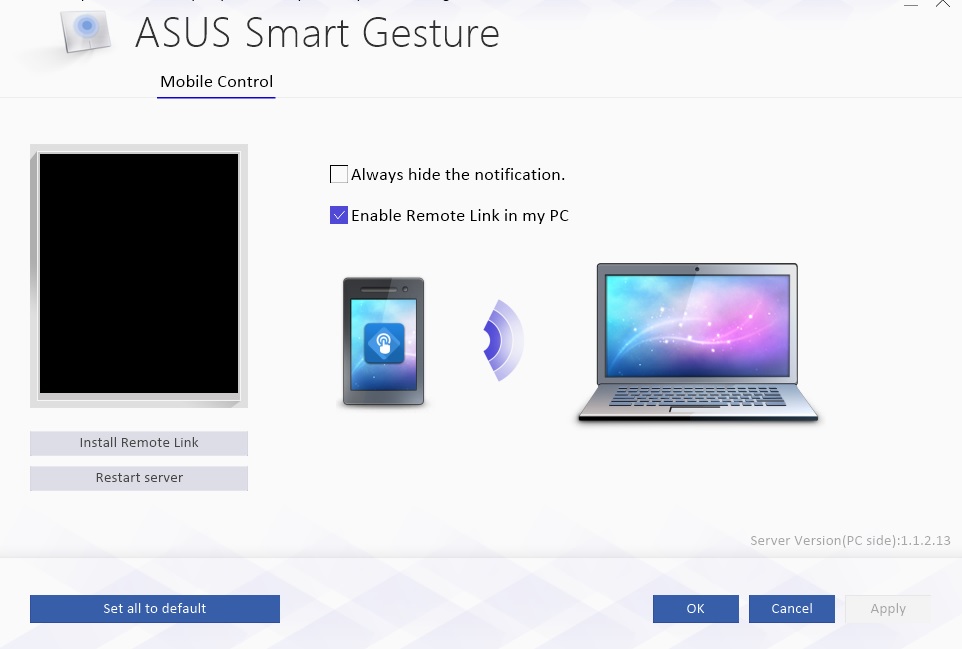
Step3. Open the newly installed “Smart Gesture” on your PC. Make sure that the “Enable Remote Link in my PC” option is checked. If it is, close the application.
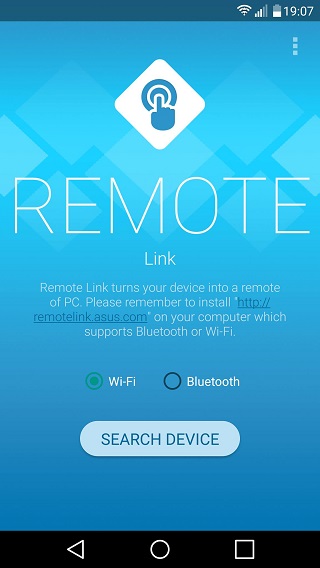
Step4. Open the client app on your smartphone. Make sure that both your PC and Android device are connected to the same network and tap on “Search Device”.
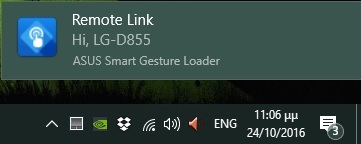
Step5. Choose the PC you want to connect to and you are good to go. Note that Windows will display a notification upon successful connection.
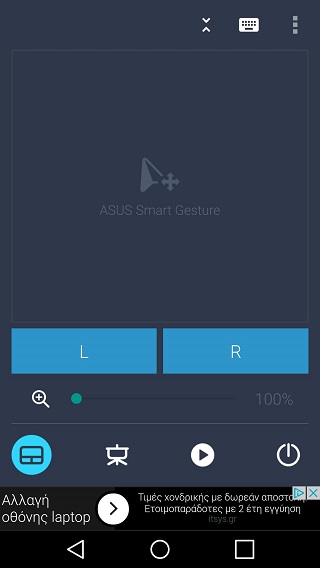
From now on the action begins. The first screen of “Remote Link” can be used as a mouse pad. Drag your finger across the smartphone screen and see your mouse pointer moving on your PC screen. Everything, from the left click to the right one, is there. Moreover, “Remote Link” includes some more features, such as:
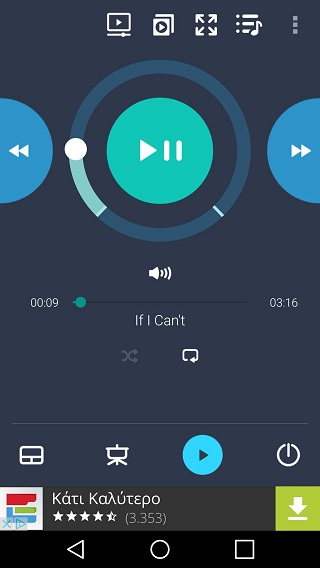
- Media Player Control. (You can either choose VLC or Windows Media Player)
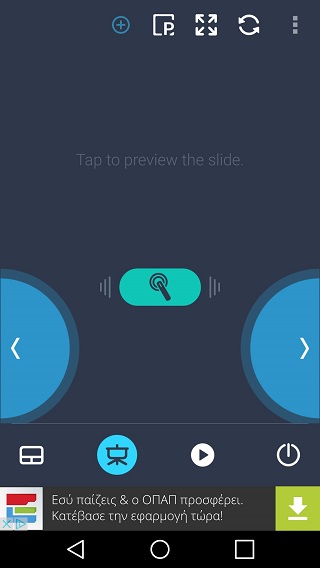
- Power Point slide control.
In conclusion, “Remote Link” (and every other app offering the same features) is a tool worth of your time. Use this step by step guide in order to make your life (even a tiny bit) easier and you Android more useful.
So, do you use any of the PC control apps? If so, which one? Was “Remote Link” useful? Leave your comments below.

Join The Discussion: