We’re living in an era where smartphones are slowly taking over the PC’s and laptops, thanks to the extreme portability they offer without compromising on the features. Android OS has a definite edge over the other popular mobile operating systems for obvious reasons. But if you ask why, I have two words – open source and customizable, which are definitely missing in some of the other popular mobile platforms like Apple’s iOS and Microsoft’s Windows platform. However compact and powerful may be an OS, people always like a change every now and then which is only possible with Android smartphones.
Themes play a very important role in changing the look and feel of the device to match your personality or sometimes even to complement your dress to a party. Unfortunately, stock Android has no provision for system-wide theme engine but you can dig many apps from Playstore which gives the similar looks of a theme. However, if you have a little geek in you, theme engine rolls on your device with the custom ROMs like CyanogenMod, Paranoid Android. Once you have theme engine supported ROM, you can download various themes from Playstore or other sources and install them.
The CyanogenMod theme database has a huge collection of themes but you will find very few themes supporting CM12 which is based on the latest Lollipop version of Android. You can find the links to a few of the CM12 themes from below:
CM12 Themes
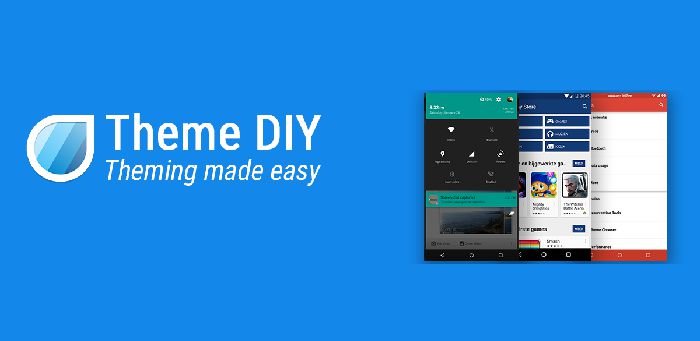
Now that CyanogenMod had fully implemented the theme engine in CM12, we could expect a horde of themes to hit the market anytime soon. If you want to be one of the CM12 theme developers, today we will show you an amazing app that will just do what it says. The Theme DIY app, as the name suggests is a “Do It Yourself” app which helps you create a CM12 theme just under a minute. The app lets you customize various aspects of the UI like the colors, backgrounds, elements & much more. Once the theme is cooked, the Theme DIY app will create an APK file of your theme which you can share it as a standalone theme.
Theme DIY app is still in the early development stage and you can expect few bugs here and there but believe me, I made a simple CM12 theme in less than a minute. However, if you want your theme more appealing it’s better you work on it a tad longer. Let’s cut the chase and see how you can build a CM12 theme in a minute.
Install Theme DIY
There are two ways to get this app on your device, from Playstore or the direct link. You can check out both the ways from below:
- [Important] Join the Theme DIY Google+ community
- Now, you can install the Theme maker app from the Play store
You can always download the app from the direct link below but you won’t get automatic future updates unless you install the app from Play store.
Let’s Make CM12 Themes
- Open the Theme DIY app, you will see an add button to start a new project. Now give your theme a name and choose between the theme base which is either dark or light.
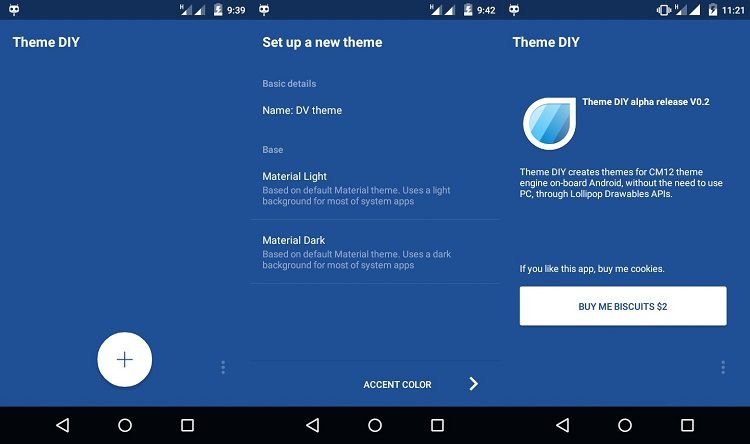 Note: The theme name is the name of the output file but the name shown in the theme engine will be different. It’s a bug to be resolved.
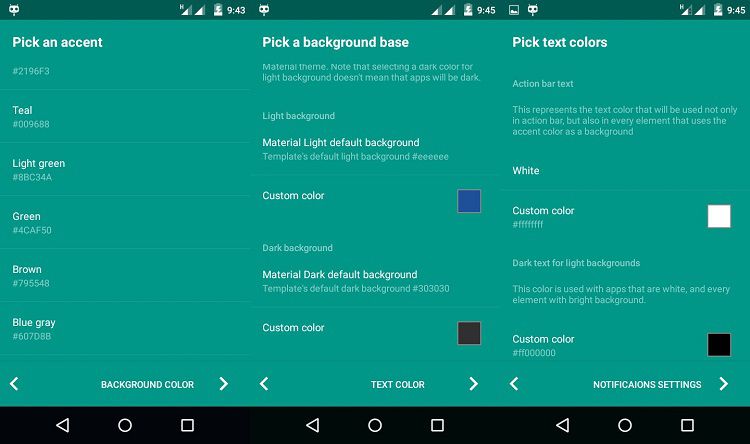
 - In the next three steps, all you need is to choose the colors for various sections of your theme like the accents which changes the system-wide color palette. Apart from that, you will choose the background and font colors.
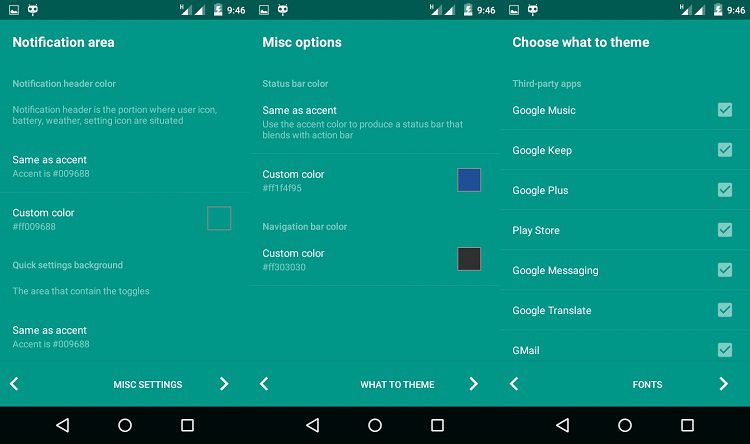
- In the notifications area, you will have a lot of options to customize various parts of notification panel like the header, background, toggles color, toggle text color, brightness slider color and many more.
- In the Misc screen area, you can choose the status bar color and the notification bar colors. Next, choose all the third-party apps you want to theme.
- Finally, choose the normal, bold and thin fonts from the fonts menu and build the theme by hitting the build button. You can install the theme directly once the theme is built.
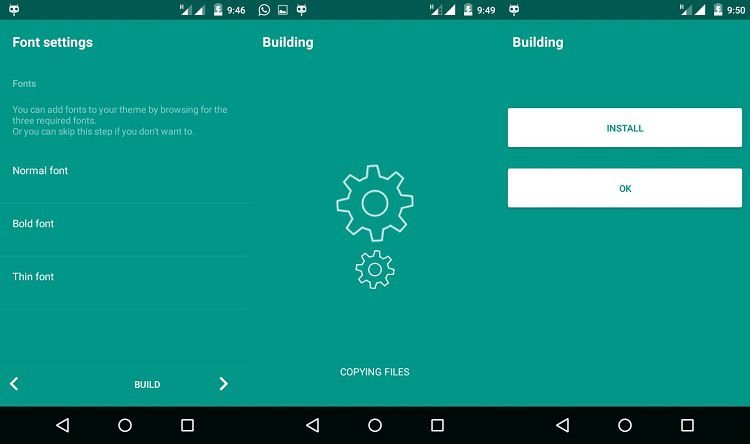
- That’s it, you can now apply your theme from the CyanogenMod theme engine and check your work for any modifications.
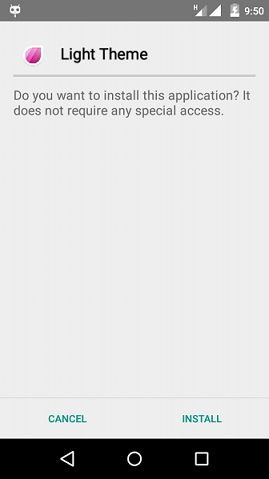
As you can see that the name of the theme is still Light theme which is a bug to be fixed. Other than that, you can cook some fabulous themes with the Theme DIY app.
So, how is the app to your liking? If you’ve created some marvelous theme out of it, kindly share it in the comments below.
Read Also: 8 Best Substratum Themes for Samsung Devices



Join The Discussion: