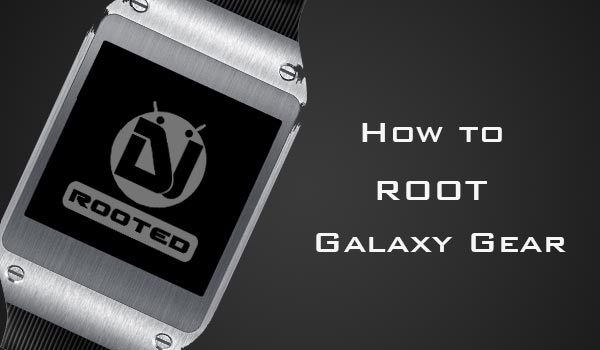
We’ve been familiar with smart watches, the first and foremost came from SONY, followed by several other manufacturers. They have been reasonable to buy and easy-to-use. Last year Samsung has took its turn and released its own unique concept of Galaxy Gear, which accompanied the release of the Galaxy Note 3. It has 1.63” AMOLED screen, a single core 800MHz CPU, 512 MB RAM, 4GB internal storage and a 1.9 MP camera, which in its own terms make it a class-apart from most other Android-based smart watches out there.
The Galaxy Gear is limited to its functionality and can inherit few but very precise features. It lets you call, recognize your voice commands, sync notifications, record your voice and take photographs. Yet, have we been ever satisfied with what the OEM delivers? No! definitely not and that’s the reason that we are writing this guide today. It will help you to easily root Galaxy Gear and also install the famous Pie Controls on it.
Warning!
Rooting voids warranty, do everything on your own risk. DroidViews or any of its member shall not be held responsible for any damage to your Gear.
Prerequisites
- Install Samsung USB drivers
- Go to Settings > Gear Info and tap 10 times on Software version. Go back and enable USB debugging on the Galaxy Gear
- Download Cydia Impactor and extract it to a suitable location.
Root Galaxy Gear
- Connect your Galaxy Gear to the PC and give it minute to sync with the drivers.
- Open the extracted Impactor_0.9.14 folder and double-click the Impactor.exe to run the Cydia Impactor (Click on Run, if notified)
- Select # drop SuperSU su to /system/xbin/su in the dropdown menu (if not selected by default) and click on Start.

- When the process finishes, disconnect it.
Install Pie Controls on Galaxy Gear
Now, to achieve this we are initially gonna install some other apps like the ES File Explorer, Xposed Framework and Gravity Box module. I have put together all the three APKs together and zipped them up for your ease. Download apk_gear.zip and extract it to the Desktop, so you will have a folder named apk_gear on your desktop. Follow up now.
- Connect your Galaxy Gear to the PC.
- Open the apk_gear folder. Inside the folder, press SHIFT key and right-click on an empty space. A menu will pop-up, select Open Command Prompt Here.
- Type the following commands in the CMD window one after the other to Install the ES File Explorer, Superuser, Xposed Framework and Gravity box, respectively.
adb install es-file-explorer.apk
adb install superuser.apk
adb install xposed-framework.apk
adb install gravity-box.apk
- Reboot your Galaxy Gear.
- Go to Apps and select Xposed Framework. Go to Framework and tap on Install (Select Yes when prompted for root permissions)
- Reboot your Galaxy Gear again so that the Xposed Framework is setup properly.
- Go to Apps and select Xposed Framework. Tap on Modules and check Gravity Box module.
- Reboot again for the module to activate properly.
- Go to Apps and select GravityBox. Tap on Statusbar tweaks, then on Pie Controls.
- Tap on Enable pie controls and select Always. Scroll down and modify other Pie settings according to your usage.
Congrats your Galaxy Gear is now rooted and has Pie Controls installed on it. And not just the Pie controls, you can also use other mods in the GravityBox which are compatible with the Gear.
Just tried doing all of this, all I get is an error in the cmd prompt that “adb is not a recognized program or command”, any tips?
Have you setup ADB on your computer?
No I haven’t -.- I didn’t realize it was needed, but makes sense! lol
Done! ADB installed, and watch rooted with Pie controls set up! Thanks for everything 🙂
Glad to know! Enjoy!
Hi Rakesh,
Can you tell me if you can root the Gear 2 Neo and how to sideload apps on to it.
I really want the Fleksy Keyboard.
Many Thanks
Tim Irwin
There is no root exploit for any of the Gear variants right now! We’d cover it when it’s available!
Ok thank you.
Is there another location where we can download apk_gear.zip file? Dropbox has blocked it…
Wait!
Thank you!!
Reuploaded the file. Download it!