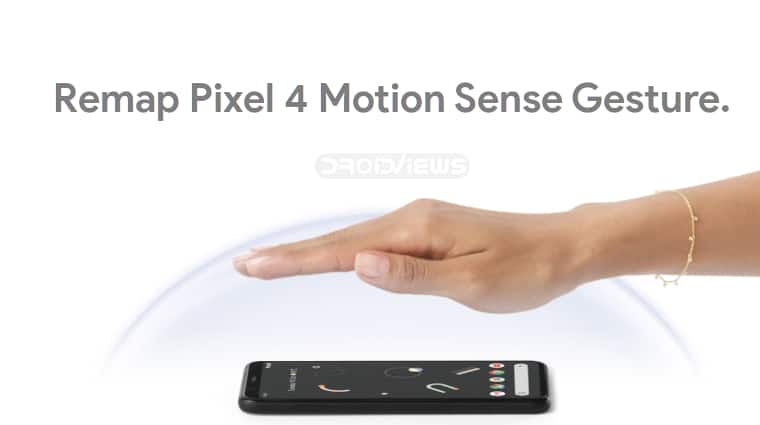
Ever since the original Pixel, Google has never managed to match that level of perfection. The Pixel 2 had display issues, Pixel 3 had RAM and battery issues, and the Pixel 4 has an even smaller battery with a design that Google could have achieved with the first Pixel too. The thick forehead does have a ton of sensors so we can excuse that, perhaps. One of those is a radar sensor and is used for Motion Sense. By default, motion sense doesn’t do much. It can be used to skip music tracks or silence alarms, etc. Thanks to a recent update to the Button Mapper app, however, you can now remap Pixel 4 Motion Sense Gesture.
For those who don’t know, Google has been working on Project Soli for years now. They’ve managed to develop a tiny radar chip that can sense motion near the phone. Comparing what we have on Pixel 4 to the promos for Project Soli, it is easy to see why many people consider Motion Sense to be a gimmick. But this is Google, and they’re a software company not a hardware company. I believe they have a plan, and it is to continue to improve this radar sensor over time. It’s a classic Google move to throw an incomplete product in the market and if it sticks, make it better over time.
Install Button Mapper To Remap Pixel Motion Sense Gesture
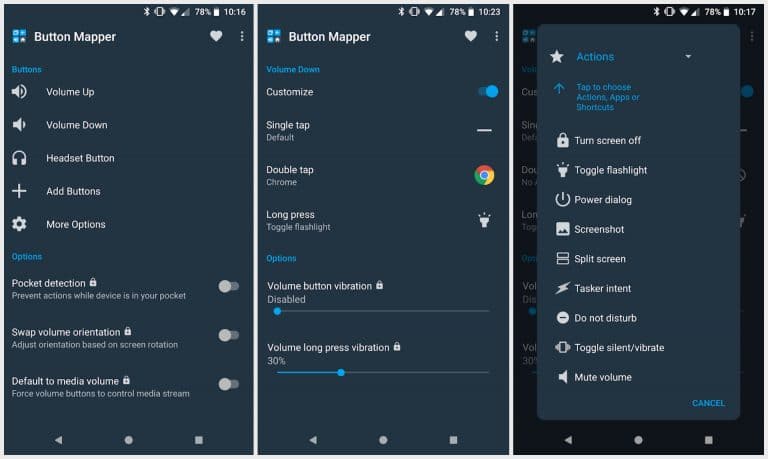
In any case, as it stands now, the soli radar chip on your Pixel 4 might not be of much use to you. With Button Mapper, you can make sure that you’ll be able to get more use out of it than just assistance in Face Unlock or silencing alarms. With this app, you can also remap every other hardware button on your phone, including the Active Edge on Pixel devices. The app is free on the Play Store but does offer in-app purchases to unlock more features.
To remap the Pixel 4 motion sense gesture, you will need to unlock the PRO version. Launch the app once installed and select Motion Sense. You’ll then be prompted to upgrade to the Pro version. Depending on how much you want, you can pay $4.29, $9.99 or $25 but either of these purchases will unlock all the features.
Enable Developer Options
- Open Settings from the app drawer or pull down the quick settings panel and tap on the cogwheel icon.
- Scroll down and select About phone.
- Scroll down again on the next page until you find the Build number.
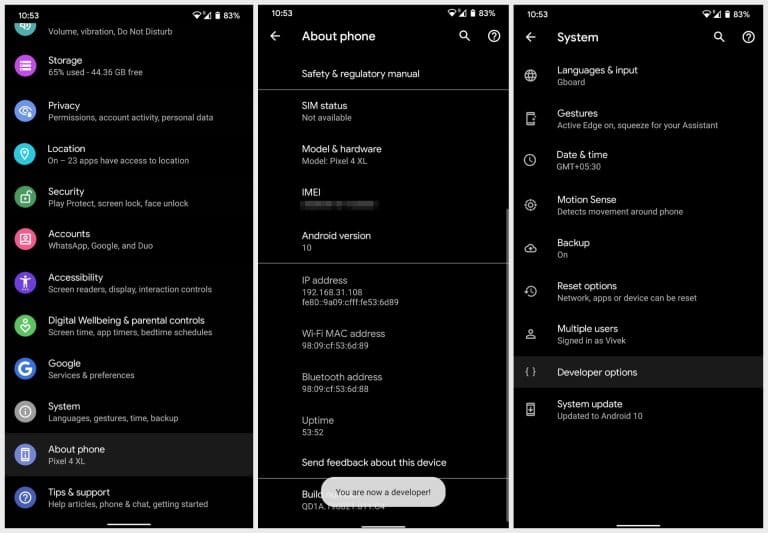
- Tap on it 5 times and you’ll be asked to enter your PIN if you’ve set up one.
- Once you do, you should see a toast message saying “You are now a developer!”
Enable Button Mapper
- Download Android SDK Platform-tools zip on your PC and extract the zip file to get the platform-tools folder.
- Go to the platform-tools folder on your PC.
- Command Prompt: Type in cmd in the address bar and hit enter.
- Windows PowerShell: Hold Shift and right-click in an empty space inside the folder then select Open PowerShell here.
- Terminal (macOS & Linux): Right-click in an empty space inside the folder and select Open in Terminal.
- Connect your Pixel 4 to the PC with a USB cable and select File transfer mode.
- Now check if your device is properly connected by typing the command given below and hit enter.
- Command Prompt:
adb devices
- Windows Powershell:
.\adb devices
- macOS or Linux:
./adb devices
- Command Prompt:
- You should see your phone’s serial number. If you don’t, you should check if you have installed all the required drivers.
- If everything works as expected, grant logcat access by entering the command below.
- Command Prompt:
adb shell sh /data/data/flar2.homebutton/logcat.sh
- Windows Powershell:
.\adb shell sh /data/data/flar2.homebutton/logcat.sh
- macOS or Linux:
./adb shell sh /data/data/flar2.homebutton/logcat.sh
- Command Prompt:
- Now open Button Mapper on your phone and select Done if prompted.
- Turn on the toggle next to Customize and Button Mapper will be enabled.
Remap Pixel 4 Motion Sense Gesture With Button Mapper
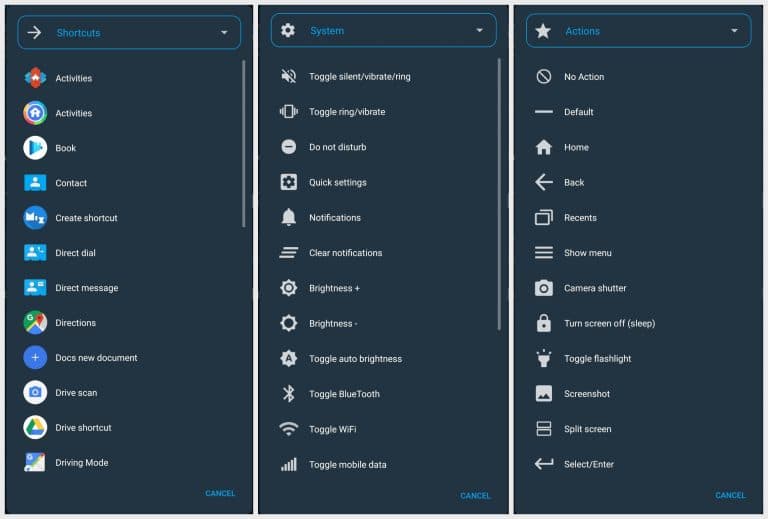
With the logcat permission granted and the Customize toggle enabled, you can now go on and remap the Pixel 4 motion sense to anything you like. Just select Swipe and then choose one of the available actions from the pop-up dialog. The app provides a number of options from shortcuts and activities to system controls and other actions such as taking a screenshot.
If you want, you can even make the app make a sound anytime you use the gesture. This should even work while your screen is locked or off.

Join The Discussion: