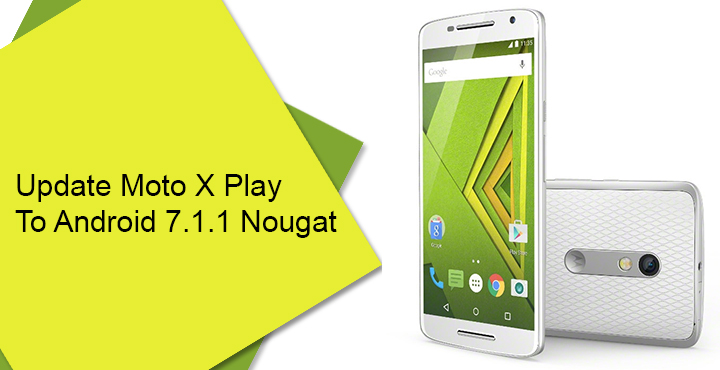
Motorola Moto X Play which was launched around 2 years ago with Android 5.1 Lollipop was promised by the company to receive the Android 7.0 Nougat update at some point. That point somehow never seemed to have come. In what can only be called good news for the owners of Moto X Play the device is not getting the Android 7.0 update. That’s because it is now being directly updated to Android 7.1.1 Nougat by Motorola. For a device almost 2 years old, this is rather surprising, even for Motorola. The new update comes with several bug fixes and improvements. It also brings with it, apart from the latest mobile OS from Google, the May 1, 2017, security patch.
Thus, you can be sure that your device is as secure as an Android smartphone can get. Motorola’s official support site already has documentation about this update listed, so the over-the-air rollout should already be reaching out to you soon. The OTA update is about 1.1 GB is size so make sure you’re on an unlimited plan or connected to a Wi-Fi network. Considering this is a Nougat update, you will be getting features such as bundled notifications, split-screen, improved Doze mode, quick reply and more. If you didn’t see a notification already, you can check for the update in Settings > About phone > System updates.
Don’t want to wait for the OTA? You can also get the update by flashing the official factory images provided by Motorola. We’ll show you how, but you’ll need to meet certain requirements first.
Prerequisites
- Set up ADB and fastboot on your PC. If this is your first time using adb, it’d be better to install minimal ADB and fastboot.
- Install Motorola USB drivers on your PC.
- Moto X Play Android 7.1.1 Nougat Factory Image (Download from below)
- Backup all your important data because it might get wiped.
- Ensure that your Moto X Play has at least 60% battery.
Download
Don’t miss: How to Unlock Bootloader, Install TWRP and Root Moto X Play
Things to consider …
Flashing an official update shouldn’t void any warranty that you may have. But if you don’t follow the steps correctly, you might end up with an unusable device. Sometimes, even when you’ve seemingly done everything right things might not work out. Human errors are always a possibility. In any case, DroidViews does not take any responsibility. But we are willing to help solve your problems.
Also, note that you cannot downgrade to a previous software version after installing this update. That is unless your Moto X Play has an unlocked bootloader. If it doesn’t have an unlocked bootloader, flashing the official ROM will not automatically re-lock it. It will, however, unroot your device if it is rooted.
How to update Moto X Play to official Android 7.1.1 Nougat
- Once you have the necessary factory image, connect your phone to the PC with a USB cable. Make sure the cable provides a proper connection and isn’t lose at any ends.
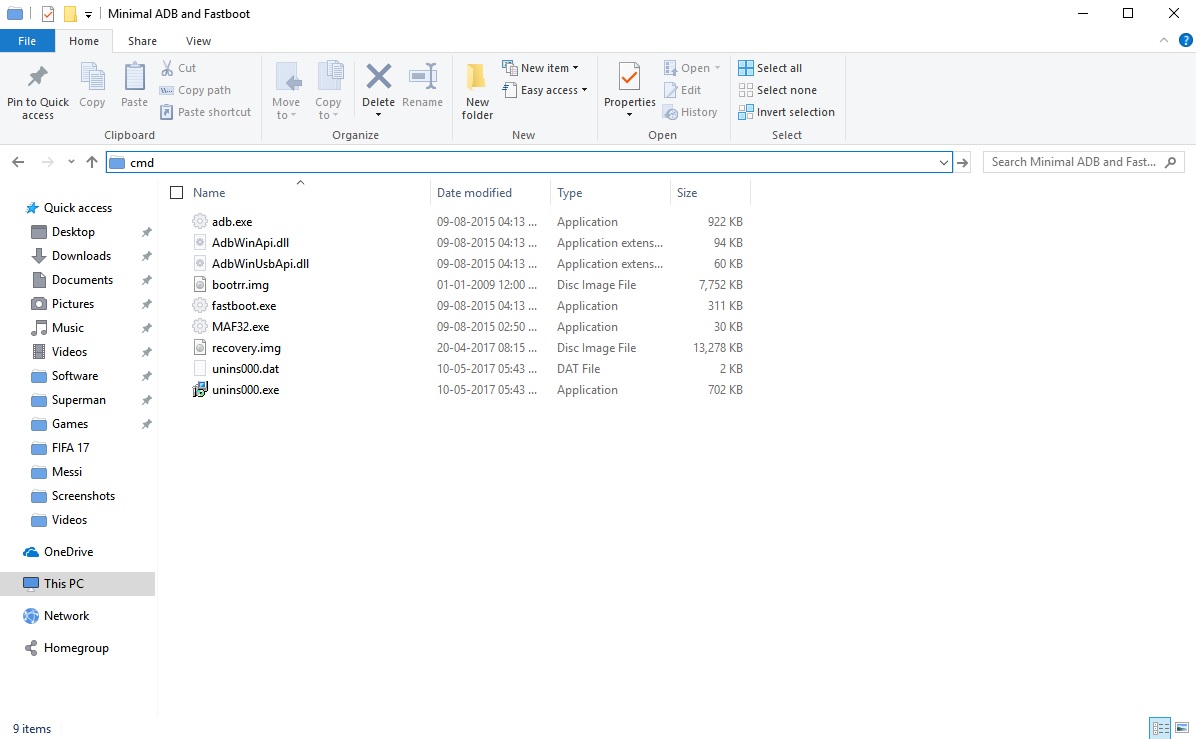
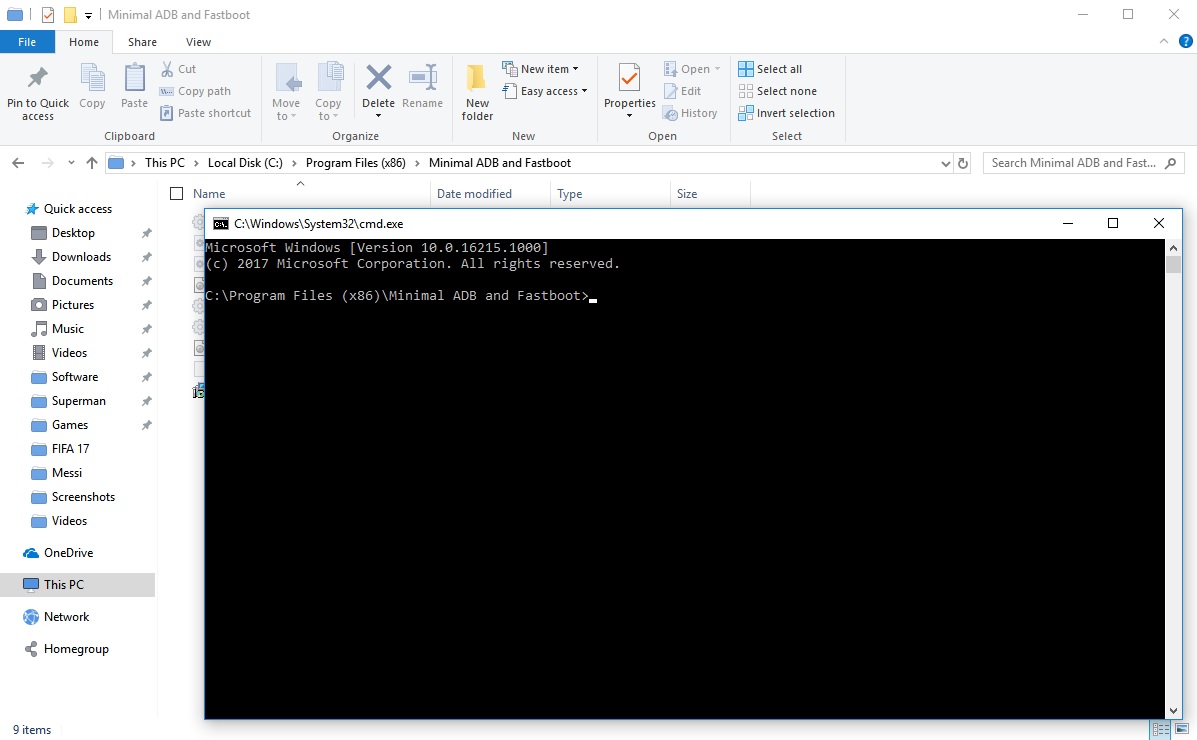
- Now launch the ADB command interface. Hold down the shift key and right-click an empty area in the ADB installation folder to do so. This can also be done by simply typing cmd in the Windows Explorer address bar and pressing enter.
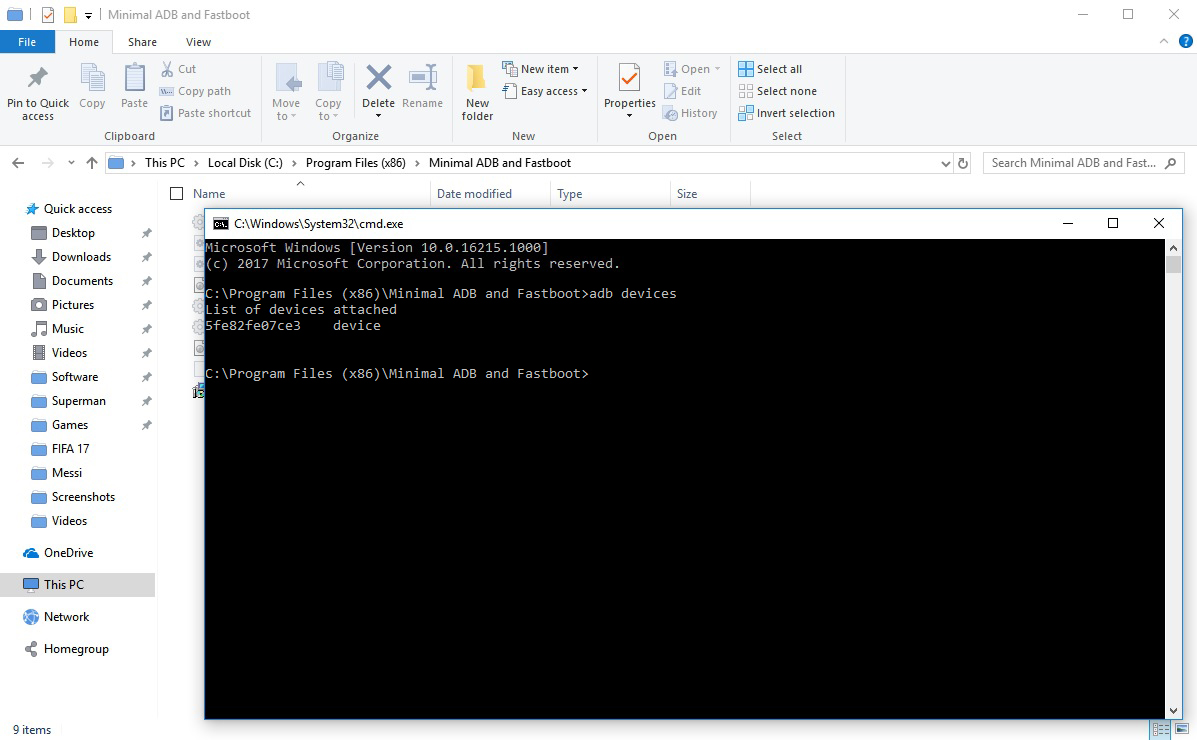
- Type is the following ADB command to see if your device is detected.
adb devices
If it fails to do so, check your drivers and USB connection.
- If it is detected, boot your Moto X Play into fastboot mode with the following command.
adb reboot bootloader
- You may also boot your phone into fastboot mode by pressing and holding the Power button and Volume down button together for a few seconds.
- When the phone is in fastboot mode, enter the following commands one by one.
fastboot oem fb_mode_set

fastboot flash partition gpt.bin

fastboot flash bootloader bootloader.img

fastboot flash logo logo.bin

fastboot flash boot boot.img

fastboot flash recovery recovery.img

fastboot flash system system.img

fastboot flash fsg fsg.mbn

fastboot erase cache

fastboot erase userdata

fastboot erase customize

fastboot erase clogo

fastboot oem fb_mode_clear

fastboot reboot
- These commands first flash the necessary image files, wipe your data and then reboot your phone.
The first boot after an update will take up a bit longer than usual. But when your phone does boot up, you should be running Android 7.1.1 Nougat.
Any updates on the situation? I’m considering flashing LineageOS next week.
any chance to get official rom
woooohooooo worked , the only buy i found i think it does not support VOLTE network .
1)i had 6.0.1 twrp recovery . i downloaded the 6.0.1 stock rom and only flashed the recovery from it .
2) i was getting a boot loader warning which i removed via searching few forums and guide
3) then i went for 7.1.1 from this followed all same instruction above and it worked.
Note – if you guys need help with any file or something for help , email ecbwstn@gmail.com .
Mention clearly which files you want.
I keep getting stuck on after the first command! Any tips??
I simply continued with the commands without detecting the device and it worked
Any recommendations? My device is rooted with unlocked botloader.
I try to follow the fastboot procedure, but it fails on second step:
>fastboot oem fb_mode_set
…
OKAY [ 0.012s]
finished. total time: 0.013s
>fastboot flash partition gpt.bin
target reported max download size of 268435456 bytes
sending ‘partition’ (25 KB)…
OKAY [ 0.006s]
writing ‘partition’…
(bootloader) Preflash validation failed
FAILED (remote failure)
finished. total time: 0.016s
Will there be dual-sim facility in this ROM? Or does this need another one?
dual sim available
can i flash this rom using twrp?
No. It’s a stock ROM.
Can we install Super SU once we flash this ROM. I want to remove some of the testing apps that appear with this SOM, through root permissions.
once the official update is released OTA the testing apps will get automatically removed
Yes.
https://www.droidviews.com/unlock-bootloader-install-twrp-and-root-moto-x-play-xt1562/
fastboot flash recovery recovery.img
This step does’nt throw any error but also does not work.
When I boot into recovery I go into the stock recovery, hence can’t install SuperSU either.
Can someone who updates to this version(the factory image posted in this https://uploads.disquscdn.com/images/594f62965aa42da41996685ff2146c49a766509b036d84f37101582029e9e8e3.png forum) at least confirm the build number and security patch date.
Because moto pushed a more recent stable version 2 days back and i am attaching it. Please compare and let us know if this forum’s factory image matches
https://uploads.disquscdn.com/images/b33674973ff36d4d1e70c98f9e88f75400b6f3eba4fa76db2ee6ba1ba8593673.png
This seems to be custom rom.Maybe a developer rom from Motorola.When I installed WhatsApp it warned that I am using a custom rom.Now don’t know whether I will get the official latest rom OTA from motorola
did you installed the same firmware? please respond
Does this update provide VOLTE support?
Yes.
Hello,Developer
This ROM is not official ROM because there are many unusual app are installed which cannot be uninstalled.Please can you tell me the reason behind this unusual app.
For other users kindly don’t install this Rom may be it will loose/steal your personal Data.
It’s fully official firmware. Can you list some of those apps?
Btlogkit,bug2go,cdbench,dense tester2,Dev tools,iplog tools and many more which are all developer apps..
It is official
Ya it’s looks official and apps are also pure but some apps are unusual….
I mention those apps names what is the need of that apps for common user….approx 10 apps are there.
Hey, i also feel its not the Official Rom
as there are many apps which are unusual and i tried uninstalling but didnt happen. Any other method to uninstall it and got a message saying this is not the official ROM when installing WhatsApp.
yes,you are right
It worked for me
Before going to step 4 above follow these following steps .
1. root your device
2. go to settings – open about device -> tap build no to activate the developper settings option.
3. Connect your Mobile and Enable “USB debugging” from Developer Settings.
4.Trust the connection by checking “Always allow from this computer” when you plug in the device for the first time
How did you root your device? Moto X Play? Can you guide me to trustworthy post to root my device?
search on youtube you will get the best guide
Here you go: https://www.droidviews.com/unlock-bootloader-install-twrp-and-root-moto-x-play-xt1562/
where should we copy the downloaded nougat zip file.says bootloader not found
I tried following a method. I am doing this over Windows 7. Just after entering first command “fastboot oem fb_mode_set” I got following messages.
(bootloader) slot-count: not found
(bootloader) slot-suffixes: not found
(bootloader) slot-suffixes: not found
Similar message for all commands. Please help. What I am suppose to do next?
I get the same problem
I didn’t get the same problem : error: cannot load ‘gpt.bin’
this is not working
i tried by step by step process and lost all my data and got my older version only
I didn’t receive any update plz inform proper date for update .
Then update your device manually. Official OTA updates might take some time to be available based on region or country.
Seriously? This phone is getting 7.1.1 and the Moto X Pure is only getting 7.0? This is completely backwards on Motorola’s part. Plus there’s no word on the MXPE nougat update, unlike the cheaper midranger.
Surprisingly, it is true, pal!