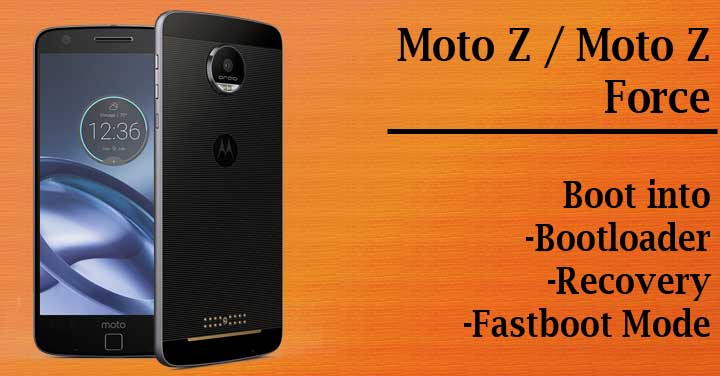
Motorola’s answer to the modular approach taken by LG with their G5 when they launched the Moto Z and Moto Z Force was pretty unexpected. The ability to add modules or ‘Moto Mods’ as they call it was pretty impressive. But it’s usually the case when you do get a new device that you get the urge to start modding it.
As we have seen in almost every device before you can start you’d first need to know how to navigate around the bootloader and recovery settings, given below are 2 methods you can use to access the bootloader and recovery menu of the Moto Z and Moto Z Force.
Via ADB
One of the simplest methods to boot any device into recovery mode is by using ADB (Android Device Bridge) using your PC. Simply make sure you have ADB/Fastboot installed on your PC. For those who aren’t familiar with ADB and fastboot, please refer to our detailed guide on setting up ADB and Fastboot on Windows PC.
- Also, ensure that you have the necessary Motorola USB drivers installed.
- Once you have confirmed that you have ADB up and running, connect your Moto Z/Moto Z Force using the USB cable and type the command:
adb devices
- Next type the command:
adb reboot recovery
This will boot it into the recovery menu.
To access Fastboot mode. Once you enter the Recovery menu there will be an option that says ‘Restart into Fastboot mode’.
Via Hardware Keys
Another method to access the Recovery mode if you don’t have access to any nearby PC or your PC doesn’t have ADB/Fastboot installed is by using the Hardware button combination
- Simply turn off the device.
- Start the device while holding the Volume Down + Power Key.
- Keep pressing until you are greeted with the Recovery menu screen.
And that’s it! These are the 2 methods to access the Recovery menu and Fastboot mode on the Moto Z/Moto Z Force. Happy flashing!
If you faced any problems while fulfilling the steps do let us know in the comments section below.
Read Also: Install OTA Updates on via ADB Sideload & Recovery

Join The Discussion: