The fastest way to free up Android storage is to open Settings > Storage, see which category is largest, and clear the biggest offenders first: large downloads, backed-up photos, unused apps, and offline media. Start with Files by Google and the Free up space option in Google Photos, because both remove clutter while leaving your cloud copies and app settings intact.

Most full phones come down to a handful of culprits: forgotten downloads, messaging attachments, apps you haven’t opened in months, and photos that already live safely in the cloud. Each one has a safe removal path, and none of them requires a factory reset.
Work through the steps in order and you can often reclaim several gigabytes in under half an hour, with your photos, chats, and logins still where you left them.
Find What’s Taking Up Space and Remove Unneeded Files
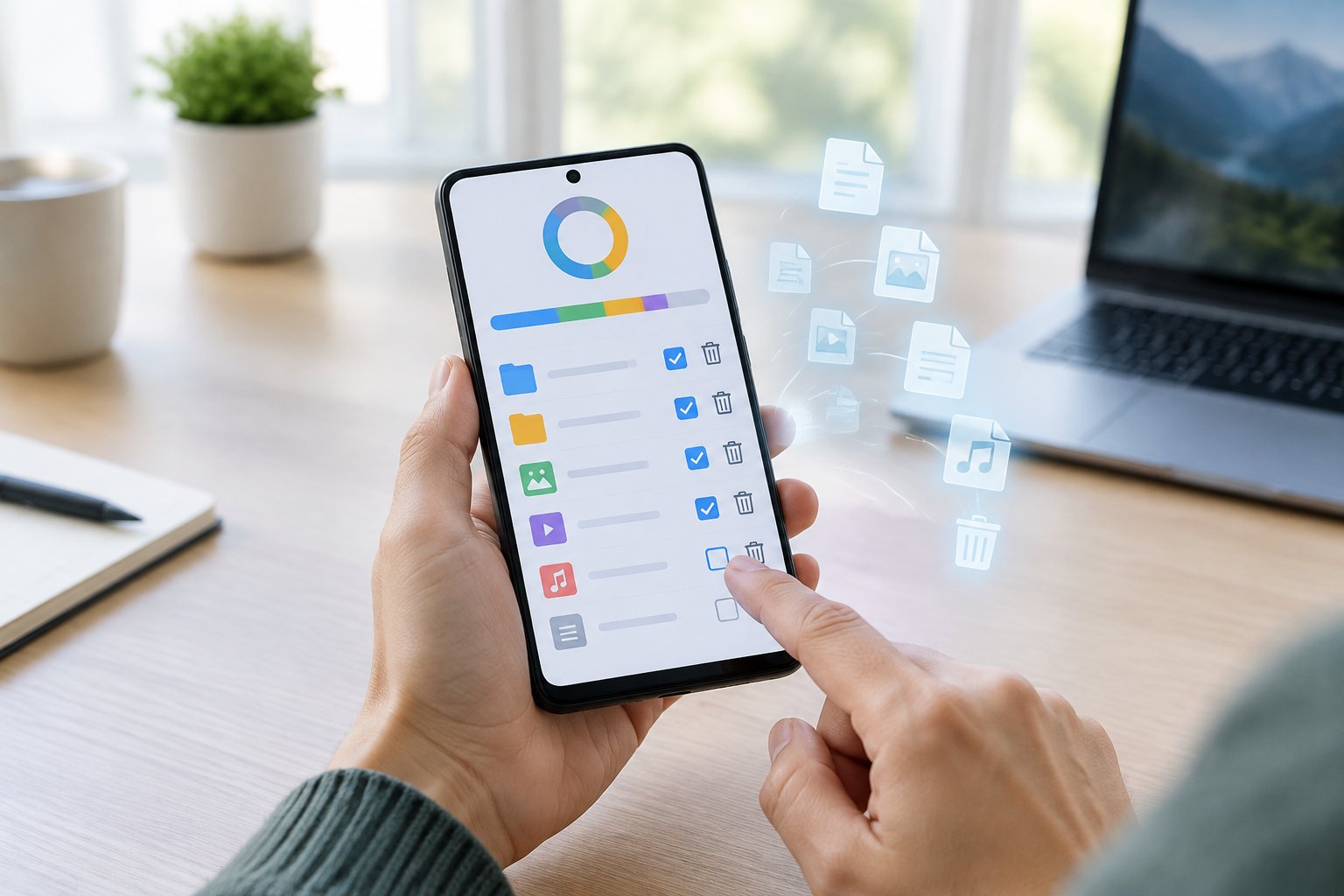
Checking what is filling your phone before you delete anything saves you from guessing. Your Settings app shows the category breakdown, and Files by Google surfaces large files, duplicates, and junk in a few taps.
Check Settings for Your Biggest Storage Categories
Open Settings > Storage to see a bar showing apps, images, videos, audio, documents, and system data. On Samsung Galaxy phones the path is Settings > Battery and device care > Storage.
Tap the largest category first. If images and videos dominate, jump to the photo section below; if apps lead, skip ahead to the app cleanup steps.
Review Large Files and Downloads in Files by Google
Install Files by Google from the Play Store, open it, and switch to the Clean tab. A progress bar at the top shows how much space you have used, and cards below suggest what to remove.
Look for these cards:
- Junk files (temporary app files; your app settings stay untouched)
- Large files you haven’t opened recently
- Duplicate files
- Old downloads and forgotten screenshots
Review each card before confirming. Anything you delete through the app is gone from the device, so skim the list rather than tapping Select all.
Delete or Move Files to a Computer, USB Drive, or Supported SD Card
Files you want to keep but don’t need on your phone can move elsewhere. Plug your phone into a computer with a USB cable and copy folders such as DCIM, Downloads, and Documents across.
Many phones also accept a USB-C flash drive, and some models still take a microSD card. Copy first, open a couple of files on the destination to confirm they work, and only then delete the originals from your phone.
Review the Trash Before Permanently Deleting Files
Deleted items often wait in a trash folder before they truly disappear, so space may not return right away. Samsung’s Gallery keeps deleted photos in Trash for 30 days, and Google Photos keeps items in its own Trash for 60 days.
Check the trash for anything you removed by mistake, then empty it to get the storage back immediately. Emptying is permanent, so this is your last chance to rescue a file.
Remove Local Photo Copies Without Losing Your Backups
Photos and videos are usually the largest slice of storage, and a completed backup lets you remove the on-device copies while keeping every memory viewable in the cloud. The key is using the right button: Free up space, not Delete.
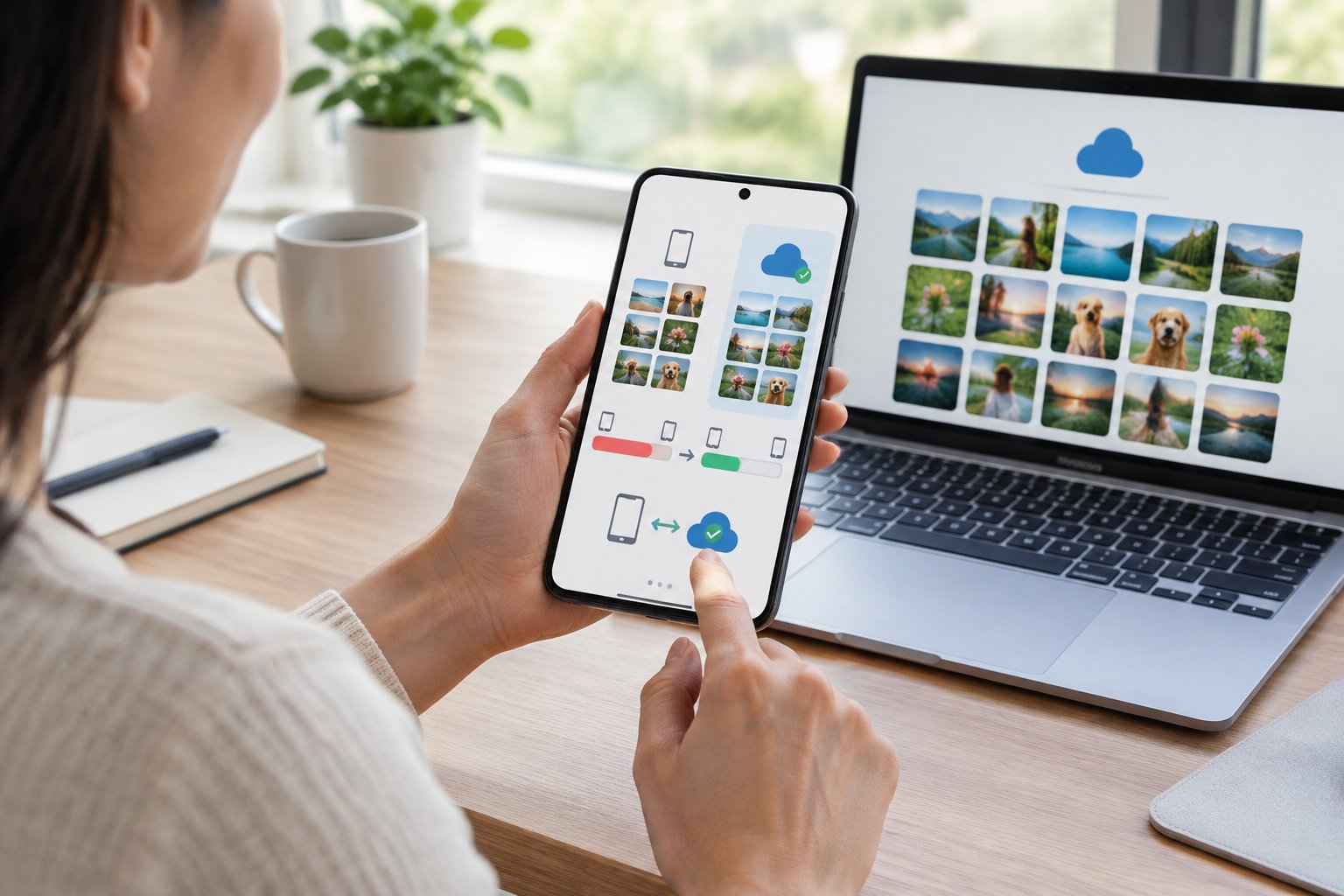
Confirm Your Google Photos Backup Is Complete
Open Google Photos, tap your profile picture, and look for the backup status. It should read that backup is complete, with no items waiting to upload.
If photos are still pending, connect to Wi-Fi and let the upload finish. Open a few recent photos in the web version at photos.google.com on a computer to verify they arrived.
Use Free Up Space Instead of Deleting Synced Photos
In Google Photos, tap your profile picture and choose Free up space on this device. The app removes only the copies that are already backed up, and the originals stay in your library.
Deleting a synced photo from the main grid is different: it moves the item to Trash and removes it from every synced device. Use Free up space for cleanup and reserve Delete for photos you truly want gone.
OneDrive offers a similar tool called Clean Up Space, which runs automatically once you have at least 1 GB of backed-up photos or videos on the device.
Understand Cloud Storage Limits and Offline Access
Google accounts include 15 GB of free storage shared across Google Photos, Gmail, and Drive. Once you pass that, new backups stop until you delete items or buy a plan.
Photos you remove locally need a connection to view in full quality. If you travel often, keep a handful of favorites downloaded or saved to a computer.
Enable Smart Storage Where Available
Some phones include a Smart Storage setting that automatically removes backed-up photos and videos after a set period, commonly 30, 60, or 90 days. Find it under Settings > Storage on devices that offer it.
Turn it on only after your backup is confirmed complete. It then handles the routine cleanup for you.
Reclaim Space From Apps Without Unnecessary Data Loss
Apps you no longer open are the next easiest win, and Android offers a gentler option than full removal: archiving, which clears most of the app while keeping your personal data. Cache and storage clearing differ in what they delete, so choose carefully.
Find and Uninstall Unused Apps
Go to Settings > Apps and sort the list by size or by last used. Anything you haven’t opened in months and can easily reinstall is a good candidate.
Files by Google can help too: on the Clean tab, open the Delete unused apps card, grant usage access when prompted, and review the suggestions. Long-press an app icon and choose Uninstall for a quick removal.
Uninstalling can leave stray folders behind. In your file manager, check Internal Storage > Android > obb for folders named after apps you have already removed, and delete those leftovers.
Archive Unused Apps on Android to Keep Their Personal Data
Archiving removes most of an app’s footprint while saving your data and keeping its icon on your screen. Tapping the icon later restores the app, with your progress and settings still in place.
To archive manually, open the app’s listing in the Play Store or its App info page and look for the Archive option. It suits games, airline apps, and seasonal tools you use a few times a year.
Turn On Automatically Archive Apps in Google Play
Google Play can archive apps for you when your phone runs low on space. Open the Play Store, tap your profile picture, go to Settings > General, and switch on Automatically archive apps.
This keeps storage available without constant manual cleanup. Apps you open often stay untouched, since the feature targets ones you rarely use.
Know the Difference Between Clear Cache and Clear Storage
Clear cache deletes temporary files and is safe: the app rebuilds them as needed, and your logins and settings stay. Find it under Settings > Apps > [app name] > Storage.
Clear storage wipes the app’s data entirely, which signs you out and erases local progress, offline files, and saved settings. Use it only when an app misbehaves or you are ready to start that app from scratch.
Clear Offline Media and Messaging Attachments
Offline movies, music downloads, and chat media pile up quietly and often total several gigabytes. Removing what you have already watched or listened to costs you nothing, since each can be downloaded again.
Remove Downloaded Movies in Google TV
Open the Google TV app, go to the Library tab, and look for downloads. Open the download list and remove titles you have finished.
Keep a few downloaded for flights or commutes, and delete the rest after you watch them.
Remove YouTube Music Downloads You No Longer Need
In YouTube Music, tap your profile picture, choose Downloads, and review playlists and albums. Tap the menu beside any item to remove the download.
Smart downloads can refill your storage automatically, so check that setting under Settings > Downloads & storage and reduce the limit if needed.
Review WhatsApp and Other Messaging Media
Messaging apps save forwarded videos, voice notes, and images that you may never reopen. In WhatsApp, go to Settings > Storage and data > Manage storage to see which chats take the most room and delete items by size.
Telegram and Signal offer similar storage screens. Clearing one large group chat often frees more than a dozen small cleanups.
Limit Automatic Downloads to Keep Storage Available
Turn off automatic media downloads so new clutter stops arriving. In WhatsApp, open Settings > Storage and data and set photos, audio, video, and documents to download only on Wi-Fi, or never.
Do the same in other chat apps. Media you want can still be tapped to download on demand.
Keep Room for What You Use Without Losing What Matters
Freeing space safely follows a clear order: check what is largest, clear downloads and junk with Files by Google, use Free up space for backed-up photos, archive or uninstall unused apps, and trim offline and chat media.
Each step removes things you can replace while protecting what you cannot, like unsynced photos and app data. Confirm your backup before deleting anything irreplaceable, and empty the trash last.
To keep the gains, switch on automatic app archiving, turn on Smart Storage if your phone has it, and restrict automatic downloads. A quick look at Settings > Storage once a month keeps small buildups from becoming a full phone.
Frequently Asked Questions
What is the quickest way to make space on an Android phone?
Open Files by Google, tap the Clean tab, and clear junk files and large unused downloads. This takes a couple of minutes and often frees up gigabytes. Then run Free up space in Google Photos for backed-up images.
Can I free up space on Android without deleting photos or apps?
Yes. Clear app caches, remove offline downloads from services like YouTube Music and Google TV, and delete old messaging media. You can also archive apps, which keeps their data, and use Free up space in Google Photos to remove only backed-up local copies.
Why is my Android storage still full after deleting files?
Deleted files often sit in a trash folder, such as Google Photos Trash or Samsung Gallery Trash, until you empty it. Leftover folders from uninstalled apps and a large System category can also hold space. Empty the trash, check Android > obb for remnants, and restart the phone.
How do I clear Other storage on Android?
Other storage mostly holds cached data, leftover app files, and miscellaneous documents. Clear app caches in Settings > Apps, run the junk cleaner in Files by Google, and delete old downloads and APK files. System files cannot be removed manually.
How do I free up storage on a Samsung Galaxy phone?
Go to Settings > Battery and device care > Storage to see the breakdown and use the cleanup suggestions there. Back up photos to Samsung Cloud or Google Photos, then remove local copies. If your model has a microSD slot, move large files to the card.
Join The Discussion: