Niagara Launcher is the best pick for most people who want a faster, calmer home screen: it puts a single alphabetical list of favorite apps along the right edge, so every launch stays within thumb reach. If you want free and Pixel-like, Lawnchair is the better fit, and if you crave deep tweaking, Nova Launcher remains the benchmark.
Your phone’s default home screen is only one way to organize your apps. The best Android launchers swap the layout, icons, gestures, and search behavior without touching the rest of the system, and most install in a minute from Google Play.
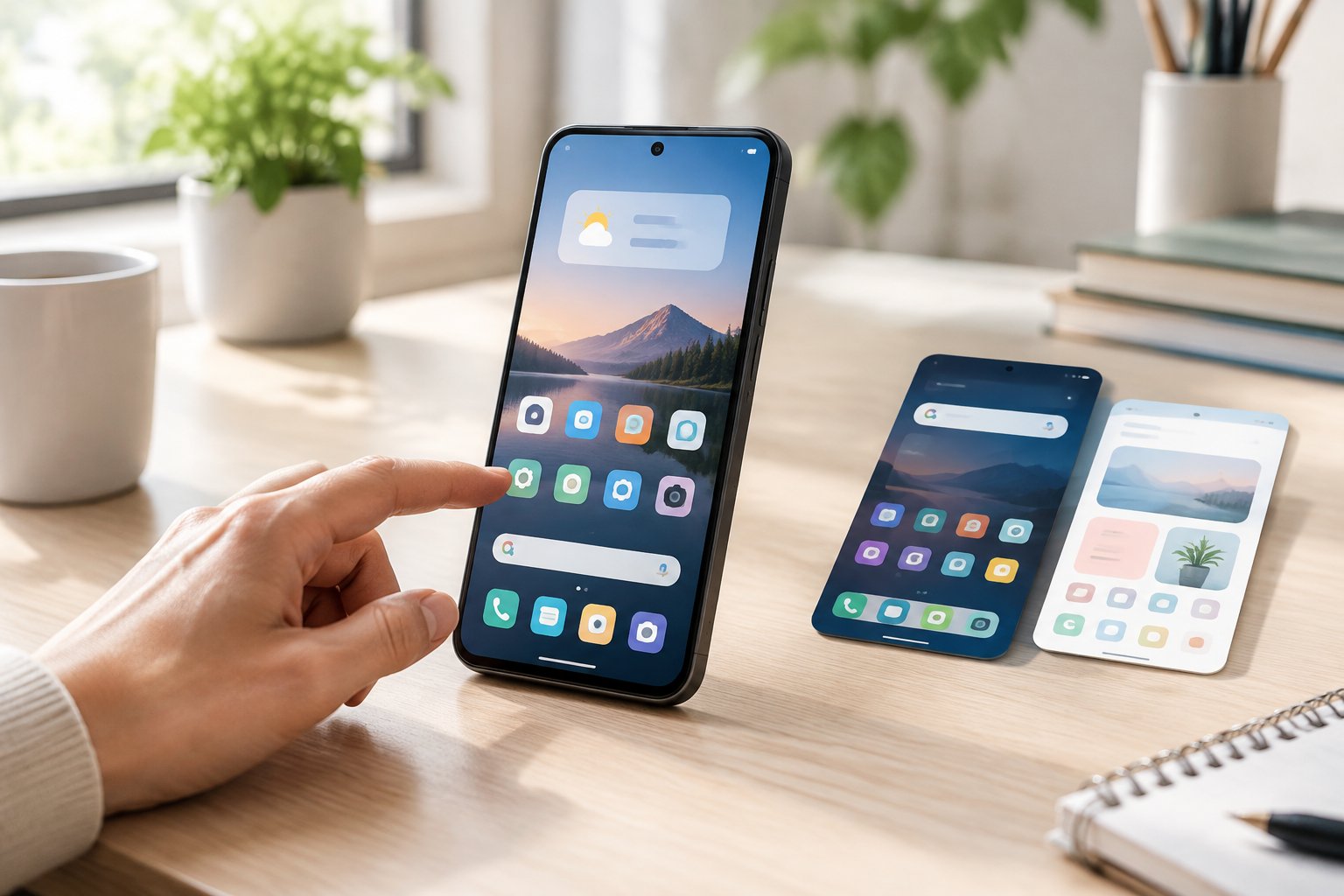
The picks below are grouped by what you want from your phone: easier reach, less clutter, more information, or total control. The comparison draws on each launcher’s documented features and store listings, so check current pricing and update status before you commit.
Which Launcher Should You Try First?
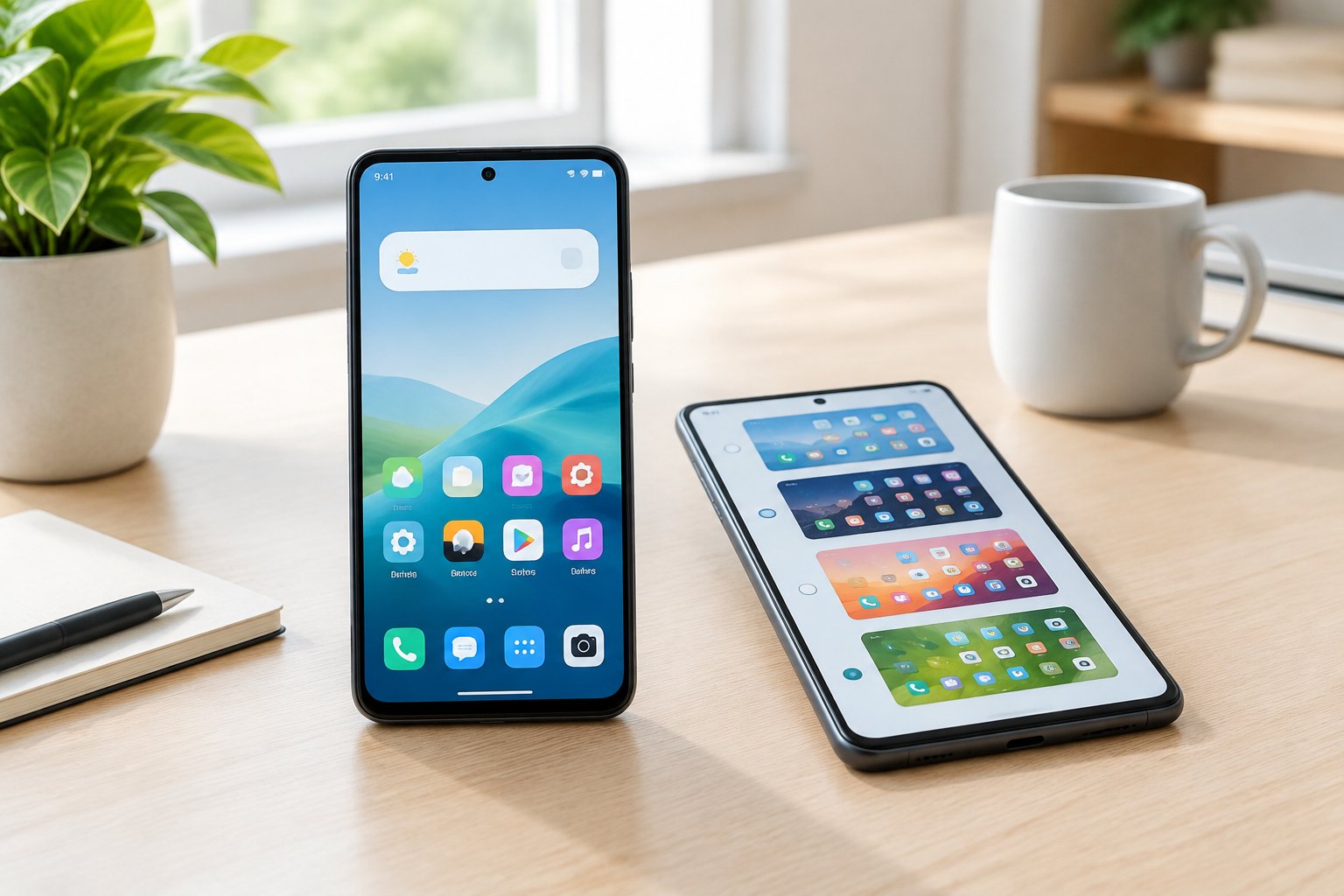
Four launchers cover the most common reasons people switch: reachability, automatic tidiness, a free Pixel look, and Microsoft account integration. Each one changes how the home screen feels within minutes of setup.
Niagara Launcher for One-Handed Navigation
Niagara Launcher builds its home screen around a vertical list of favorite apps on the right edge. Your thumb reaches everything without stretching, which makes one-handed navigation easy on tall modern phones.
Everything outside your favorites sits a swipe away in an alphabetical list. Some features sit behind a paid tier, so look at the Play Store listing for current details.
Smart Launcher 6 for Automatic App Organization
Smart Launcher 6 sorts your apps into categories such as games, social, and tools, so you spend less time dragging icons into folders. The category tabs in the drawer let you jump straight to a group.
It also offers adaptive icons and themes. This one suits you if you install apps often and dislike tidying up.
Lawnchair Launcher for a Free Pixel-Style Experience
Lawnchair is a free, open-source launcher that recreates the look of the Pixel Launcher while adding options Google leaves out. You get a Pixel-style layout with extra control over icons, the dock, and the drawer.
It suits Pixel fans who want a familiar feel on a non-Pixel phone, or anyone who wants to tweak the stock design.
Microsoft Launcher for Microsoft-Focused Productivity
Microsoft Launcher connects your home screen to a Microsoft account, surfacing your calendar, to-do items, and documents in a feed. If you live in Outlook and Office, it keeps those tools close.
It also supports gestures and icon customization, so it works as a general-purpose launcher too.
Alternative Layouts for Less Clutter or More Information
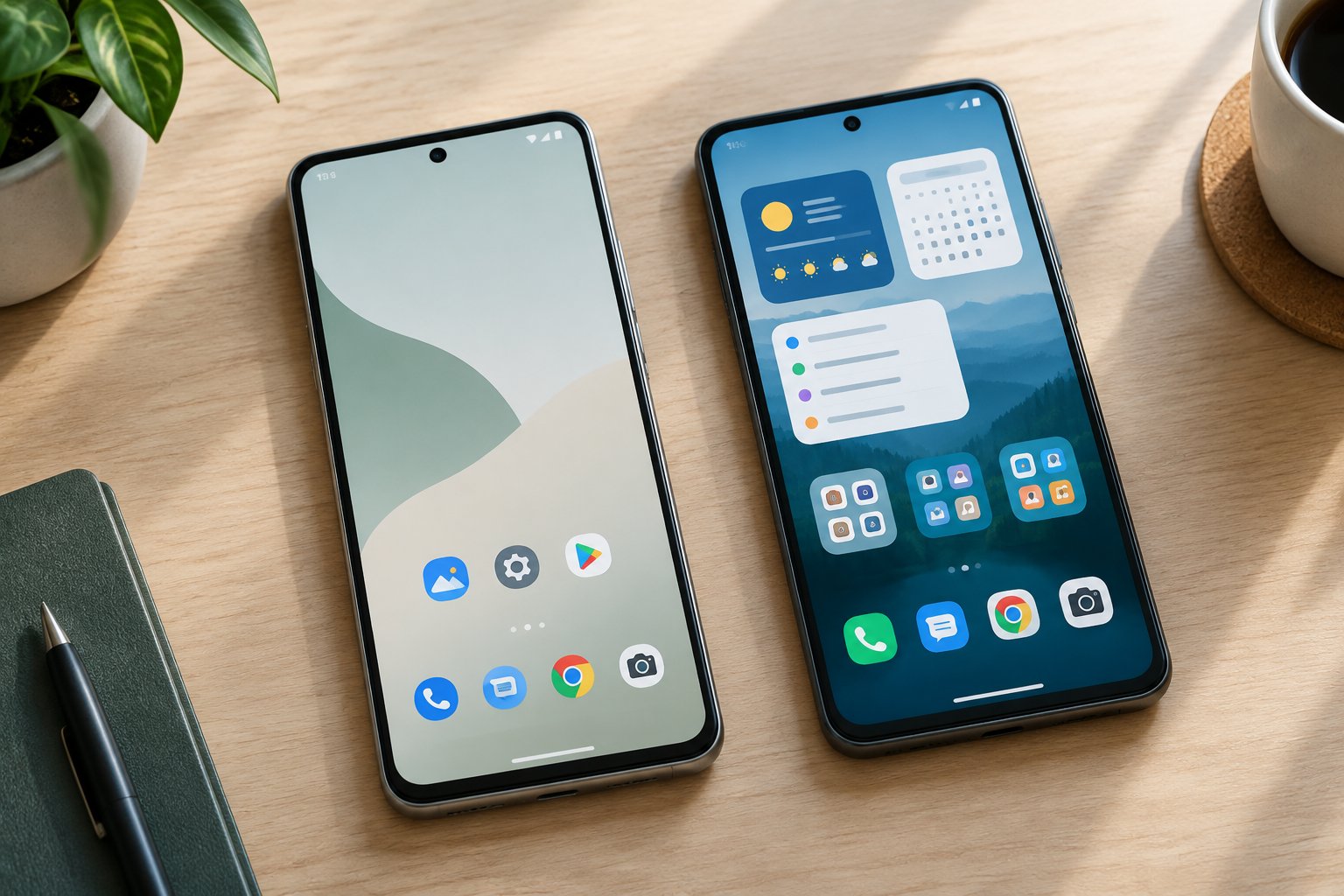
Unconventional launchers rethink the grid entirely, with some stripping the screen down to text and others packing it with live data. Pick the direction that matches how you want to feel when you unlock your phone.
Olauncher for a Distraction-Free, Text-Based Home Screen
Olauncher is a minimalist Android launcher that shows a short list of text labels instead of icons. With no icon grid pulling at your attention, you reach for the phone with purpose.
It is free and open source, and swipes open your most used apps.
Kvaesitso for Search-First Navigation
Kvaesitso treats search as the main interface. Type to find apps, contacts, files, and more from one field, which works well if you already know what you want.
It is open source and highly configurable, so you can decide what appears in results.
AIO Launcher for an Information-Rich Dashboard
AIO Launcher replaces the icon grid with a scrolling stream of widgets: weather, notes, calendar, news, and system stats on one screen. It rewards people who check information more than they browse apps.
Expect a learning curve, since the layout is unlike any standard home screen.
Square Home for a Tile-Based Interface
Square Home brings a tile-based layout reminiscent of Windows Phone. Live tiles in different sizes sit in a grid, and you rearrange them freely.
It appeals if you like bold, flat design and glanceable tiles.
Lynx Launcher for Desktop-Inspired Navigation
Lynx Launcher borrows ideas from desktop computing, organizing apps in a way that feels closer to a PC workspace than a phone grid. It suits you if you think in windows and menus.
Launchers for Deeper Home Screen Customization
Four launchers give you the most knobs to turn, from grid sizes and icon packs to gesture controls and theming. They reward time spent in settings, and each has a distinct strength.
Nova Launcher for Detailed Layout and App Drawer Controls
Nova Launcher has long been the reference point for customization, with fine control over grid size, drawer style, folders, icon packs, and gestures. Its status has been uncertain in recent coverage, so check the Play Store listing for current updates before relying on it. If you want alternatives, the launchers in this article cover similar ground.
Action Launcher for Shutters and Quick Shortcuts
Action Launcher is known for shutters, which let you swipe on an icon to reveal a widget or shortcuts without leaving the home screen. Its developer has a track record of reacting quickly to Android changes that affect launchers.
Some of its best features sit in the paid version.
Hyperion Launcher for Pixel-Inspired Theming
Hyperion Launcher pairs a Pixel-inspired look with theming controls. You can set icon styles and colors so the home screen matches your wallpapers and overall taste.
Total Launcher for Building a Layout From Scratch
Total Launcher gives you building blocks to assemble your own layout, with options for panels, widgets, and icon packs. It suits you if you prefer to design the home screen yourself instead of adjusting a preset.
How to Choose and Set Up a Third-Party Launcher
A third-party launcher is easy to install, but a few checks up front save you from frustration later. Look at maintenance, permissions, pricing, and how it handles your phone’s navigation before you make it the default.
Check Updates, Availability, Permissions, and Paid Features
Open the Google Play listing and look at the last update date, recent reviews, and the permissions requested. A launcher that has not been updated in a long time may lag behind new Android releases. Older names such as Apex Launcher have faded, so confirm a launcher is still available and maintained.
Many launchers hide features such as gestures or icon swipes behind a one-time purchase or subscription. Read what is free before you rely on a specific feature.
Match Widgets and Navigation Support to Your Phone
Test how a launcher works with your phone’s gesture navigation and any widgets you depend on. Foldables and tablets add layout questions, so check that the launcher handles larger screens well. Try a few widgets from your favorite apps right after installing.
Set Your Default Launcher and Restore Your Original Home Screen
After installing, press the home button and choose the new launcher when Android asks, selecting “Always” to make it your default. You can also go to Settings, then Apps, then Default apps, then Home app.
To switch back, return to that same setting and pick your original launcher. Nothing is deleted, so your original layout stays intact.
Choose the Launcher That Fits Your Daily Habits
Match the launcher to the way you use your phone. Niagara suits one-handed use, Lawnchair gives a free Pixel look, Olauncher cuts distraction, AIO packs in information, and Nova or Action Launcher reward tinkering.
Pick one, set it as your Android home screen for a week, and keep it only if it saves you taps. Switching back takes seconds.
Frequently Asked Questions
Which Android launcher is free without ads?
Lawnchair and Olauncher are free, open-source options that do not rely on ads. Kvaesitso is also open source. Check each Play Store listing for current details.
Which launcher works best on Samsung phones?
Niagara, Nova, and Lawnchair are common choices on Samsung phones, since they replace One UI Home with a different layout. Test gesture navigation after installing, as some setups need a quick settings tweak.
Do third-party launchers work with Android 15 and Android 16 gestures?
Many actively maintained launchers support system gesture navigation on recent Android versions. Confirm in the launcher’s changelog or Play Store notes, since support depends on the developer keeping pace with updates.
Will an Android launcher slow down my phone or drain its battery?
A lightweight launcher such as Olauncher adds very little load, while widget-heavy setups use more resources. If your phone feels sluggish, simplify live widgets and animations.
Are third-party Android launchers safe to use?
Launchers from Google Play with a clear update history and sensible permissions are a reasonable choice. A launcher can see your installed apps, so choose maintained, well-reviewed ones and skip anything asking for unrelated permissions.
Which launcher should I try instead of Nova Launcher?
Lawnchair is a strong free alternative, and Action Launcher offers deep customization with shutters. Niagara works if you want a simpler layout, while Hyperion and Total Launcher cover theming and build-it-yourself setups.
Join The Discussion: