Android battery drain almost always traces back to one of a handful of culprits: a single app running wild in the background, a display set too bright or too fast, or a weak signal that keeps your radios working overtime. The quickest fix is to open Settings, check which app is using the most power, and restrict its background activity. Most people see a real improvement within a day.
A phone that once lasted until bedtime and now needs a midday top-up is frustrating, but fast battery drain is rarely a sign that the battery itself is dead. Software updates, newly installed apps, and quiet settings changes cause far more trouble than aging cells.
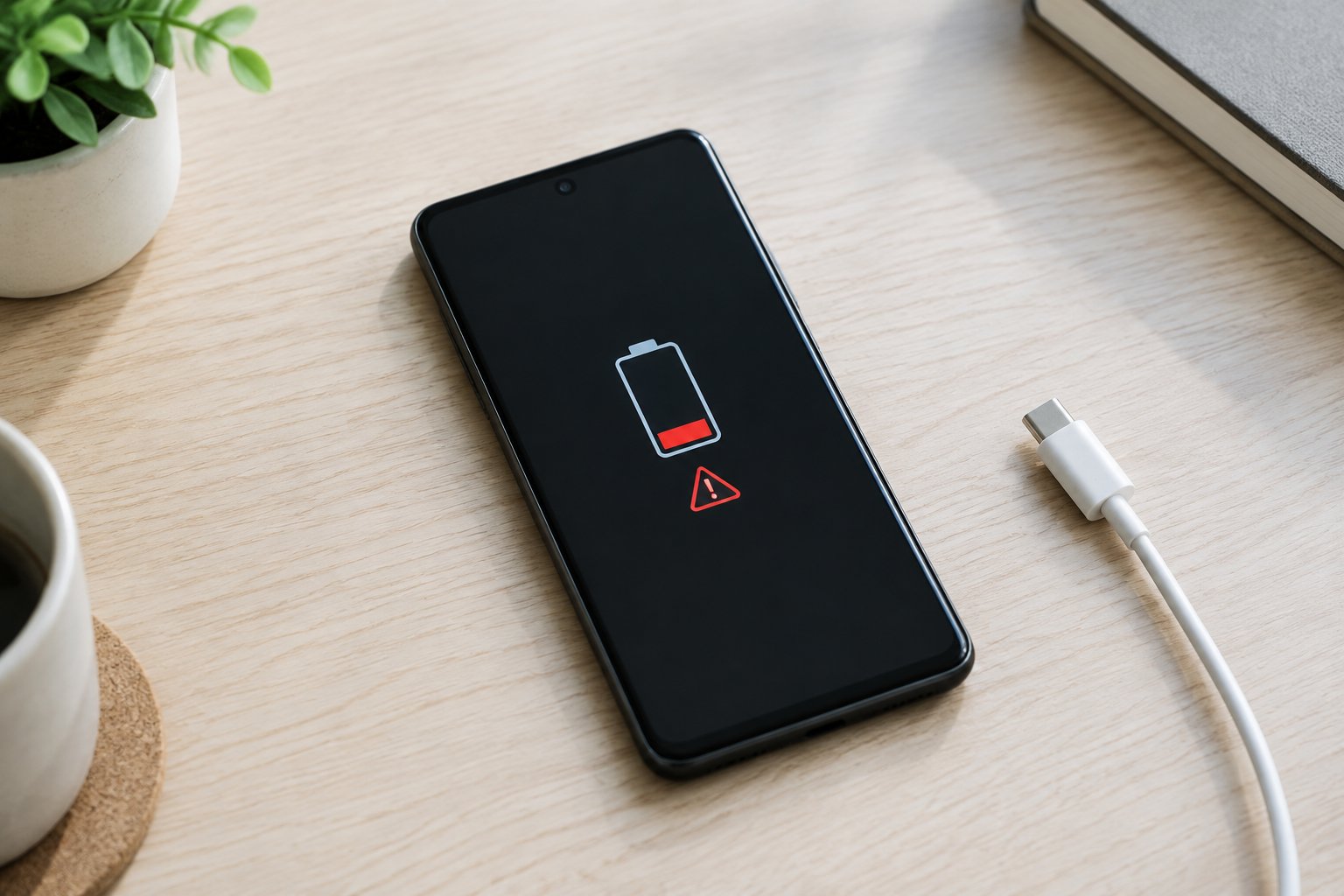
Work through the steps in order and change one thing at a time. That way you learn which change actually helped, and you avoid turning off features you rely on for no reason.
Find What Is Using Your Battery First
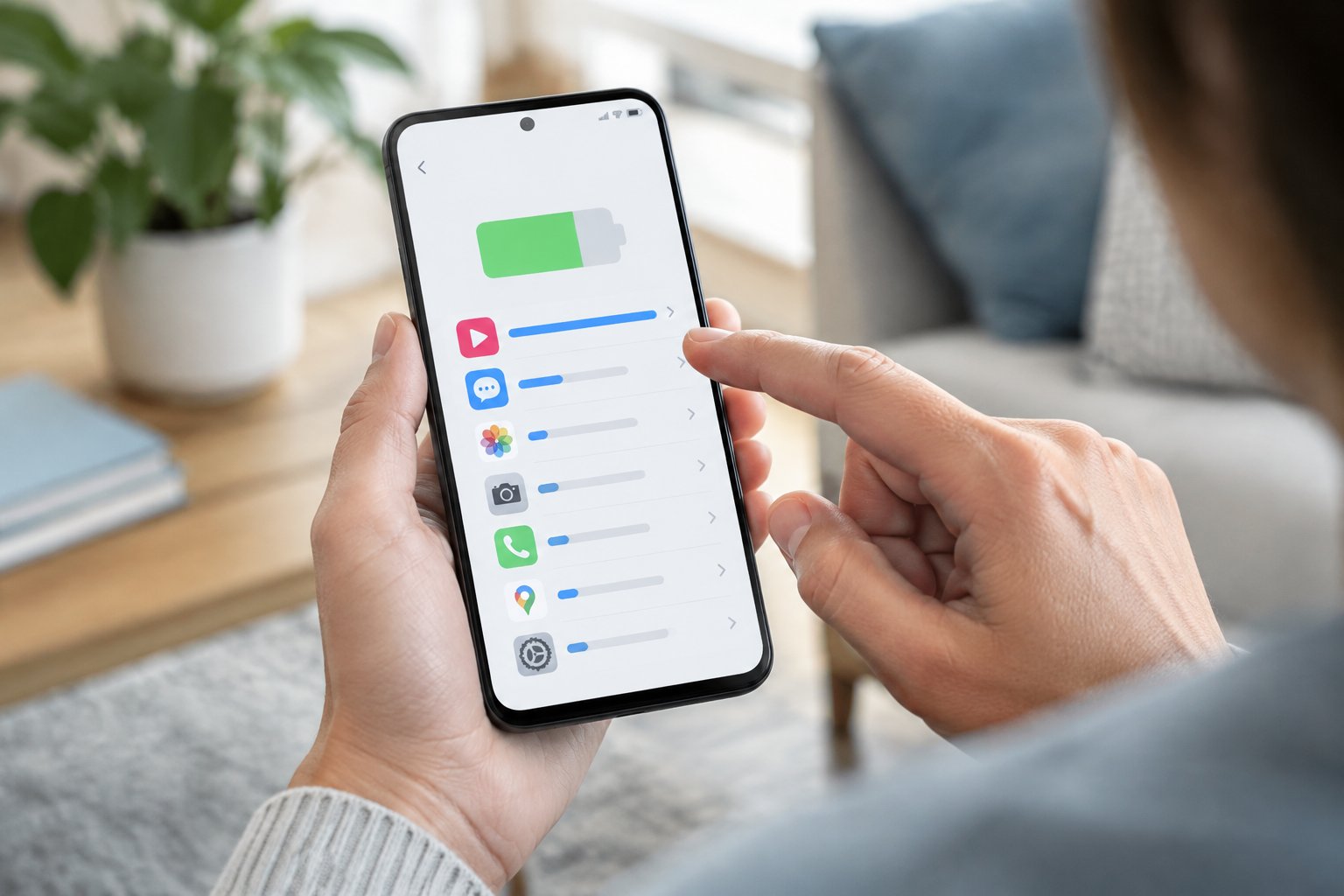
Reading your battery usage screen before changing any settings points you straight at the culprit. A restart clears temporary glitches, and the battery menu then shows which apps consumed power and whether the drain happened with the screen on or off.
Restart Your Phone and Check Battery Usage
Restart first. A stuck process or a failed sync can burn power for hours, and a reboot ends it.
Once the phone is back up, use it normally for several hours, then open the battery usage screen. Numbers collected right after a reboot are thin, so give the phone a real stretch of use before drawing conclusions.
Where Can You Find Battery Usage on Pixel and Samsung Phones?
On a Pixel and most other Android phones, go to Settings > Battery > Battery usage. On a Samsung Galaxy, go to Settings > Battery and device care > Battery, then tap the usage option.
Switch the view to show usage by app and set the time range to since your last full charge. The top two or three apps usually explain most of the loss.
Is the Drain Coming From Active Use or Idle Activity?
Compare screen-on time with the percentage lost while the phone sat untouched. If the screen was on for a few hours, the display and the apps you used are the likely cause.
If the phone lost 10 percent or more overnight with almost no screen time, something is running in the background. A social app, a navigation app, or a cloud backup tool showing high background usage is a strong lead, and the next section deals with exactly that.
Stop Unnecessary Background Activity
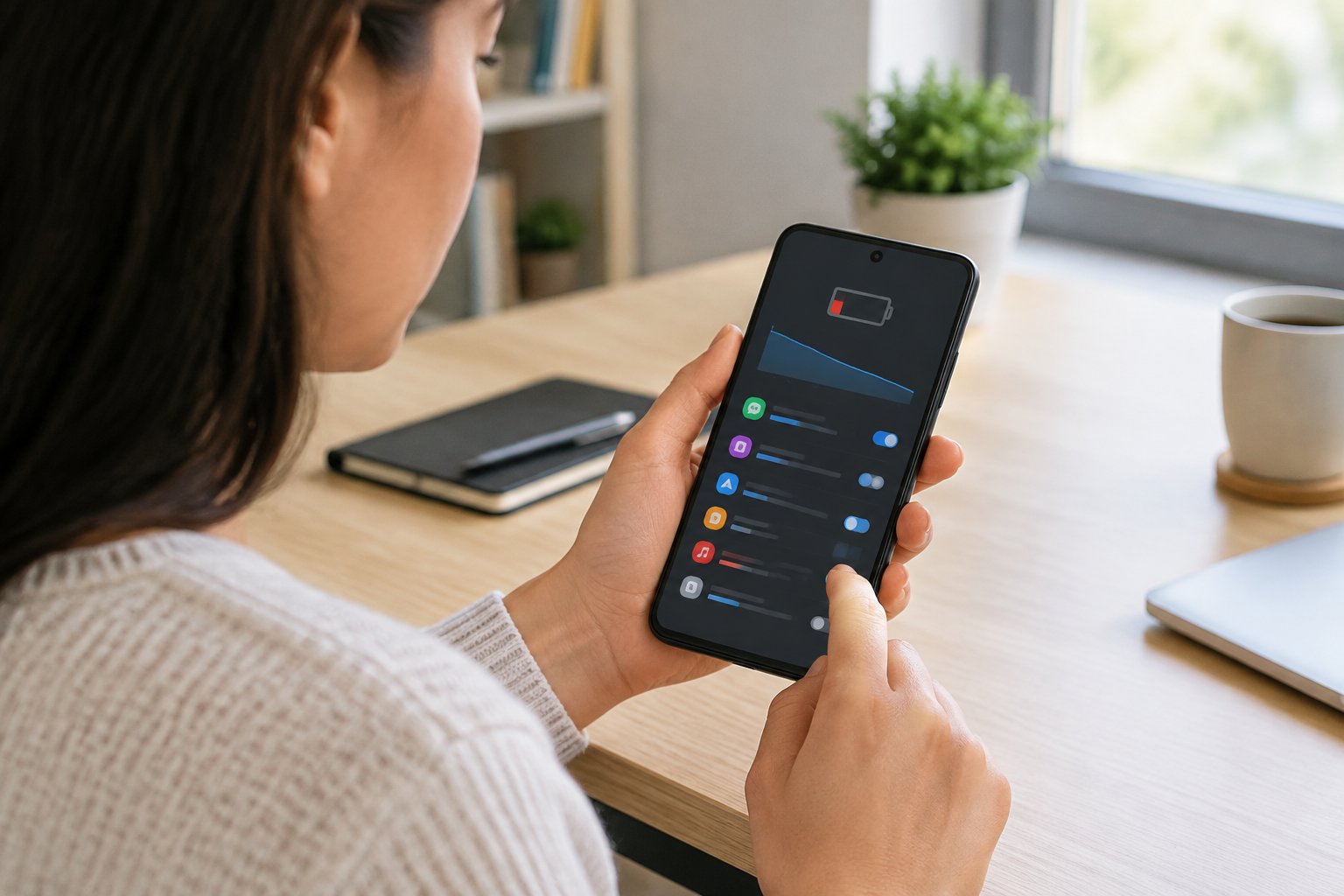
Limiting what apps do when you are not looking at them cuts idle drain more than any other single change. Restrict the worst offenders, let the system learn your habits, quiet unneeded notifications, and update or remove any app that started misbehaving.
Restrict Battery-Hungry Apps Without Missing Essential Alerts
Open the app’s battery settings (long-press its icon, tap App info, then Battery) and choose Restricted or the optimized option. Restricting stops the app from working in the background, so it only updates when you open it.
Start with apps you are happy to open manually, such as shopping or games. Keep messaging, banking, and calendar apps on optimized so alerts still arrive. Samsung calls its version Deep Sleeping Apps, found under Battery and device care.
Change one app, then check your battery usage the next day.
Use Adaptive Battery and Built-In Battery Optimization
Adaptive Battery learns which apps you rarely open and limits their background activity. On a Pixel, find it under Settings > Battery > Adaptive preferences. Samsung offers similar controls under its battery menu.
Leave battery optimization on for most apps. It needs a few days of normal use to learn your routine, so judge the results after a week rather than an hour.
Limit Push Notifications and Unnecessary Syncing
Every push notification wakes the screen and the radio. Open Settings > Notifications and switch off alerts from apps that only send promotions or reminders you never act on.
Next, check account syncing under Settings > Passwords and accounts. Email, contacts, and cloud storage set to sync constantly can be changed to sync less often or only when you open the app.
Update or Remove Apps That Triggered the Problem
Think back to when the drain began. A new install or a recent app update is a common trigger, since a buggy version can loop in the background.
Open the Play Store and install any pending updates, which often carry the fix. If an app still tops the usage list, uninstall it, and look for a lighter alternative or use its web version in your browser.
Adjust Display, Connections, and Power Settings
The screen is the biggest power consumer on most phones, followed by radios searching for signal. Tuning brightness, refresh rate, and wireless features gives you hours back without touching a single app.
Lower Brightness, Shorten Screen Timeout, and Adjust Refresh Rate
Turn on adaptive brightness so the phone matches the room instead of staying bright, and lower the slider manually when you are indoors. Set screen timeout to 30 seconds or one minute.
Check the refresh rate under Settings > Display. The smooth setting (called Smooth Display on Pixel and Motion Smoothness on Samsung) runs at 90 or 120Hz and uses more power. Switching to the standard 60Hz rate saves a noticeable amount.
Turn Off Always-On Display and Try Dark Mode
The always-on display keeps part of your screen lit all day. Turning it off in Display settings removes a steady drip of drain, and you can still wake the screen with a tap or lift.
On phones with OLED screens, dark mode (also called dark theme) switches off pixels that display black, which saves power. It helps most at higher brightness. Trimming extra sounds and vibrations, such as keyboard haptics, adds a small gain too.
Reduce Weak-Signal Drain With Wi-Fi Calling or Airplane Mode
A phone hunting for a weak cell signal works its modem harder and warms up. If you have poor coverage at home or work, turn on Wi-Fi calling in your phone or carrier settings so calls and texts travel over your Wi-Fi network.
In a dead zone such as a basement, airplane mode stops the constant searching. Switch it off when you need service again. Keep Wi-Fi on when it is available, since it uses less power than mobile data, and consider switching off 5G if your area has patchy coverage.
Review Location Permissions and Unused Wireless Features
GPS and location services are heavy users when many apps ask for them. Go to Settings > Location > App permissions and set most apps to “Only while using the app” or “Don’t allow.”
Turn off Bluetooth when no accessories are connected, and disable Wi-Fi scanning if you do not need it. Leave location services on for maps and find-my-phone features you value.
When Should You Use Battery Saver or Extreme Battery Saver?
Use battery saver when you are below roughly 20 percent and far from a charger. It limits background activity, dims the display, and can reduce performance. Set it to switch on automatically at a level you choose.
Extreme battery saver (power-saving mode on some phones) restricts the phone to essential apps and is meant for emergencies when you need hours of standby. Treat both as a bridge to the next charge, not a daily setting.
What if the Battery Still Drains Too Fast?
When settings changes do not help, the cause is usually a recent update, a stubborn app, heat, or a worn battery. Each is quick to check, and the checks run from least to most disruptive.
Did the Problem Start After an Android Update?
Heavy drain for a day or two after an Android update is normal, because the phone reindexes files, re-optimizes apps, and rebuilds its usage predictions. Plug it in, leave it on Wi-Fi, and give it two to three days.
If the drain continues beyond that, install any follow-up system update and update your apps, since patches for battery bugs often arrive quickly. Check your battery usage for a new top offender too.
Use Safe Mode to Check for a Troublesome App
Safe mode loads only the apps that shipped with your phone. On most phones, hold the power button, then press and hold “Power off” until the safe mode prompt appears and tap OK.
Use the phone this way for several hours. If the battery holds up, a downloaded app is the cause. Restart normally, then uninstall recent apps one at a time, checking after each.
Check Battery Health, Heat, and Charging Habits
Heat shortens battery life, so avoid charging under a pillow or leaving the phone on a car dashboard. A phone that runs warm while idle points to a runaway app or a failing battery.
On a Pixel, check Settings > Battery > Battery health, and Samsung’s Members app offers diagnostics. Turn on adaptive charging (or a charge limit such as 80 percent where offered) to reduce wear. Avoid draining to zero regularly.
When Are a Factory Reset or Battery Replacement Worth Considering?
Consider a factory reset when drain persists in safe mode, after updates, and across every setting above. Back up your data first, then set the phone up as new without restoring every old app at once.
If the phone is two or more years old, health diagnostics show reduced capacity, or it shuts down at 20 to 30 percent, a battery replacement from the manufacturer or a reputable repair shop is the better fix.
Fix the Cause, Then Check Your Battery Life Again
Start with battery usage to find the app or setting responsible, then restrict background activity, trim display and wireless settings, and work through updates, safe mode, and battery health if the drain continues.
Make one change at a time and compare the next day’s battery usage screen with the last. A noticeable drop in overnight loss or a longer screen-on time tells you the fix worked. If the same app keeps climbing the list, remove it, and if every check comes back clean on an older phone, plan for a new battery.
Frequently Asked Questions
Why is my Android battery draining overnight when I am not using it?
A background app, constant syncing, a weak signal, or a pending update is almost always responsible. Check battery usage for the top idle consumer, restrict it, and switch on Wi-Fi calling if your overnight signal is poor. Losing more than a few percent per night is worth investigating.
Why is my Samsung phone battery draining fast all of a sudden?
A recent app install, a One UI update, or a changed setting is the usual trigger. Open Battery and device care, review usage, and put unused apps into Deep Sleeping Apps. Check that motion smoothness and the always-on display are not newly enabled.
How long should battery drain last after an Android update?
Expect elevated drain for one to three days while the phone reoptimizes apps and relearns your habits. Keep it on Wi-Fi and charge it normally. If the drain lasts beyond a few days, look for a new system update and check which app leads your battery usage.
Can I reset or recalibrate my Android battery?
Modern Android phones manage their own battery gauge, so manual recalibration has little proven benefit. Restart the phone, update the software, and let it learn. If the percentage still jumps or the phone shuts off early, check battery health or consider a replacement.
Why does Android Auto drain my phone battery?
Android Auto keeps the screen on, runs GPS, streams music, and holds a Bluetooth or USB connection, all at once. Lower your phone’s brightness, use a wired connection that charges the phone, and keep it out of direct sun. Closing unused apps before you drive helps too.
Join The Discussion: