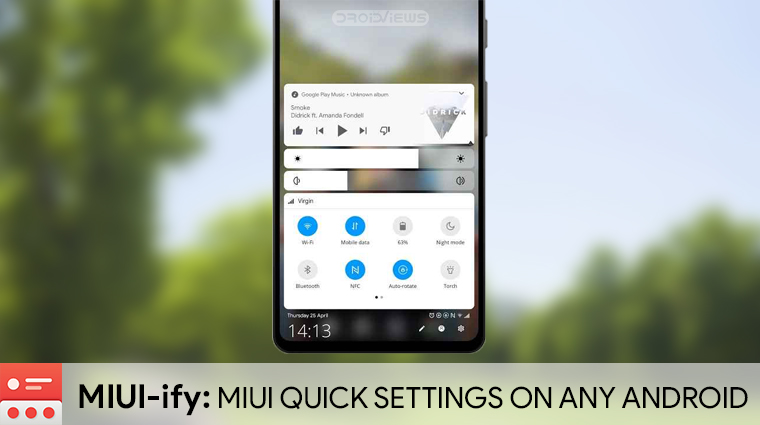
Xiaomi’s MIUI has always been more like iOS and less like Android. Some people dig that while some hate that. Count me in the former camp but with MIUI 10, Xiaomi picked up a bit more of the iOS design. The MIUI quick settings and notification panel are not an exact copy of the new iOS Control Center but they are quite inspired by it.
It’s less practical in day to day use because the clock takes up so much vertical space it pushes everything further down. Even on phones with tall displays, you can’t see all your notifications at once sometimes because of that. Other than that, it does look beautiful. So it is understandable if someone would like to have that on their Android, without the rest of MIUI.
MIUI-ify – Notification Shade
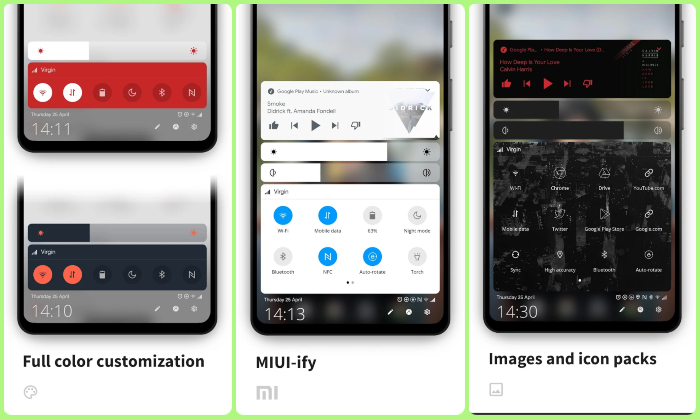
MIUI-ify – Notification Shade that gives you just that. Even better, it lets you customize the MIUI style quick settings and notification panel in ways that MIUI wouldn’t let you. Also, instead of swiping up from the top, it brings the MIUI quick settings and notification panel at the bottom. Meaning you’ll have to swipe up from the bottom.
It’s similar to another app called Bottom Quick Settings.
Features
- Notification Shade
- Control all notifications
- Reply, open, dismiss, interact and manage
- Full-color customization
- Dynamic colors
- Bottom Status bar
- Move your device’s status bar to the bottom of the screen
- Full support for notification and system setting icons
- Full-color personalization
- Blacklist: hide the status bar in specific apps
- Quick settings tiles
- 40+ different settings
- Add any app or URL as a shortcut in the panel
- Layout: Change the number of tile rows and columns
- Sliders: Screen brightness, ringtone, alarm, notifications, and media volume
- MIUI 10 themed
- Handle trigger area
- Customizable position and size so it doesn’t interfere with navigation gestures
- Options to hide in landscape and fullscreen
- Blacklist: hide the handle trigger in specific apps
- Other customizations
- Blur the background
- Change the colors of the panel background and the quick setting icons
- Add a background image to the panel
- Select an app icon pack
- Match the navigation bar color to the footer color
- Dark mode
- Integration with Tasker
- Backup/Restore
- Backup and Restore your customizations
- Extra features (Require Root/ADB)
- Ability to toggle secure system settings such as Mobile Data and Location. These settings can only be toggled with root or a one time ADB command, due to Android’s security restrictions
Don’t Miss: How to Get MIUI’s Quick Ball Navigation on Any Android
Enable MIUI Quick settings and Notification panel
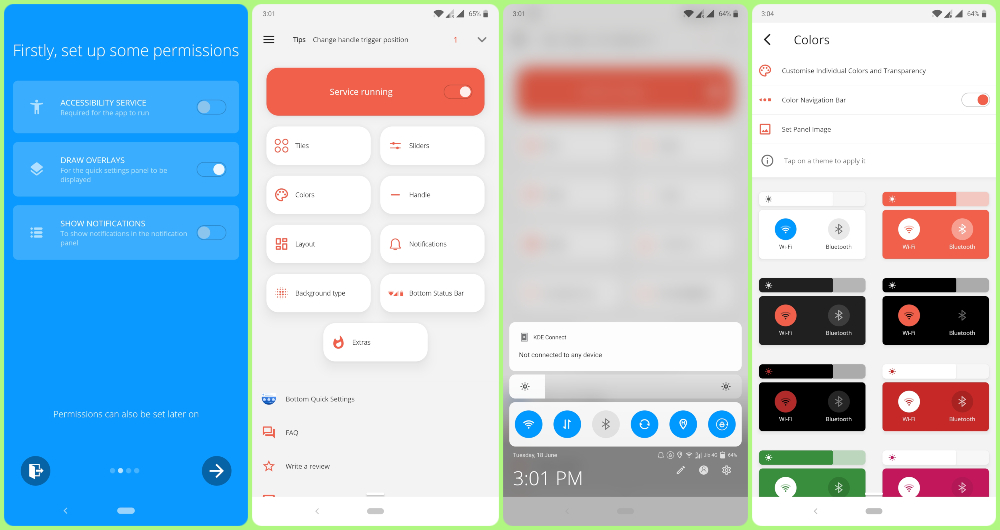
When you launch the app, you’ll need to grant some necessary permissions as shown in the first (from left) screenshot above. Once that is done, you can simply toggle the service on. It’s the very first and only toggle on the main screen, hard to miss. Once enabled, you’ll notice a small indicator at the bottom of your screen. You can swipe up from it to bring up the quick settings.
There are a ton of settings that you can change here as listed in the Features section. From the height and width of the trigger area to the color of the quick settings panel and icons. If you’ve enabled the Extra features using root or ADB, you can even bring the status bar down. However, this may leave a black bar at the top which is not quite pretty.
Enable Extra features (Optional)
If your device is not rooted, you just have to connect your phone to the computer and use ADB. For that, you’ll have to turn on Developer options & USB debugging. Next, connect it to a PC. You’ll need Android SDK platform-tools in order to use ADB.
With your phone connected, launch the command prompt (or terminal if you’re using macOS or Linux). Use the command given below to make sure the connection is proper.
adb devices
The above command should return your phone’s serial number. If it does, you can grant the required permissions by executing the command given below.
adb -d shell pm grant com.tombayley.miui android.permission.WRITE_SECURE_SETTINGS
Once you do that, you should have all the extra features enabled in the app.
Read Next: 25 Hidden Android Tricks, Settings You Must Check Out



Join The Discussion: