Every smartphone comes with its own sound picker for ringtones and notifications. While this is an easy way of accessing the pre-loaded sounds, it’s also quite limiting. Knowing this, Google has decided to upgrade the experience on its own Pixel devices by releasing the second version of the system sound picker. Luckily, even though it’s not supposed to be compatible with other devices, there’s an easy workaround for the problem. Here is how you can install Google Sounds 2 APK on your smartphone running Android Pie.
What is Google Sounds?
Google Sounds is the sound picker we’ve been using on stock android and custom ROMs for several years. It allows you to access the library stored in your system, or use a custom track instead. The problem is that not everyone wants to use a song as a ringtone, and having more default options is always nice.
Now, thanks to its second version, the app feels much more complete and offers more flexibility. Google Sounds 2 comes with a completely redesigned interface, which now looks more like Google Wallpapers. When you launch it, you can see 6 categories of sounds, including the “My Sounds” one for your personal ones. Moreover, at the top of the screen, you can find an animated visualizer to make the experience just a bit more enjoyable.
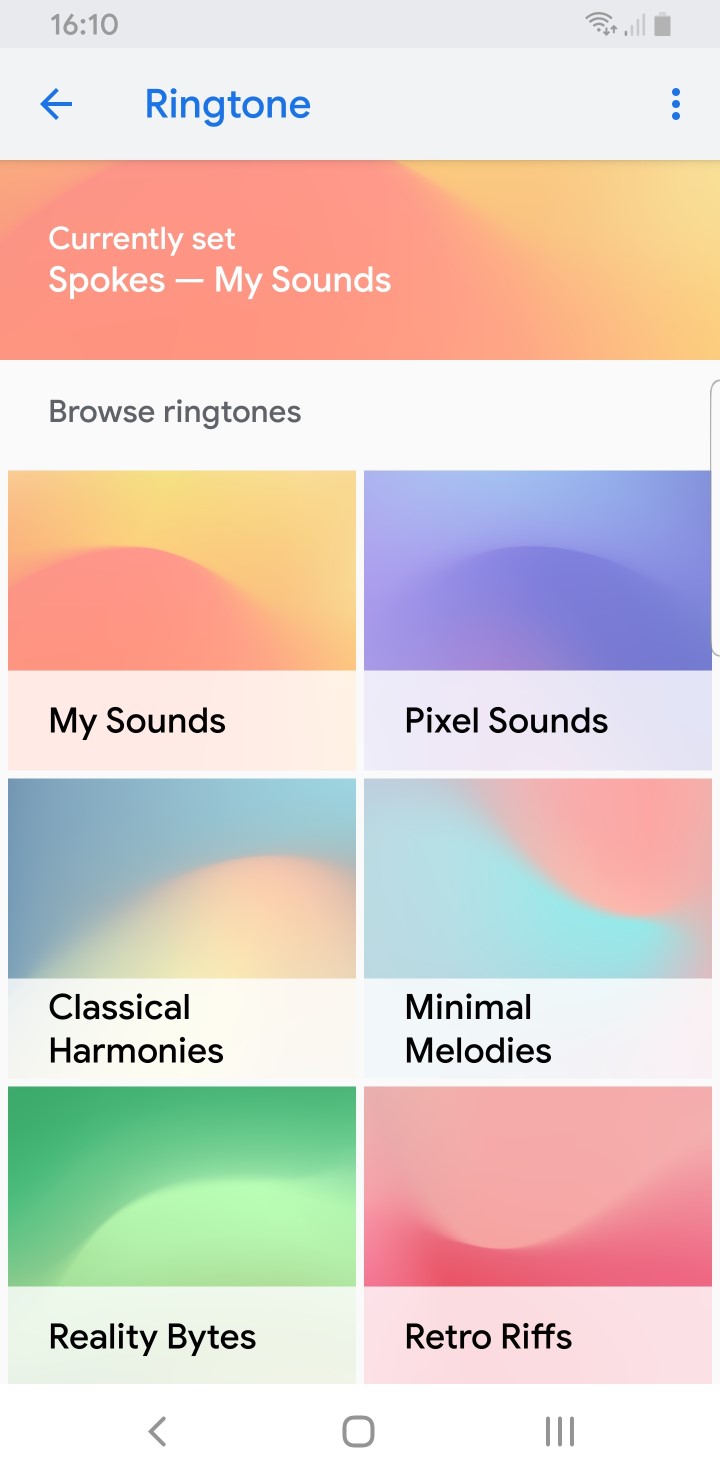
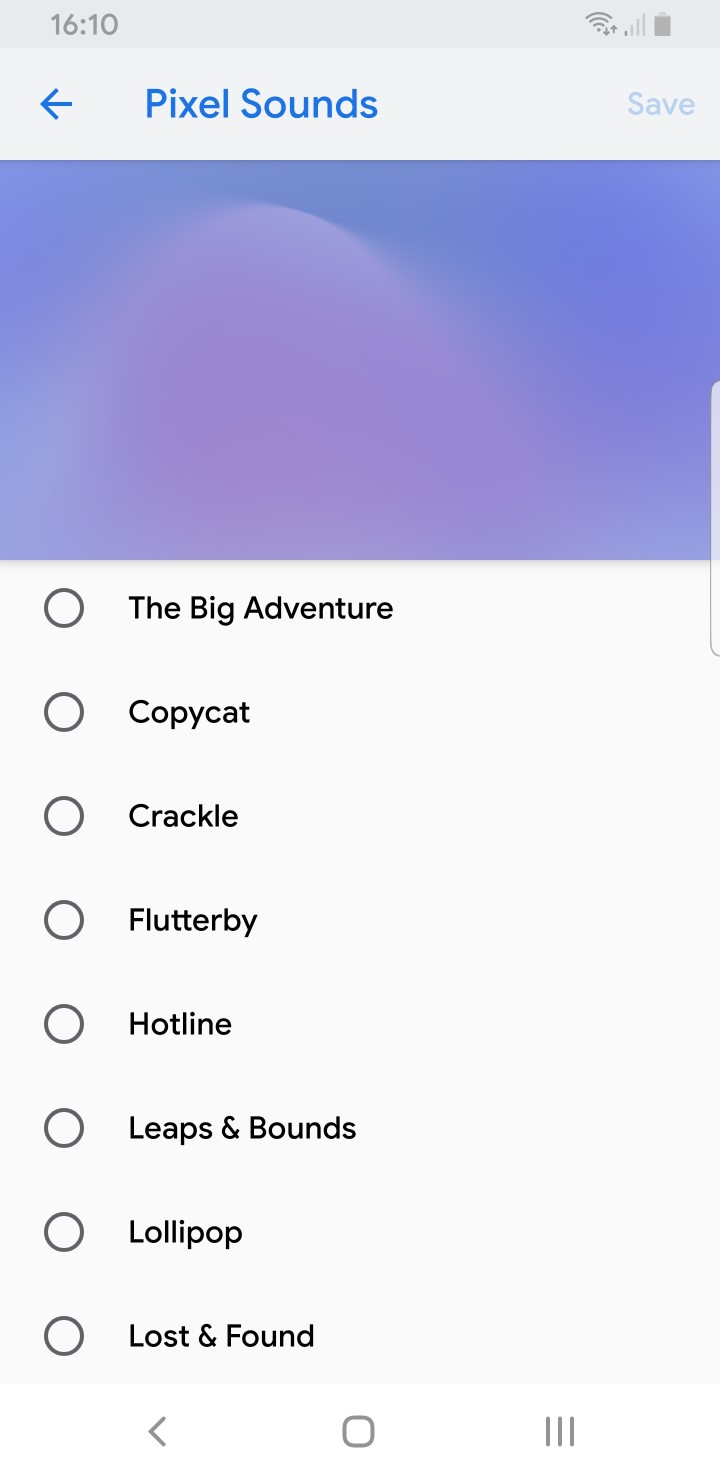
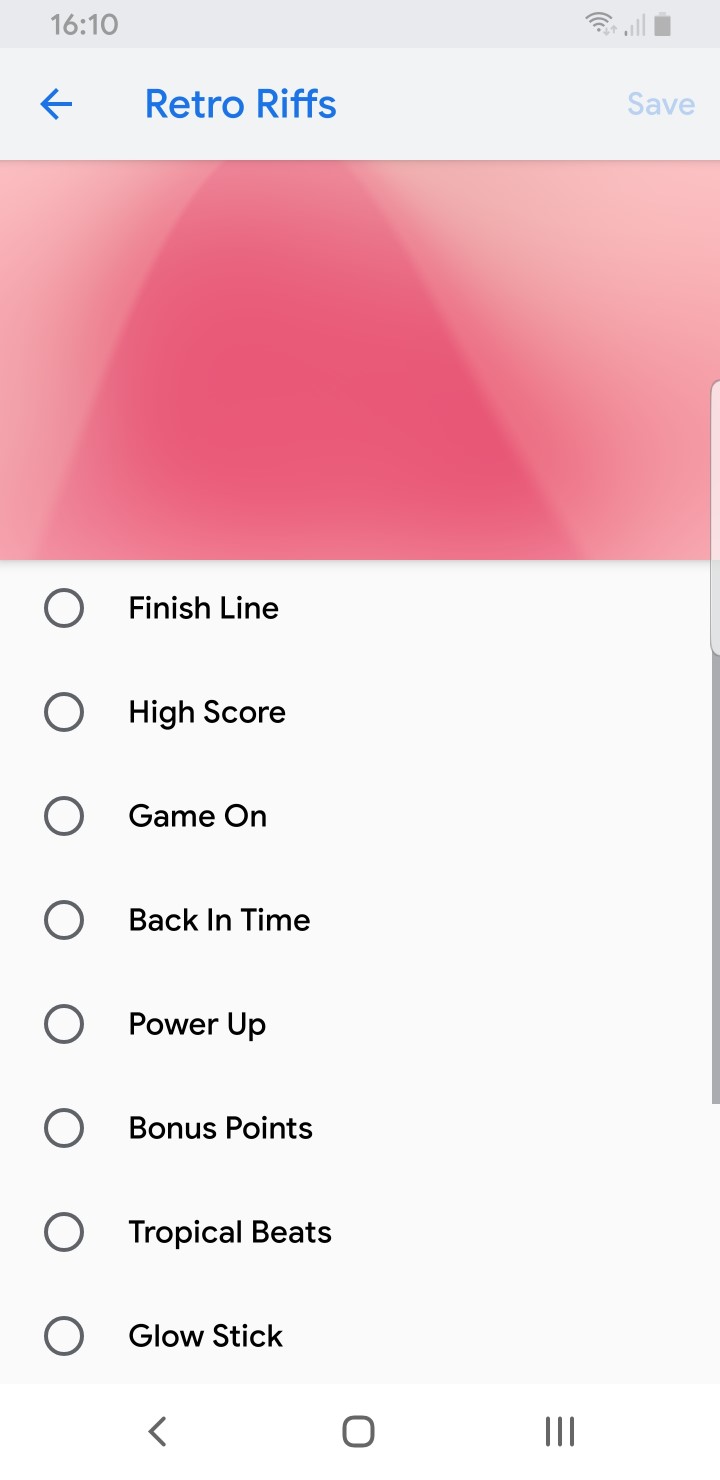
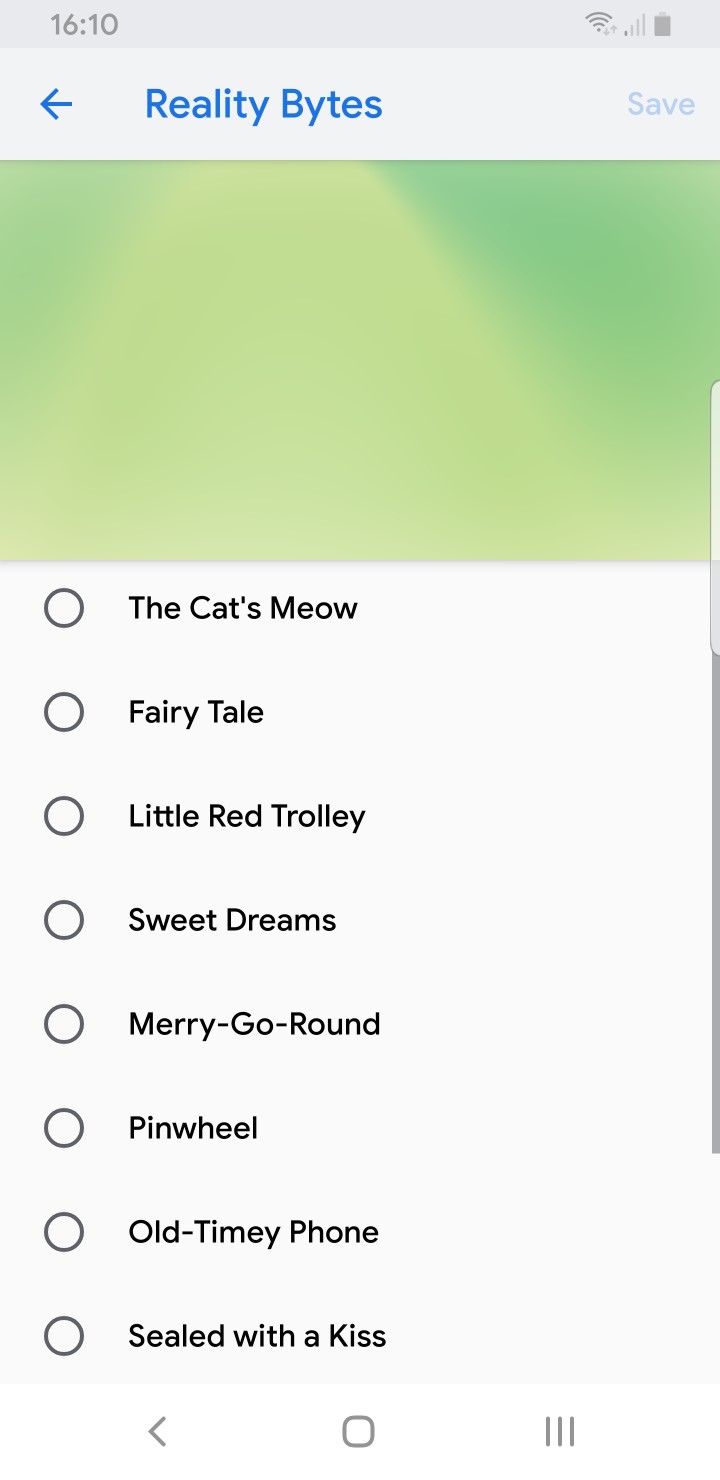
The app doesn’t take up space in your app drawer: instead, you can launch it directly from the sound settings. This also allows the app to recognize which sound you’re changing, and will only show the appropriate ones. In other words, the app will either show ringtones or notification sounds, without mixing them up. Now let’s see how you can install Google Sounds 2 on your personal device!
Don’t Miss: 7 Best Android Auto Alternatives to Use in Your Car
Requirements
As we have mentioned in the introduction, Google Sounds 2 is meant to be used on Pixel devices. More specifically, it looks like Google has only released it only for Pixel 3 and Pixel 3XL at the moment. However, this being a free app, the Android Police team has promptly shared the APK for anyone to download. By trying it on other devices, we have discovered that it’s not actually restricted to Google’s own smartphones. In fact, it seems that the only real requirement is having Android 9.0 Pie.
Download & Install Google Sounds 2 APK
You can install Google Sounds 2 very easily, but there’s a couple of extra steps needed in order to get it working. First of all, we’re going to download the APK through APK Mirror. For those who don’t know it, this portal is managed by Android Police, and all downloadable files are verified in order to ensure maximum safety. You can find the latest version here:
Then, we can proceed with installing it on our device. Keep in mind that, for safety reasons, your device may block the APK if it doesn’t trust the source. Since we know it’s a reliable one, we can allow unknown sources for the browser we have used to download the app. You may notice that the app won’t ask for any permissions during the installation, and that’s the reason why it wouldn’t work right away. In fact, Google Sounds 2 cannot function without access to the storage, so we’re now going to fix that.
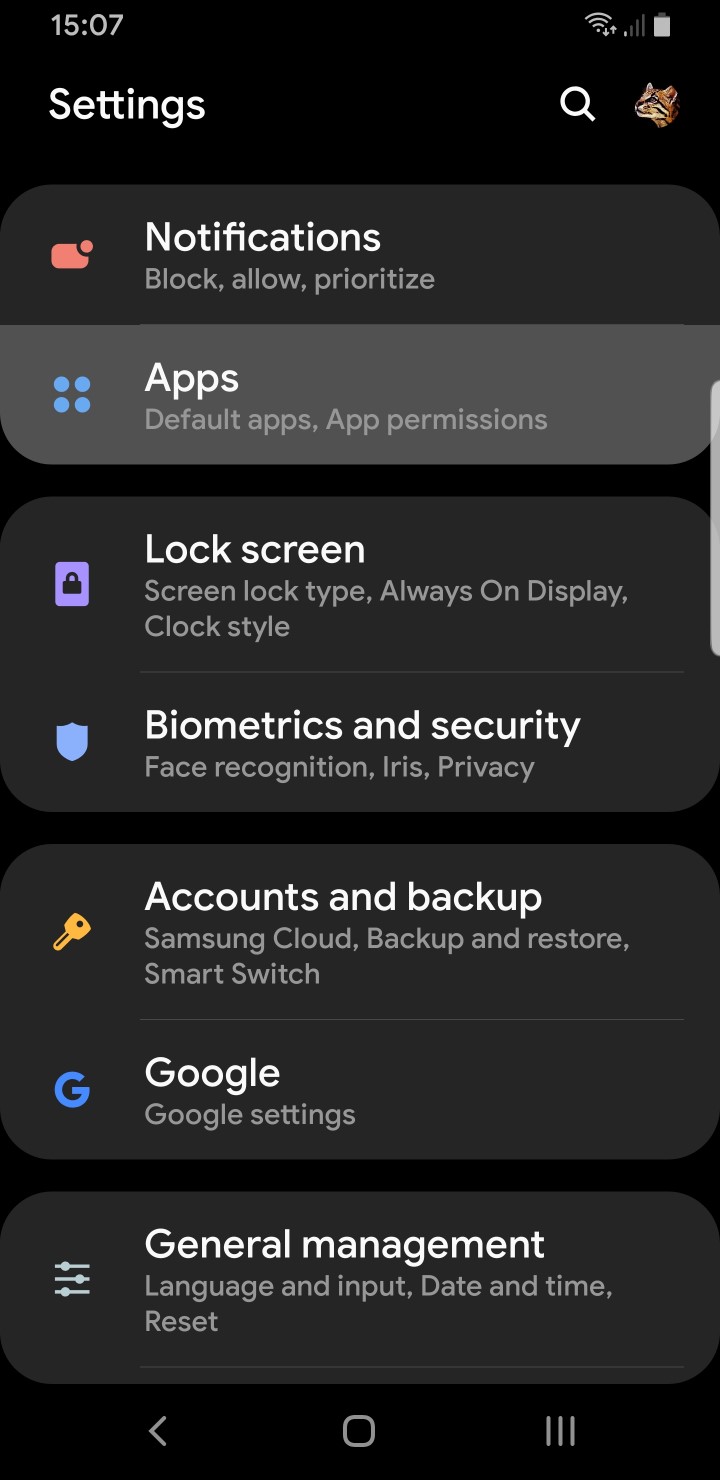
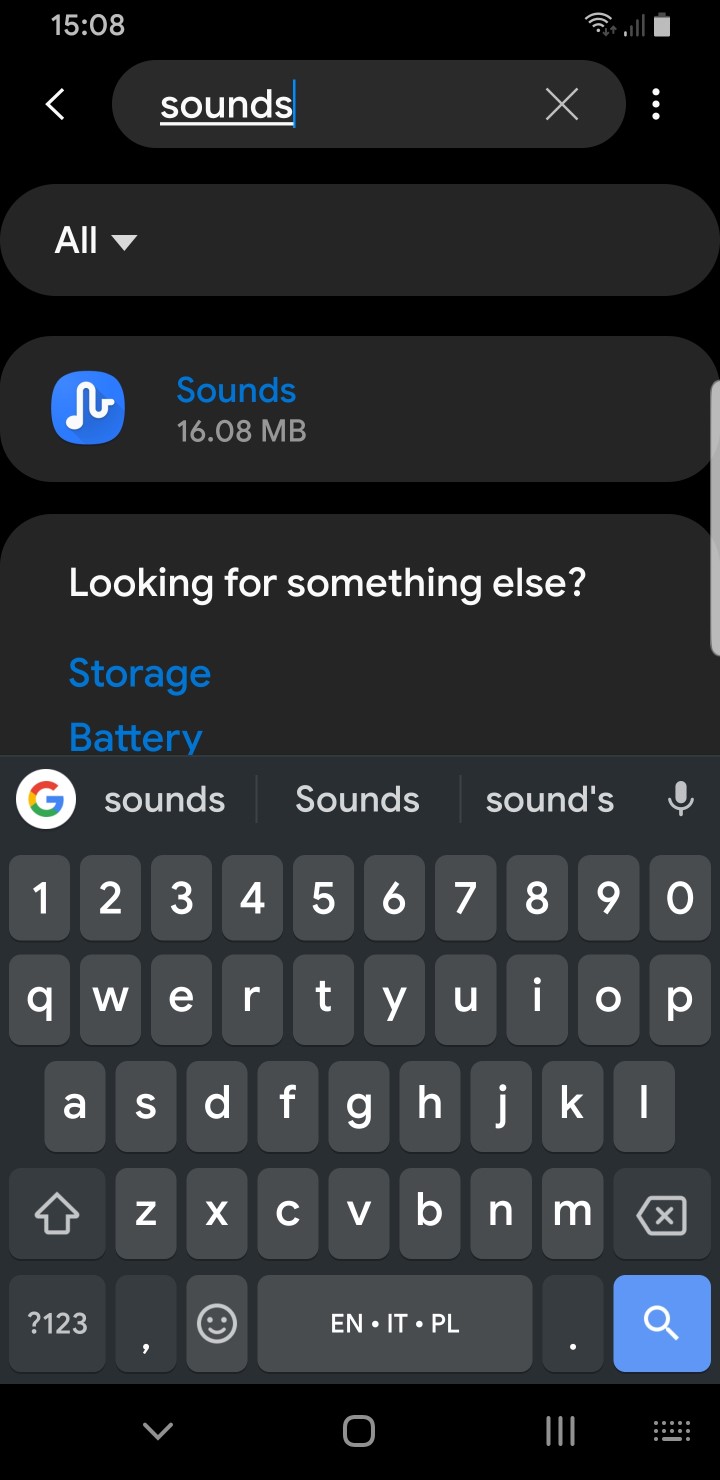
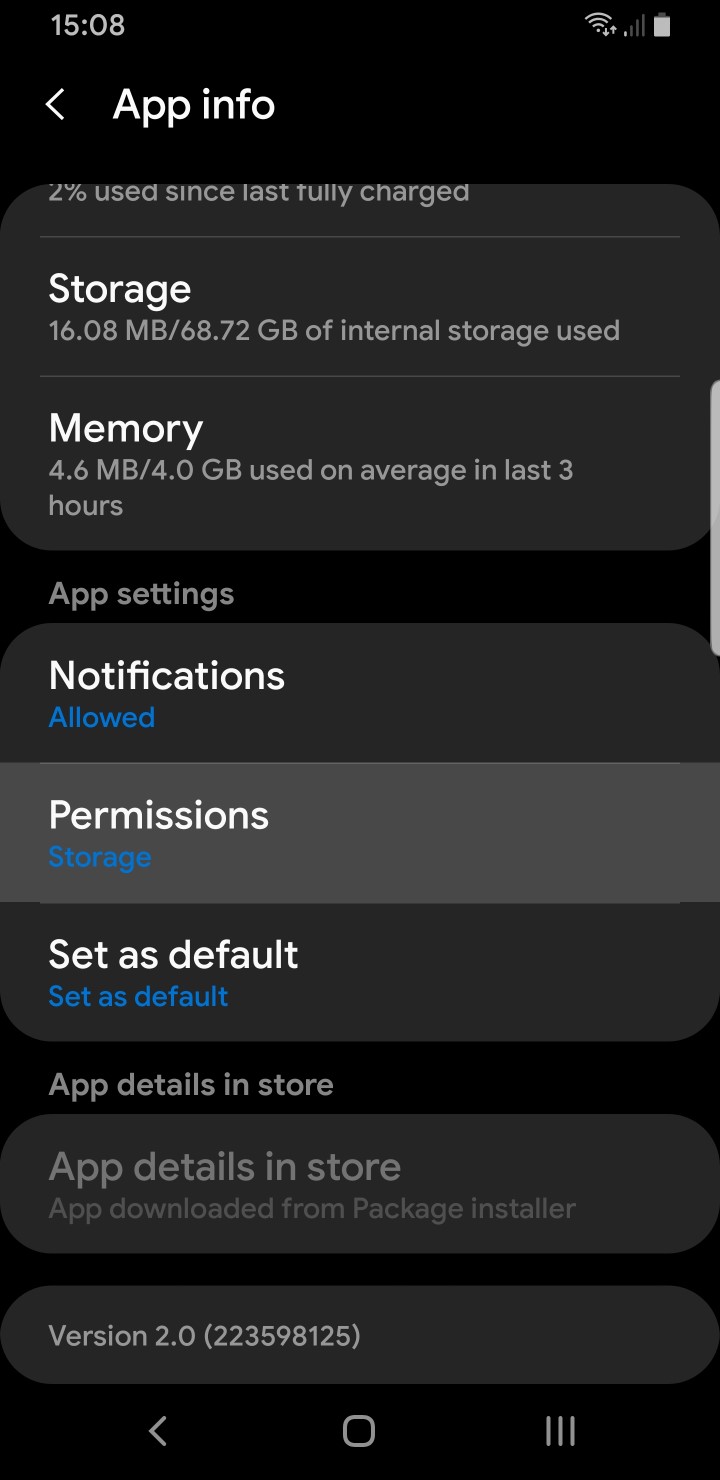
In order to grant permission, you have to open the settings menu and go into the apps section. Then, search for Google Sounds 2, which will appear as “Sounds“. When you open the app info, you should see a Permissions section, inside of which you’ll find the storage one. Once you grant it, the app will be able to run just fine.
Must Read: Customize Telegram X with Telegram Theme Creator
How to Access Google Sounds 2
After you install Google Sounds 2 and grant the storage permission, the last step consists of actually launching it. The easiest way is going into your sound settings and clicking on the ringtone option. You should get a prompt to choose the default app, which is where you’ll be able to select the new one. If you manage to do this, then you’re ready to go.
Otherwise, you’ll need to create a desktop shortcut to access Google Sounds 2. Custom launchers generally allow doing that through a widget called Activities or Shortcuts. Creating this widget will bring you to a list, from which you’ll need to pick the Google Sounds one. As a result, you’ll get the app directly on your home screen.
Read Next: How to Manage and Merge Duplicate Contacts on Android


Join The Discussion: